
.webp)
Troubleshooting CRM Form Submission Errors



A broken CRM form can cost you leads the same day. If your sync success rate drops below 97% or lead data takes more than 5 minutes to appear, I’d treat it like a pipeline issue, not a minor bug.
Here’s the short version: I’d check the problem in 4 layers - the form, CRM rules, the integration path, and the network/API. Most failures come from a small set of issues: required-field mismatches, bad field mapping, duplicate-rule blocks, expired tokens, permissions, rate limits, or timeouts.
If I needed a fast checklist, I’d use this:
- Start with the form: look for missing required fields, bad formats, hidden-field gaps, and browser/script errors
- Then check the CRM: review mappings, validation rules, duplicate rules, and field permissions
- Then inspect the handoff: logs, webhooks, middleware steps, API responses, and endpoint settings
- Then harden the flow: retries for
429and5xx, idempotency keys, stored payloads, and alerts - Then watch the trend: failed submission rate, recovered leads, duplicate rejection rate, and sync delay over the last 30 days
A few signs often show up early:
- Lead volume drops after a site change
- Users see a success message, but no record appears in the CRM
- Sales reps keep finding missing fields like phone, state, or budget
- Error spikes happen during traffic surges
I’d also keep ownership clear:
- Marketing Ops: form setup and error messages
- Sales Ops / CRM Admin: field rules and duplicate handling
- Engineering: API, logs, retries, and alerts
This article lays out that process in order, so you can find the break point, fix it, and keep it from happening again.
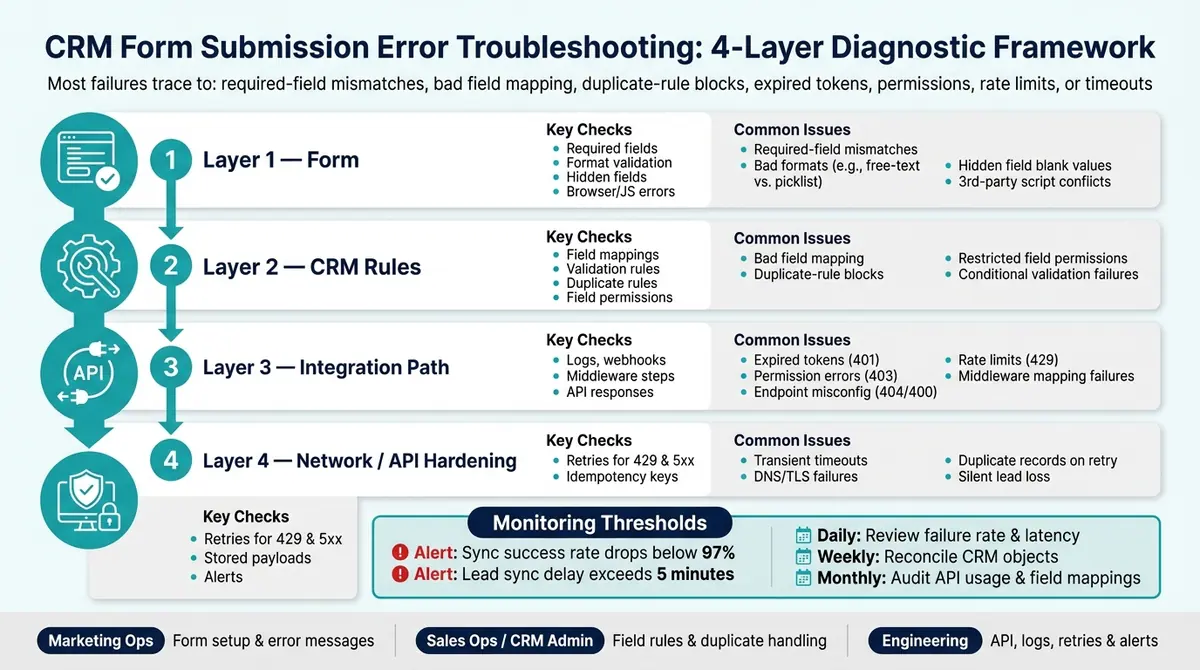
CRM Form Submission Error Troubleshooting: 4-Layer Diagnostic Framework
Start by diagnosing form validation and user input problems
If the CRM never gets the record, start with the form. When a submission fails before the CRM even sees it, validation and input rules are usually where things go off the rails. Fix these first, and you can avoid wasting time digging through CRM settings or integration logs.
Fix required-field mismatches and format errors
Start with a field mapping sheet. This is a simple document that lists each form field next to its matching CRM field, data type, and validation rules. Then compare the form against the CRM’s required fields for lead or contact records. In many cases, that includes first name, last name, email, company, and country. Make sure each field exists on the form, is marked required on both sides, and uses a format the CRM will accept.
Format mismatches are one of the most common reasons submissions fail with no clear warning. Say your CRM expects Country as a picklist with the value United States, but your form allows free-text input. A person who types USA or U.S. may trigger validation failure or create a messy record.
Length limits can cause the same kind of issue. If a text area on the form allows more characters than the CRM field can store, the write can fail. A common example is a submission that goes past a 255-character limit.
Hidden fields deserve a close look too. Teams often use them for lead source or UTM values, and those fields may be filling required CRM rules behind the scenes. If one of those hidden fields sends a blank value because a tracking parameter wasn’t present in the URL, the CRM may reject the whole submission.
If the form passes validation and still doesn’t work, the next place to check is the browser and script layer.
Check browser errors, scripts, and weak error messages
Open Chrome DevTools and look at the Console and Network tabs while you submit the form. Check for JavaScript errors, and make sure the submit request actually goes out. If you see a 4xx or 5xx status code, that usually points to a request issue or a server-side failure.
It also helps to test the form on a clean page with no analytics, chat, or testing scripts. If the form works there but fails on the live page, there’s a good chance a third-party script is getting in the way. Add those scripts back one by one until the problem shows up again.
For embedded forms, check for iframe sandbox restrictions or Content Security Policy violations. Those can block form submission without showing any clear message to the user, which makes the problem easy to miss.
Bad error messages make debugging harder than it needs to be. Instead of vague banners, show field-level help right next to the input.
please enter a valid business email (e.g., name@company.com)
Show validation on blur so people see problems before they click Submit. And keep the data they already entered. Nobody wants to refill an entire form because one field failed.
Use no-code validation and spam controls to cut bad submissions
Once your form rules line up with the CRM, put guardrails in place to stop bad data before it gets through. Any time a CRM field becomes required or a picklist value changes, the form should change too. Update required fields, validation rules, conditional logic, and error copy in the form builder so the client-side rules stay in sync with CRM requirements.
Spam is a separate problem, and it can do real damage. Fake emails, nonsense company names, and bot submissions can set off automated workflows, skew conversion metrics, and dump cleanup work on your team later. Reform's built-in email validation and spam prevention let teams block disposable domains, stop suspicious patterns, and require business-email-only validation at the form layer before bad data hits the CRM.
Fix CRM-side field mapping, required-field, and duplicate-rule failures
If the form passes validation but the record never shows up in the CRM, the issue is often in the CRM layer. The form sends the submission, but the CRM blocks it before it turns into a lead or contact.
Audit field mappings between the form and CRM objects
Open your integration settings and check each field pair. Make sure the CRM object, data type, and expected format line up on both sides. Pay close attention to email, picklists, dates, and currency fields.
Also review restricted fields like Record Owner, lifecycle stage, and lead source. These fields can fail quietly if the integration user doesn't have permission to set them. In that case, the CRM may wipe the value or reject the record outright.
Review duplicate management and validation rules
Duplicate rules can stop record creation when an incoming lead matches an existing contact or account. This happens a lot with repeat submissions. If the same person may submit the form more than once, use an update-or-create flow instead of a create-only flow. Match on email or another stable identifier, and confirm that the integration user has both Create and Edit access.
Custom validation rules can also block the record. One rule may require a field only in certain cases. Another may reject the record when a consent field is blank. The simplest way to track this down is to test one field change at a time. That makes it much easier to spot which rule is causing the failure.
If your CRM allows rule exceptions, set up the integration user or form source to pass those exceptions when that makes sense.
Use conditional routing and enrichment before data reaches the CRM
Conditional routing and enrichment can clean up the submission before the CRM touches it. That may mean normalizing values, filling required fields, or sending records to the right object or path based on the data provided.
Cleaner submissions are less likely to get blocked by duplicate rules or validation checks in the CRM.
If the record still fails, move to the next layer and review API logs, credentials, endpoints, and rate limits.
sbb-itb-5f36581
Handle API, authentication, and network errors with a repeatable workflow
If the form and CRM checks pass, the next place to look is the API, auth, or network layer. At that point, the issue usually sits somewhere along the handoff between the form, middleware, and CRM.
Read logs and isolate the exact point of failure
Follow the submission from the form logs to webhook history, middleware logs, and CRM API logs. Use the same submission ID in every system so the trail stays lined up.
| Error type | Symptom | Likely cause | Primary owner |
|---|---|---|---|
| Authentication (401) | All submissions fail at once after previously working | Expired token or revoked key | Integration engineer / CRM admin |
| Permission (403) | Some objects or fields fail while others succeed | Integration user lacks permission on a specific object or field | CRM admin |
| Endpoint misconfiguration (404/400) | 404 or 400 errors from the CRM endpoint | Wrong URL, outdated API version, or wrong method | Integration engineer |
| Rate limit / throttling (429) | Errors spike during traffic spikes | CRM API request limit exceeded | Integration engineer / CRM admin |
| Middleware mapping failure | Errors only on certain records or after a field change | Missing mapping, type mismatch, or null value in transformation | Middleware / integration owner |
| Network timeout | Intermittent failures; retries sometimes succeed | Latency, DNS/TLS failure, or slow CRM response | DevOps / infrastructure |
| Server error (5xx) | CRM or middleware returns 500, 502, or 503 repeatedly | Temporary outage | Vendor support / DevOps |
This step matters because a 401, 403, and 429 can all look like “the integration broke,” but they point to very different fixes.
Verify credentials, permissions, endpoints, and rate limits
OAuth tokens can expire fast, so set up automatic token refresh and log refresh failures clearly.
For authorization errors, audit the integration user. A dedicated service account helps a lot here. If someone changes a personal password or role, you don’t want the whole form-to-CRM flow to fall over. Check that the account has read and write access to every CRM object and field the form touches, including custom objects and managed package fields.
With endpoint errors, double-check the basics first:
- The URL
- The API version
- The HTTP method
- Any required headers
A small mismatch here can trigger a 400 or 404 and waste hours.
For rate limits, review your CRM docs for per-minute, per-hour, and per-day request caps. When you get a 429, use exponential backoff: wait 1 second, then 2, then 4, up to a set ceiling. That keeps a traffic spike from snowballing into a pile of failed submissions. If you’re running high-volume campaigns, a request queue that paces CRM writes is usually more dependable than synchronous per-submission API calls.
Add retries, alerts, and recovery steps for transient failures
Once you know which layer is failing, harden it for temporary issues.
Retry only transient errors: 5xx responses, timeouts, DNS failures, and 429s. Don’t retry 400 or 403 errors. Those won’t fix themselves, and repeated attempts just add noise. Keep retries limited and inside a bounded retry window.
To prevent duplicate records during retries, send a stable idempotency key with each request, such as the submission ID. That gives the CRM a way to spot repeated writes instead of treating them like brand-new records.
If retries run out, don’t let the submission disappear without a trace. Store the full payload and submission ID in a durable location, then alert the team that owns the fix so the record can be replayed after the issue is cleared. Reform's real-time analytics and submission tracking surface failure spikes early, so teams can replay failed records before lead loss grows.
Monitor error trends and prevent repeat failures
Once the fix is live, keep watching. The goal isn't just to solve today's problem. It's to make sure the same error doesn't block leads again before anyone notices.
Track the metrics that show whether fixes are working
Track the numbers that tell you if the fix held up over the last 30 days:
- Failed submission rate
- Recovered leads
- Time to resolution
- Duplicate rejection rate
- Sync latency
Break each metric out by layer. That way, you can see where the issue starts: the form, CRM rules, the API, or the sync path. Recovered leads means records that were restored after a fix or a manual replay.
Set alerts for two cases:
- Any 24-hour sync success rate below 97%
- Any real-time delay above 5 minutes
Use the dashboard below to separate form problems from CRM or integration problems.
| Monitoring method | Insight provided | Owner |
|---|---|---|
| Form analytics dashboard | Failed submission rate trends, field abandonment, browser/device issues | Marketing Ops |
| CRM submission and lead creation reports | Duplicate rejections, validation-rule blocks, records created vs. attempted | Sales Ops / CRM Admin |
| API and integration logs | Authentication errors, rate-limit hits, exact failure points | Engineering |
| Sync delay dashboard | Time between form submission and CRM record creation; latency spikes | Engineering / Integration Team |
| Ticketing system reports | Average time to resolution; recurring error categories | Engineering / RevOps |
Review failure rate and latency every day. Reconcile key CRM objects every week. Audit API usage and field mappings every month.
A sudden jump in failed submissions on a high-value form isn't just a bug. It's a revenue problem, and it needs that level of attention.
Standardize field changes, documentation, and ownership
When errors keep coming back, field changes are often the hidden reason. A lot of repeat issues trace back to field or validation updates that no one logged.
Use a shared data dictionary that lists each CRM field's API name, label, data type, allowed values, and dependent forms, campaigns, and integrations.
Field names matter more than people think. Clear naming makes mapping and maintenance much easier. Before launch, document every new field, confirm the right CRM object, and test with both valid and invalid data.
Ownership should be plain:
- Marketing Ops owns form setup and error messaging
- Sales Ops owns CRM field definitions and duplicate rules
- Engineering owns API connections and monitoring
Conclusion: A clear process for faster CRM form error resolution
Use the same sequence every time: check the form, verify CRM rules, inspect integration logs, then monitor for regressions. That process leads to fewer lost leads, cleaner CRM data, and less manual recovery.
Reform's built-in real-time analytics, email validation, and spam prevention cut down the number of bad submissions that reach the CRM in the first place. That means less cleanup later. With monitoring, documentation, and clear ownership in place, most submission errors can be prevented.
FAQs
Why do CRM form submissions fail silently?
CRM form submissions can fail silently when a system says the transmission worked, but the data never gets saved.
This usually happens in a few familiar ways. A webhook fires, yet nothing happens on the receiving end. An API endpoint returns a success status even though an internal validation check blocks the record from being stored. And in some cases, authentication or signature verification problems lead to vague errors - or worse, no logs at all.
That gap between “sent” and “saved” is where teams get burned. Everything looks fine on the surface, but the submission never makes it into the CRM.
Which errors should be retried automatically?
Retry errors that come from temporary network problems or server-side outages automatically.
But don’t retry permanent validation failures, like field mapping errors, wrong authentication credentials, or data that breaks CRM-side custom rules. Those need manual fixes.
How can I prevent duplicate leads from form retries?
To stop duplicate leads caused by form retries, use deduplication in your CRM integration. The key is to map your fields with care and choose a unique identifier such as an email address. That way, your CRM can spot an existing record instead of creating a second copy.
If you use Reform, its integration features can help process repeat submissions the right way. Advanced spam filters can also keep your lead list cleaner, so your team spends more time on real prospects and less time sorting through junk.
Related Blog Posts
Get new content delivered straight to your inbox

The Response
Updates on the Reform platform, insights on optimizing conversion rates, and tips to craft forms that convert.




Drive real results with form optimizations
Tested across hundreds of experiments, our strategies deliver a 215% lift in qualified leads for B2B and SaaS companies.
