
.webp)
10 Field Mapping Rules for CRM-Email Sync



Bad field mapping can break automations, corrupt consent data, and skew reporting. In this guide, I’d boil the fix down to 10 rules: name fields clearly, match field types, set one source of truth, map only the fields that matter, standardize picklists, define blank-value rules, set sync direction, apply validation, keep one mapping doc, and test in stages.
A few numbers make the risk plain: 30% of automation failures come from data hygiene issues, and 68% of SMBs report broken automations within a year due to field drift and missed audits. So before I turn any CRM-email sync on, I want each field to have a clear owner, a sync rule, a format rule, and a business use.
Here’s the short version:
- Use one naming pattern so teams don’t confuse similar fields
- Match field types and formats like dates, phone numbers, and booleans
- Set one system to win conflicts for each field
- Sync only high-use fields first for routing, segmentation, reporting, and consent
- Lock picklist values so stages and sources stay clean
- Protect against blank overwrites on important fields
- Choose one-way, two-way, or event-based sync field by field
- Validate inputs before sync to stop bad records early
- Keep one live mapping sheet with owners, rules, and failure alerts
- Test with small batches first and watch logs before full rollout
| Rule | What I’d focus on |
|---|---|
| 1. Naming | Clear, consistent field names |
| 2. Type matching | Same data type and format in both systems |
| 3. Master schema | One approved list of core contact fields |
| 4. High-value fields only | Start with fields tied to decisions |
| 5. Picklists | One approved value set |
| 6. Null and blank rules | Don’t wipe out good data by accident |
| 7. Sync direction | Define how each field moves |
| 8. Validation | Block bad formats and bad values |
| 9. Mapping doc | Keep one shared record of the rules |
| 10. Testing and monitoring | Roll out in steps and check sync health |
If you want stable CRM-email sync, this is the checklist I’d set before launch, not after problems start.
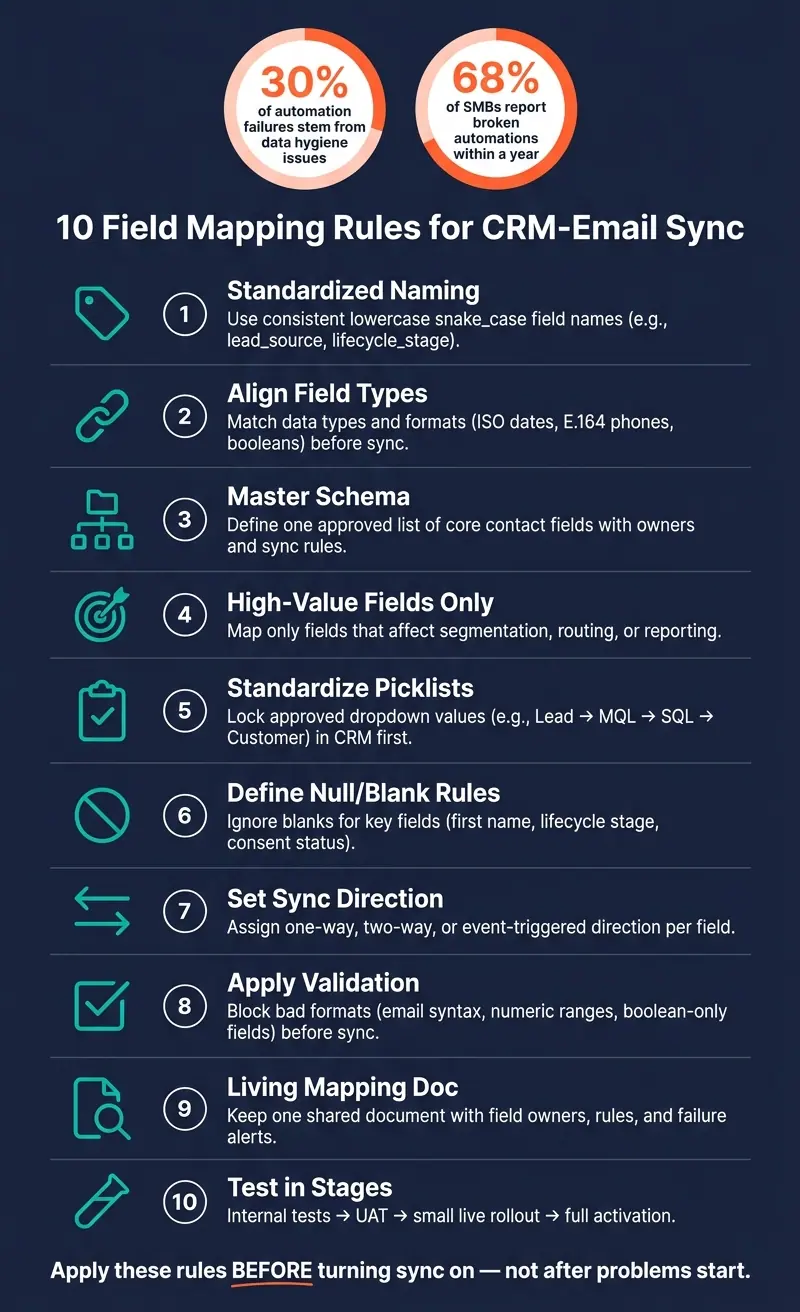
10 CRM-Email Field Mapping Rules: A Visual Checklist
Custom Fields 101 - How to Structure Your CRM Data the Right Way
sbb-itb-5f36581
Why Field Mapping Rules Matter Before You Turn Sync On
Rushed mapping choices are a pain to undo later. If you don't have a canonical schema - one shared definition for what each field means, where it lives, and which system owns it - two-way sync can go sideways fast. Your CRM and email platform can start overwriting each other with old data, and that’s when things get messy. Each field needs one clear source of truth that wins when values clash.
The numbers back this up. Research shows 30% of automation failures come from data hygiene problems, and 68% of SMBs report broken automations within a year because of field drift and missing regular audits.
Before you map any field, write down these four things:
| Mapping Component | Purpose |
|---|---|
| Source of Truth | Defines which system has final authority when values conflict |
| Sync Direction | Specifies one-way, two-way, or event-triggered movement |
| Validation Rules | Sets accepted formats and required values to prevent sync rejection |
| Business Meaning | Documents what the field actually controls - routing, segmentation, scoring |
Think of these four pieces as your guardrails. They help stop sync drift before it snowballs into broken workflows, bad segmentation, or lead records no one trusts. Start with Rule 1: use a standardized naming convention.
1. Use a Standardized Naming Convention
Field Purpose
A field name should show what the field is for, not just what it holds. preferred_contact_channel tells you a lot more than channel. You can look at it and know the job of the field right away.
That matters even more when more than one team uses the same mapping sheet. Vague names can lead to confusion, duplicate fields, and mapping errors. This shows up fast with fields that sound close but mean different things, like lead_status, customer_status, and subscription_status.
Use one format across both systems. A common choice is lowercase snake_case with approved prefixes. For example, contact_first_name, lead_source, and lifecycle_stage. When names follow the same pattern, onboarding gets easier, docs are simpler to read, and troubleshooting takes less time. Clear names also cut down on mapping mistakes before validation and direction rules even enter the picture.
The next check is type compatibility.
Data Type Compatibility
Your naming convention should also hint at field type. That way, mismatches are easier to catch before sync starts.
| Suffix Pattern | Expected Data Type | Example Field Name |
|---|---|---|
_date |
Date | last_purchase_date |
_count |
Numeric | email_open_count |
_opt_in |
Boolean | email_opt_in |
_status |
Picklist / controlled text | subscription_status |
_score |
Numeric | engagement_score |
Once names are standardized, type mismatches become much easier to spot.
If a field name doesn't make the meaning clear, don't sync it. Rename it, document it, then map it.
After naming, match field types before you turn sync on.
2. Align Field Types Between Systems
Data Type Compatibility
A field name only helps if both systems store the same type of data in the same format.
Here’s the catch: a sync can finish with no errors and still pass data that no one can use. Say one system stores phone numbers as free text, but the other expects E.164 format. The value may move from one system to the other, yet still break things later in the process.
That’s why it helps to standardize key formats before sync starts. Add validation on your lead capture form, especially for fields tied to segmentation, routing, or reporting. If you need help setting up these workflows, you can optimize lead generation with expert strategies. Use ISO date format for dates and E.164 for phone numbers.
Source of Truth
Once formats line up, the next step is simple: decide which system wins when a value changes.
For shared fields, assign one owner and one write rule. Each field should have just one write rule:
| Update Behavior | Best Use Case |
|---|---|
| Always Overwrite | Dynamic data like lead score or last login date |
| Only if Blank | Fixed data like original source or first conversion |
| Two-Way Sync | Shared data like phone number or job title |
| One-Way (Read Only) | Read-only verified data |
Record each field’s owner, format, sync rule, validation rule, and business meaning in the mapping sheet.
3. Build a Master Schema for Core Contact Data
Before you map fields, set up a master schema for every shared contact field: the field name, what it means, who owns it, and how it syncs. This schema acts as the control point for every mapping rule that comes later. Once you have it in place, field decisions get much faster and far less messy.
Field Purpose
Start with the identity and contact fields that are most likely to show up in both systems:
| Field Category | Core Fields | Field Purpose |
|---|---|---|
| Identity | First Name, Last Name | Personalization |
| Identity | Record matching and deduping | |
| Contact | Phone, Company, Job Title | Segmentation and routing |
Schema Structure
For each field, assign an owner right in the schema and use that owner to settle conflicts. In this setup, the CRM owns identity fields and overwrites stale values in the email platform.
Keep the master schema in one spreadsheet with the approved field list, ownership, and sync behavior. That gives your team one place to check when new fields come up or sync rules change.
Once the core schema is set, map only the fields that affect segmentation, routing, or reporting, or those that can be handled via data enrichment.
4. Map Only High-Value Fields
Map only the fields that shape segmentation, lead routing, or reporting. Here’s the filter: if a field doesn’t affect segmentation, lead routing, or pipeline reporting, leave it out of the first sync. If it doesn’t change a decision, it doesn’t belong in phase one.
Field Purpose
Each field you map should have a clear job. Core identity fields like Email, First Name, and Last Name help with record matching and personalization. Core lifecycle fields like lead source, lifecycle stage, and consent status help with segmentation and routing.
Skip internal-only fields, like honeypots and auto-generated tracking values. They usually just add noise.
Once you’ve trimmed the field list, standardize picklist values before mapping.
5. Standardize Picklist and Dropdown Values
For the high-value picklist fields you kept in phase one, lock the allowed values before sync starts.
Field Purpose
Each picklist field you sync should do a clear job: segmentation, routing, or reporting. The biggest ones here are Lifecycle Stage, Industry, Lead Source, and Customer Segment.
Here’s the test: if a field value doesn’t change what happens next, don’t sync it.
Lifecycle Stage is a good example. Values like Lead, MQL, SQL, and Customer should tie straight to email use cases. Leads can enter nurture sequences. SQLs can trigger sales handoff campaigns. Customers can move into upsell sequences. That’s clean and useful. A random dropdown that doesn’t affect routing or segmentation just adds noise.
Source of Truth
Keep one canonical value set in the CRM, then mirror that same set in the email platform.
Ownership should be clear too. In most teams, RevOps or data operations governs CRM picklist values. Marketing operations then makes sure email segments and automations match those changes.
No gray area. No side lists. No “we’ll fix it later.”
Update Behavior
Lifecycle Stage should move in one direction only: Lead to MQL to SQL to Customer. If someone tries to move a record backward, that change should trigger a manual review.
You also need to decide which system wins for each picklist field. Spell it out. For any value additions, renames, or retirements, make the change in the CRM first and then pass it downstream. And when old values need to go away, replace them. Don’t leave legacy values hanging around in an active state.
If a marketing automation field is mapped to a CRM picklist, the CRM should govern the allowed values.
If you capture leads with Reform, match dropdown values to the CRM's canonical list from the start.
After values are standardized, define how null and blank entries should sync.
6. Define How Null and Blank Values Are Handled
Once your value lists are standardized, the next step is deciding what should happen when no value comes through. Empty fields often look harmless, but they can trigger silent sync issues that are easy to miss.
Null and blank do not mean the same thing. A null usually means no value was ever stored. A blank usually means the field exists, but someone submitted it empty. Many sync tools treat those states differently.
That matters more than it seems. Some syncs favor non-blank values over blanks, which can help protect data. But things can go sideways fast. If a rep clears a field in the CRM by mistake, that blank can sync over to your email platform and wipe out a good value.
Field Purpose
Your blank-handling rule should match the business role of the field.
Fields tied to personalization, segmentation, or compliance need extra care. Think first name, lifecycle stage, country, or consent status. If one of those gets overwritten with nothing, the damage can be immediate. A blank country field can throw off regional targeting. A blank consent field can create legal or deliverability risk.
For those fields, the safer rule is simple: ignore blanks unless the update is intentional.
Lower-priority fields usually do not need that same level of protection. A secondary phone number or an optional comments field can often be cleared without causing much trouble.
Update Behavior
Start by assigning ownership for each field. Then decide when a blank is allowed to clear an existing value. Stick to one blank-handling rule per field:
- Ignore blanks for most contact and segmentation fields
- Clear only when intentional for fields users may remove on purpose
- Two-way with exceptions for fields shared by both systems under set rules
| Update Behavior | When to Use It | Example Field |
|---|---|---|
| Ignore blanks | Default for most contact and segmentation fields | First name, lifecycle stage, country |
| Clear only when intentional | Fields users may legitimately remove | Secondary phone, optional job title |
| Two-way with exceptions | Fields owned by both systems with defined rules | Subscription preferences, consent status |
If you use Reform to capture leads, set CRM updates to ignore blank submissions, especially for fields like company name or job title.
Once blank handling is set, define write direction for each field in Rule 7.
7. Set Sync Direction for Every Field
Blank handling tells your sync what to do with empty values. Sync direction decides where the data moves. Get that part wrong, and records stop matching across systems.
One catch: direction rules only work after blank handling is set.
And before you switch sync on, every mapped field needs a direction.
Source of Truth
Direction only works when ownership is clear. In plain English, you need to know which system owns the field. That ownership tells you if the field should be one-way, two-way, or event-triggered.
If you skip this step, both systems can try to "win" at the same time. That's when conflicting updates start piling up.
Field Purpose
A field's business job should guide its sync direction. Fields tied to compliance, segmentation, or routing usually need tighter control.
Use these direction rules:
| Sync Direction | Best For | Behavior |
|---|---|---|
| One-Way (Source to Target) | Newsletter signups, lead capture | Data flows in one direction; the target system never overwrites the source. |
| Two-Way (Bidirectional) | Contact details, lifecycle stages | Both systems update each other; a defined source of truth resolves conflicts. |
| Event-Triggered | High-value events, lead routing | Immediate sync fires on a specific event, not on a schedule. |
Update Behavior
Two-way sync can help, but it also brings more conflict risk. Use it only when either system might get the new value first in a valid way.
For most other fields, one-way sync keeps drift down as fields and APIs change. It's the safer default.
Review direction every quarter to catch drift before it breaks sync.
Once direction is set, validation rules keep bad values from syncing.
8. Apply Field-Level Validation Rules
Once field ownership and sync direction are in place, validation stops bad data before it moves. It checks the naming, type, value, and direction rules you already set. At that point, validation is the last checkpoint before data flows from one system to another.
Field Purpose
Every rule should tie back to the job that field does.
Take lifecycle stage. If your team uses it for segmentation or automation, lock it to approved values like Prospect, Active Customer, and Churn Risk. Don’t allow free-text entries that can throw reporting off or break workflows.
Same idea with Annual Revenue. If that field feeds ICP scoring, require a numeric value and set a sensible range. A field that drives scoring shouldn’t accept random text or impossible numbers.
Data Type Compatibility
Validation should enforce the agreed format for each field.
For date fields, require mm/dd/yyyy at entry, then convert the value to ISO 8601 for storage, such as 2026-08-09. For email addresses, run syntax checks before the data reaches your sendable audience: no spaces, exactly one "@", and a valid domain. That catches typos early, when they’re still easy to fix.
For revenue fields, allow numbers only and block negative values.
Reform can stop malformed entries at the form stage with email validation, numeric fields, and dropdowns.
Update Behavior
Not every field should handle updates the same way. In many cases, it makes sense to trigger rules only for new records or when a field changes. That way, clean legacy data stays as-is instead of getting touched for no reason.
| Field Category | Recommended Update Behavior | Key Validation |
|---|---|---|
| Email Address | Overwrite | Syntax check, domain validation |
| Lifecycle Stage | Overwrite | Allowed values only |
| Lead Score | Overwrite | Numeric, range 0–100 |
| Do Not Email | Overwrite | Boolean only; opt-out always wins |
| Annual Revenue | Overwrite | Numeric, no negatives |
After these checks pass, record them in the mapping sheet so the rules stay the same across systems.
9. Keep a Living Field Mapping Document
Once you've locked down naming, types, values, blanks, sync direction, and validation, put all of it into one living document. That document should be your system of record for field mapping. Any time fields, APIs, or sync logic change, update it. No side notes. No scattered Slack messages. One place.
Field Purpose
Spell out what each field actually does for the business. Maybe it triggers the Welcome sequence. Maybe it assigns sales territory. Maybe it routes leads to a team.
That bit of context matters more than it seems. Without it, someone might rename or delete a field and break a workflow that other teams depend on.
Source of Truth
For every mapped field, note which system has the final say. If a value can live in more than one place, this keeps your team from guessing which one wins during a conflict.
Update Behavior
Write down the sync direction, the trigger type, and whether the rule applies to updates, new records, or both. For example, note whether the field syncs by webhook or batch sync.
This makes troubleshooting a lot less painful when a field suddenly stops syncing. Instead of digging through setup screens and API logs from scratch, you can go straight to the rule.
The table below shows the core parts each field entry should include:
| Component | What to Document |
|---|---|
| Field Name (Both Systems) | Exact internal labels in the CRM and email platform |
| Business Meaning | What the field controls or triggers downstream |
| Data Type Compatibility | Expected formats and type-specific constraints |
| Source of Truth | Final authority |
| Sync Direction | One-way (CRM → Email), one-way (Email → CRM), or two-way |
| Validation Rules | Accepted formats, required values, character limits, exceptions |
| Failure Alerts | Who gets notified and how failures are logged |
Assign one owner to keep the document current, and review it quarterly or after any field, form, or API change. Use it as the baseline for staged testing and sync-health monitoring.
10. Test in Stages and Monitor Sync Health
A full sync can spread mapping mistakes across every record. That’s why it makes sense to test in stages and catch issues early. The aim is simple: make sure your mapping rules hold up with actual records before you turn everything on.
Run testing in three steps:
- Internal tests with new leads, customers, and unsubscribed contacts
- UAT with your marketing, sales, and ops teams
- A small live rollout before broad activation
Give extra attention to fields tied to routing, segmentation, reporting, or compliance. Before rollout, check phone, date, and email formats in both systems. If those checks pass, move to a limited live rollout before expanding further.
Test both new records and existing records. A field may sync fine when a record is first created, then overwrite good data during an update. If both systems can write to the same field, confirm which platform is the source of truth before the broad rollout. Also test event-triggered syncs on their own, separate from batch syncs. A delay in lead scoring can lead to missed follow-up windows.
Watch the logs for failed syncs, dropped fields, and sync lag before you expand the rollout. Fix those failed syncs, dropped fields, and lag first. Then use the rollout results to fill the snapshot table below and spot weak mappings fast.
Field Mapping Snapshot: A Quick Reference Table
Once your staged tests pass, this table becomes the go-live reference for each field. It pulls the naming, field type, picklist, null-handling, and sync-direction rules into one place so your team has a single version to follow.
Use it as the working spec during setup. Then share it with marketing, sales, and RevOps before the sync goes live.
| Field | CRM Field Type | Email Platform Field Type | Sync Direction | Source of Truth | Null Rule |
|---|---|---|---|---|---|
| Email Address | Email / Unique ID | CRM → Email (one-way) | CRM | Required; never overwrite with null | |
| First Name | Text | Text | Two-way (CRM wins conflicts) | CRM | Allow null; do not overwrite non-empty with blank |
| Lifecycle Stage | Picklist | Text / Tag | CRM → Email (one-way) | CRM | Default null to "Lead"; email platform cannot override |
| Marketing Consent | Boolean / Picklist | Boolean (Subscribed/Unsubscribed) | Two-way | Email platform owns send status; CRM stores the consent log | Treat null as no consent; never reverse an unsubscribe without explicit opt-in |
| Lead Source | Picklist | Text / Tag | CRM → Email (one-way) | CRM | Default to "Unknown"; never overwrite a populated value with null |
Those one-way rules matter more than they may seem at first. They help protect reporting and attribution from accidental overwrites, which is where teams often get burned.
Treat this as a living reference. If you add new fields, document them in the same six-column format before they go live.
Next, check the sync errors these mappings are meant to prevent.
Common CRM-Email Sync Errors to Watch For
Once staged testing is done, keep a close eye on production. The same problems tend to show up again and again when mapping rules have gaps. Field naming, data types, picklists, null handling, and sync direction can all break in pretty predictable ways.
Access-permission errors often show up in sync logs as "Access Denied" or "Insufficient Permissions".
Another common issue is invalid field values. Picklist mismatches and required-field conflicts can stop updates from syncing cleanly.
Duplicate records and sync conflicts usually create the biggest mess. When records don’t match the way they should, trust in the CRM starts to slip.
Before production, check sync logs and rejected-record reports for repeated picklist or required-field failures.
Conclusion
These 10 rules give you a framework you can use for every CRM-email sync: standardize names, match field types, define a master schema, map only high-value fields, normalize picklists, set null rules, assign sync direction, validate fields, document everything, and test in stages. Put together, they stop mapping drift before it turns into a mess.
Validation, documentation, and staged testing are what keep this framework in place over time. A living mapping document, plus a steady maintenance rhythm, is often the line between a sync that stays stable and one that breaks the minute something changes.
The payoff is operational, not cosmetic. Careful field mapping improves segmentation accuracy, automation reliability, deliverability, and reporting across both systems. When fields are mapped the right way, your segments match what’s actually happening, your triggers fire under the right conditions, and your reports give you data you can use.
Start with your biggest mapping problem, then work through the framework one rule at a time.
FAQs
Which fields should I map first?
Start with the CRM’s required fields for creating a valid lead or contact, such as first name, last name, email, company, and country.
Then focus on the fields that help with lead scoring, routing, and reporting, like company size, industry, and other job-related details. To keep everything consistent, document every field mapping in a shared data dictionary.
When should I use one-way vs. two-way sync?
Use one-way sync when your CRM is the main record and your form just needs to send data into it.
Use two-way sync only when both platforms need to stay in step. That setup takes more care. If you’re not careful, you can end up with automation loops, repeated updates, or both systems constantly overwriting each other. Tight field mapping matters too, because even small mistakes can lead to messy data.
How do I prevent blank values from overwriting good data?
Set clear data ownership and lock down sync settings. Give each field one owner so different sources don’t overwrite each other with conflicting values.
It also helps to protect first-touch data and other critical source fields from later changes. That way, the original attribution stays in place instead of getting replaced down the line.
Reform can help clean up and standardize data before it reaches your CRM. With conditional logic and enrichment, it makes sure only the right, approved values get written.
Related Blog Posts
Get new content delivered straight to your inbox

The Response
Updates on the Reform platform, insights on optimizing conversion rates, and tips to craft forms that convert.




Drive real results with form optimizations
Tested across hundreds of experiments, our strategies deliver a 215% lift in qualified leads for B2B and SaaS companies.
