
.webp)
HIPAA-Compliant Form Design: 10 Best Practices


If your form collects PHI, HIPAA applies right away. And the risk is not small: in 2024, Montefiore faced a $4.75 million penalty tied to patient data protection failures.
When I boil this article down, the message is simple: safe HIPAA form design comes down to 10 choices you can check before launch. I’d focus on:
- collecting only the PHI you need
- using plain-language consent and authorization text
- using multi-step form design to group fields by job and purpose
- limiting free-text and other high-risk inputs
- securing file uploads with TLS 1.2+ and AES-256
- limiting staff access with role-based permissions and MFA
- logging every view, edit, export, and delete
- keeping PHI out of email alerts
- using only vendors with a signed BAA
- testing the full workflow before go-live
In other words: a HIPAA-ready form is not just a form. It’s the fields, routing, storage, access, logs, notifications, and vendors behind it.
| Area | What I’d check first |
|---|---|
| Data collection | Are we asking for more PHI than we need? |
| Consent | Is the wording plain and separate from general terms? |
| Access | Does each staff member have their own login and limited permissions? |
| Notifications | Do emails avoid names, symptoms, and other PHI? |
| Vendors | Does every PHI-handling tool have a signed BAA? |
| Logging | Can we see who accessed or changed each submission? |
If you want the short version, here it is: collect less, share less, lock down access, log everything, and verify every vendor before any PHI is submitted.
How to Make Your Existing Online Forms HIPAA Compliant: Step-by-Step Guide
sbb-itb-5f36581
What HIPAA-Compliant Form Design Actually Means
HIPAA-compliant form design means building forms that collect, route, store, and log PHI with Privacy Rule and Security Rule controls in place. That applies to healthcare lead forms, contact forms, appointment schedulers, and patient-facing uploads. In day-to-day use, those controls matter most where forms create risk.
HIPAA-compliant forms rest on two rules. The Privacy Rule governs how PHI can be used and disclosed. The Security Rule lays out the administrative, physical, and technical safeguards needed to protect electronic PHI (ePHI).
In plain terms, a HIPAA-ready form needs to control collection, routing, access, and logging. That comes down to six core requirements:
- Field minimization - collect only the PHI needed for the intended purpose
- Authorization language - use signed authorization when required before PHI is used or disclosed
- Data routing - track every destination for each submission
- Access controls - limit submission access to staff with a need to know
- Transmission security - protect ePHI in transit with encrypted transmission and tamper protection
- Audit logging - record who viewed, changed, or exported each submission
Every vendor that handles PHI needs a BAA. Before launch, your field choices, routing setup, and access controls shape whether the form meets HIPAA rules. The next section looks at the most common ways those controls break down.
Common Healthcare Form Risks to Know
HIPAA form risk usually comes from a handful of design mistakes that show up again and again. The table below lays out the most common failure points and the safeguard each one needs.
| Risk Area | Common Failure | Required Safeguard |
|---|---|---|
| Data Collection | Collecting PHI beyond the task | Minimum necessary standard |
| Authorization | Vague or missing authorization | Required authorizations must be written and retained for 6 years |
| File Uploads | PHI stored without encryption or a signed BAA | AES-256 encryption at rest, signed BAA |
| Email Alerts | PHI in plain-text notification emails | Send no PHI in email; route details to a secure portal |
| Staff Access | Shared accounts or broad permissions | Unique user IDs, Role-Based Access Control |
| Audit Trails | No log of views, edits, or exports | Full audit logs with timestamps and user IDs |
| Vendors | Using vendors without a signed BAA | Execute BAA before any PHI is shared |
The pattern here is pretty simple: most problems come from collecting too much data, giving the wrong people too much access, or sending PHI through places it shouldn’t go.
Vendors that handle PHI need a signed BAA before they receive any data. Each practice below maps to one of these failure points.
1. Collect Only the Minimum Necessary PHI
HIPAA’s Minimum Necessary standard says you should collect only the PHI needed for the job. That means every field on a form should earn its place.
Before you add anything, pause and ask: Do we actually need this to complete the task?
For a callback lead form, the answer is usually simple. You need a name and a way to reach the person. That’s it. Clinical details can come later in a secure intake form. Put plainly: lead forms should handle basic contact info, while intake forms should handle clinical data.
Here are some safer swaps:
| High-Risk Field | Safer Alternative | Benefit |
|---|---|---|
| Date of birth | "Are you 18 or older?" checkbox | Removes a primary HIPAA identifier |
| SSN | Internal Patient ID (collected later) | Eliminates identity theft risk at first contact |
| Detailed symptoms | Dropdown: "Reason for Visit" (general categories) | Prevents unsolicited clinical disclosure |
| Policy number | "Do you have insurance?" checkbox | Confirms coverage without collecting identifiers |
| Full address | Zip code only | Enables geographic routing without full identification |
When a form asks for less PHI, everything that follows gets simpler. There’s less sensitive data to store, route, review, and protect. Once you’ve trimmed the fields, the next move is to make the authorization text just as clear.
2. Write Consent and Authorization Text in Plain Language
Once you cut extra fields, do the same with the authorization text. A lot of HIPAA authorizations still sound like they were written by lawyers, not for patients. That creates friction. People hesitate, make mistakes, or stop halfway through the form. HIPAA says authorization text must be plain enough for the average U.S. reader to understand, so clarity comes first and legal precision comes after that. Many authorization forms are written at a 10th- to 11th-grade reading level, but about half of U.S. adults read at or below an 8th-grade level.
Each authorization needs to spell out a few basics: what PHI is being shared, who is sharing it, who will receive it, why it is being shared, when it expires, and how the person signs and dates it. It also needs to explain the right to revoke and warn that information shared outside HIPAA may not stay protected in the same way.
Use plain words people know, like share, your health information, and the actual clinic name. Write in active voice and talk to the reader directly. For example:
We will share your records with XYZ Physical Therapy to coordinate your care.
Keep sentences short. Aim for a 6th- to 8th-grade reading level. The revocation step should be just as plain:
You can change your mind at any time by writing to us at [address], but we can't take back information we already used or shared.
Break the authorization into clear, labeled sections so people can scan it without getting lost. Labels like these work well:
- What we share
- Why we share it
- Who receives it
- How to revoke it
Use a Notice of Privacy Practices acknowledgment for routine treatment, payment, and operations. Use a full authorization for marketing, research, or third-party sharing beyond direct care. And keep those choices separate with clear labels and checkboxes. Never tuck an authorization inside a general Terms and Conditions agreement.
After the wording is easy to read, group the remaining fields by purpose so the form feels simple to scan.
3. Group Fields by Purpose
Once the authorization text is clear, the next step is structure.
Put the rest of the fields into sections based on how the form is used. That makes each part easier to review and easier to limit. Clear section names like Identity, Insurance, Symptoms, Consent, and File Uploads help patients and staff see what each section is collecting.
This also makes it simpler to check whether a field belongs in the form at all. If a field doesn’t fit a clear purpose, that’s a red flag. For instance, contact details should be kept apart from clinical symptoms.
There’s another upside here: field grouping helps with role-based access. Instead of giving broad form access, you can tie each staff role to the section it needs.
- Billing staff can be limited to the Insurance section.
- Clinicians can access the Symptoms section and other clinical fields.
- Each role sees only the fields tied to its job.
Use section labels to line up fields with access rules:
| Form Section | Access Rule |
|---|---|
| Identity/Contact | Limited to staff who manage patient records |
| Insurance | Billing staff only |
| Symptoms/Clinical | Clinicians and care team only |
| Consent | Reviewers and compliance staff |
| File Uploads | Role-specific access with encryption controls |
Keep Consent separate from data-entry fields. That helps reviewers and users avoid mixing up authorization with form input.
Once the form is structured, narrow the highest-risk inputs first, starting with free-text fields and uploads.
4. Limit Free-Text Fields and Sensitive Inputs
Once fields are grouped by purpose, the next step is to tighten the inputs that can still collect the most PHI.
Free-text fields often gather more PHI than a form actually needs. That creates avoidable exposure. The risk gets worse when those fields send data into third-party tools. Open text can pass unscripted PHI to analytics, marketing, chat, or scheduling platforms, which creates problems if those tools are not HIPAA-ready.
Structured inputs help put guardrails in place. They limit what users can enter, and they make data flow much easier to map.
| Field Type | Risk | Why it helps |
|---|---|---|
| Free-Text / Text Area | High | Encourages over-sharing |
| Dropdown / Radio Buttons | Low | Limits responses |
| Checkboxes | Low | Standardizes data |
| Date Pickers | Low | Blocks narrative input |
| Masked Inputs | Low | Enforces format |
Swapping open-ended fields for structured inputs is one of the most practical ways to cut unnecessary PHI without making the form harder to fill out.
5. Secure File Uploads End to End
Once you’ve limited what the form collects, the next step is to lock down how files are sent, stored, and opened. Uploaded files can hold high-value ePHI, so they need encryption, access controls, and logging at every step.
Start with the transfer and storage layers. Any data moving between a patient’s browser and your server must use TLS 1.2 or higher. After the file reaches storage, protect it with AES-256 encryption. For file-upload workflows, treat encryption and MFA as required controls, not nice-to-haves. And don’t send uploaded files through email. Send staff to a secure portal instead.
Before uploads go live, make sure you control the full path from start to finish. That means checking:
- HIPAA-ready hosting
- A signed BAA
- MFA for staff
- Logs for every file action, including views, edits, and deletes, with timestamps
HIPAA documentation, including access logs, must be kept for at least 6 years.
6. Restrict Access to Form Submissions
After upload security, the next step is controlling who can actually read a submission. Once files are stored in a safe place, the next weak spot is internal access.
HIPAA requires role-based access control. In plain English, each job role should only see the PHI it needs to do its work. An intake coordinator needs a patient's name, contact details, and appointment reason. A billing specialist needs insurance information. A clinician needs clinical notes. They do not need access to each other's data.
Shared inboxes break this model right away. If form submissions go to a shared inbox like info@clinic.com, then every person with access can see every submission, no matter their role. That creates a problem fast. HIPAA expects you to track who accessed which ePHI and when, and a shared login makes that impossible. The fix is simple: use unique logins and role-based permissions.
Send submissions into a secure, access-controlled system where each staff member signs in with their own account. Use field-level restrictions for sensitive data. For example, billing can see insurance fields, but not clinical notes. Add MFA and automatic session timeouts for any account that can access PHI. Once access is limited, log every action tied to those submissions.
Access should also be reviewed on a regular basis. When someone's role changes, update their permissions. When a staff member leaves, remove access right away.
7. Enable Audit Logs for Every Form Action
Access controls decide who can get into the data. Audit logs show what they did once they were there.
Audit logs record each action in an ePHI system. HIPAA's Audit Controls standard (45 C.F.R. § 164.312(b)) requires mechanisms that record and review activity in systems that create, access, store, or transmit ePHI. For healthcare forms, that means logging submission events, views, edits, deletions, exports, and admin changes such as permissions, notification rules, and integrations.
Here’s the plain-English version: if a billing coordinator exports a CSV of patient intake submissions, the log should show who did it, when it happened, and which records were included. If someone changes a form's notification routing so that PHI gets sent to a new email address, that change should be in the log too.
Just as important, the logs themselves need protection. Store logs in append-only or immutable storage so no one can alter them. Encrypt logs at rest and in transit. Then limit access to a small group of compliance and security personnel. If the same person can edit the log, the log can't be trusted.
Logs aren't much use if no one looks at them. Review them on a regular basis and document each review. Those checks can help you spot unusual access patterns, failed logins, or suspicious exports before they turn into a bigger issue. Keep form logs for at least six years.
Logs show what happened after submission; the next risk is where PHI goes next, especially in notifications.
8. Keep PHI Out of Notification Emails
Even if your form is secure, automated emails can still expose PHI. That’s where teams get tripped up.
Treat notification emails as alerts only. They should tell staff that something came in, nothing more. Do not put PHI in the subject line or email body. Instead, send a secure link so staff can review the submission inside an MFA-protected portal.
If a notification email includes a patient’s name, phone number, symptoms, or any other PHI, you’re adding risk for no good reason.
The table below shows the gap between a risky setup and a HIPAA-friendly one:
| Notification Element | Non-Compliant Example | HIPAA-Friendly Alternative |
|---|---|---|
| Subject line | "New Appointment: Jane Doe - Cardiology" | "New Form Submission: [Form Name]" |
| Email body | "Patient Jane Doe (555-0199) requested a follow-up." | "A new submission is ready. Log in to the secure portal to view details." |
| Attachments | Unencrypted PDF attachment | No attachments; data stays in the secure database |
Test your templates on both mobile and desktop. Lock-screen notifications and inbox preview text can leak PHI even when the full email looks fine.
And there’s one more piece: if your form builder or SMTP provider handles PHI, sign a BAA before launch.
The last check is vendor risk.
9. Check Vendors and Business Associate Agreements
Secure forms can still fall apart if the tools behind them haven't been checked.
If a vendor handles PHI for you, that vendor is a business associate. That means you need an executed BAA before any PHI enters the workflow. One unchecked integration can push PHI outside your controlled process and affect collection, routing, access, and logging at the same time.
This shows up in places teams often miss. Embedded analytics tools, spam filters, and CRM sync tools can receive PHI through field values, URLs, metadata, uploads, or notification content. So a form may look safe on the front end and still create major risk in the background if even one downstream processor hasn't been vetted. If a vendor won't sign a BAA, don't use that tool for PHI.
A BAA needs to spell out permitted PHI uses, required safeguards, breach reporting, subcontractor duties, and data return or destruction when the contract ends. When you review a vendor, look at its security controls directly. Ask for SOC 2 Type II reports, request a subprocessor list, and confirm that audit logs and role-based access controls are available. And yes, even encrypted cloud storage still needs a BAA if it handles PHI.
The table below covers the highest-value checks to make before approving any vendor for PHI-handling form workflows:
| Evaluation Category | What to Verify |
|---|---|
| BAA availability | Vendor will sign a BAA for the specific product and plan you're using |
| Subprocessors | All subcontractors disclosed and bound by equivalent obligations |
| Data deletion | Clear process for returning or destroying PHI at contract end |
| Breach notification | Clear reporting terms and required breach details |
If you're already collecting PHI through a tool without a signed BAA, stop the data flow at once, assess what was shared, and bring in your compliance and legal teams to review any breach notification duties.
Once vendors are approved, test the full form workflow before launch.
10. Test the Full Form Workflow Before Launch
Once vendor checks and BAAs are done, test the entire submission path before any PHI goes live. Don’t just spot-check one screen and call it done. Map where each submission goes, then confirm that transmission, storage, access, and logging all work in the live setup.
At this stage, you’re looking for more than “the form submits.” You need to confirm that MFA, encryption, and scanning are turned on and working in the actual workflow, not just in a settings panel.
Then move to the patient-facing steps, because that’s where PHI can slip out in plain sight. Send a test submission and check the confirmation screen, the URL, and any alerts or follow-up messages. No PHI should appear there. After that, run a permissions test. Try to open form data with accounts that should NOT have access, and make sure role-based controls block them.
Use this checklist to review the workflow end to end before go-live:
| Workflow Step | What to Verify |
|---|---|
| Submission | TLS 1.2+ encryption active in transit |
| Confirmation page | No PHI visible on screen or in URL parameters |
| Notifications | Email alerts contain no PHI; use secure portal links only |
| Storage | AES-256 encryption confirmed at rest |
| Access controls | MFA active; unique user IDs required for all staff |
| Audit logs | All PHI access, creation, modification, and deletion logged with timestamps and user IDs |
| Integrations | Signed BAA confirmed for every connected vendor |
| Backups | Off-site backup verified |
Document each test, then complete a Security Risk Assessment before launch. Testing records, risk assessments, and audit logs must be kept for at least 6 years. Your designated Security Officer and Privacy Officer should also be part of the review before launch. If either role is still unfilled, that’s a compliance gap that needs attention before go-live.
High-Risk Form Elements vs. Safer HIPAA-Friendly Alternatives
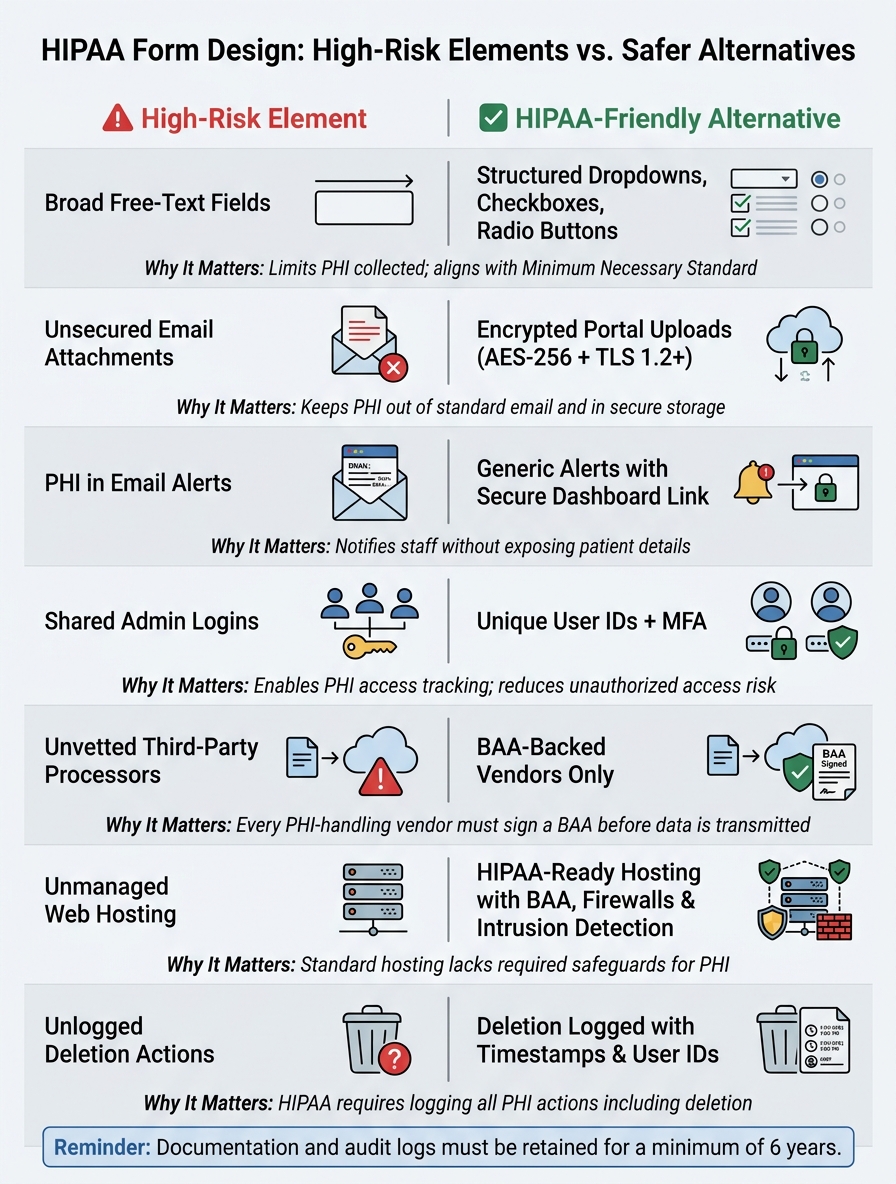
HIPAA Form Design: High-Risk Elements vs. Safe Alternatives
Even a clean, polished healthcare form can run into compliance trouble if the wrong pieces are built in. Before launch, it helps to do one last pass and look for the form choices that carry the most risk.
| High-Risk Form Element | Safer HIPAA-Friendly Alternative | Why It Matters |
|---|---|---|
| Broad free-text fields | Structured dropdowns, checkboxes, or radio buttons | Limits the amount of PHI collected and helps keep the form aligned with the Minimum Necessary Standard. |
| Unsecured email attachments | Encrypted portal uploads with AES-256 at rest and TLS 1.2+ in transit | Keeps PHI out of standard email attachments and stores files in a more secure environment. |
| PHI in email alerts | Generic alerts with a secure dashboard link | Lets staff know a submission arrived without exposing patient details in the email body. |
| Shared admin logins | Unique user IDs + MFA | Makes it possible to track who accessed or modified PHI and reduces the risk of unauthorized access. |
| Unvetted third-party processors | BAA-backed vendors only | Any vendor that handles PHI must sign a Business Associate Agreement before data is transmitted. |
| Unmanaged web hosting | HIPAA-ready hosting with a BAA, intrusion detection, and firewalls | Standard hosting lacks the safeguards and signed BAA needed to handle PHI. |
| Unlogged deletion actions | Deletion actions recorded with timestamps and user IDs | HIPAA requires logging actions tied to PHI, including creation, modification, and deletion. |
The same review should apply across your whole stack, not just the form itself. That means checking the form builder, CRM, analytics, marketing tools, and email setup.
With no-code builders, these fixes are often pretty simple. Most of the time, they come down to field types, notification rules, and integration settings. Small setup choices can make a big difference here.
Applying These Practices in No-Code Form Builders
In no-code builders, HIPAA risk usually shows up in a few plain places: field visibility, routing, notifications, and integrations.
Use multi-step forms and conditional routing so PHI fields appear only when they’re needed. If a user doesn’t need a service that involves PHI, send them down a non-PHI path. If they do, use conditional logic to show only the PHI fields required for that case. That gives you field-level control without writing code.
Before you connect a form to any CRM, email, or analytics tool, check that you have a signed BAA in place. Then make sure PHI is blocked from unmapped fields, URLs, and tracking data. The same field limits and access rules should carry across every connected tool. If one system is locked down but another leaks data through a URL parameter, that’s still a problem.
For teams using Reform, multi-step forms, conditional routing, and CRM integrations give you a direct way to apply these controls inside the builder. Use scoped field visibility, PHI-free notifications, and BAA-backed integrations. Keep each PHI path scoped, logged, and tied to a BAA-backed system.
Conclusion
HIPAA-compliant forms should collect only the minimum necessary PHI and protect it with secure routing, access controls, logging, and vendor oversight.
The risk isn’t abstract. In 2024, Montefiore Medical Center paid a $4.75 million penalty after an OCR investigation found failures to safeguard patient information. And there’s another point that trips teams up all the time: any vendor that handles PHI is a business associate and must have a signed BAA before receiving data. If even one connected vendor lacks a signed BAA, that protection falls apart.
Before any healthcare form goes live, check every layer: fields, uploads, access roles, audit logs, and vendor agreements. A form is only as compliant as its weakest link.
FAQs
When does HIPAA apply to a form?
HIPAA applies when a form collects, stores, or sends protected health information (PHI).
PHI is health information that can be tied to a specific person and is held or shared by a covered entity or business associate. If a form can identify someone and includes health details, care information, or payment data, it falls under HIPAA.
Do all form vendors need a signed BAA?
No. A signed Business Associate Agreement (BAA) is only needed with vendors that handle PHI before they can access it.
So, not every form vendor needs a BAA. Only the ones that touch protected health information in your workflow do.
What should I test before launch?
Before launch, test both security and day-to-day function with sample data. Make sure HTTPS encryption, password protection, and audit logs are working as expected, then run vulnerability scans to spot weak points before users ever touch the system.
Go a step further and simulate breach scenarios. That helps you check whether your incident response plan holds up under pressure, not just on paper.
You’ll also want to document:
- The PHI types involved
- Where that data is stored
- Who can access it
On top of that, confirm the BAA is in place and review the data-flow map for every public-facing field and integration. That last step matters more than people think. A single form field or third-party connection can move sensitive data in ways that are easy to miss if you don’t trace it end to end.
Related Blog Posts
Get new content delivered straight to your inbox

The Response
Updates on the Reform platform, insights on optimizing conversion rates, and tips to craft forms that convert.



Drive real results with form optimizations
Tested across hundreds of experiments, our strategies deliver a 215% lift in qualified leads for B2B and SaaS companies.
