
.webp)
HubSpot Form Notifications: Avoiding Delivery Failures



If a form submission is in HubSpot but no one got the alert, the break is usually in one of four places: recipients, page overrides, user settings, or workflow rules.
I’d check them in this order:
- Confirm the submission exists in the contact record
- Check form recipients in HubSpot Forms
- Look for page-level overrides on HubSpot pages
- Verify each user’s notification settings and mailbox status
- Review workflow history if alerts are sent through automation
- Check spam, bounce suppression, and mail filtering for
noreply@notifications.hubspot.com
A few details matter more than most:
- HubSpot can log the form submission even when the email alert fails
- Page-level form module settings can replace form-level recipients
- Non-HubSpot forms use account-level notification settings
- HubSpot caps email alerts at 1,000 per user per day
- A bounced user may still get in-app alerts but no email
- If Reform sends data into HubSpot and the contact never gets created, no alert will fire
Here’s the short version: first confirm the record reached HubSpot, then trace the alert path from form settings to inbox delivery. That usually shows the problem fast.
How to set up form submission notifications in HubSpot
sbb-itb-5f36581
How to set up HubSpot form notifications correctly
Once you know how HubSpot sends alerts, the next step is simple: check the settings that control them. In most cases, you need to look at three places - the form itself, the page module, and each recipient’s notification settings.
Set recipients at the form level
Go to Marketing → Forms, open the form, then head to Settings → Submission settings. You’ll see Notify contact owner and Add users to notify.
Here’s the catch: Notify contact owner only works if the contact already has an owner. So for lead-gen forms, it’s smarter to add specific active users or teams in Add users to notify. That way, at least one person gets the alert even when no owner is assigned yet.
After that, save the form, click Review and update, and then Update to publish the change.
If alerts still aren’t reaching the right people, the next place to check is the page module.
Check for page-level form module overrides
On HubSpot pages, page-level settings can override the form’s default notification setup.
"Any recipients set in the form editor will be overwritten by recipients set in the form module on HubSpot pages." - HubSpot Knowledge Base
To check this, open the page in the content editor, click the form module, and look for the Send form notifications to specified email addresses instead of the form defaults checkbox. If that box is checked, anyone set at the form level won’t get alerts unless you add them again in the page module.
This is one of those small settings that can cause a lot of confusion.
Verify user notification preferences and non-HubSpot form settings
Each recipient also needs to be an active HubSpot user, and they must have Form submissions notifications turned on under Settings → Notifications → Email & Desktop.
If the submissions come from outside HubSpot, the setup is different. In that case, use the account-level path under Settings → Marketing → Forms → Non-HubSpot Forms. Then choose recipients in the Send email notifications for collected forms submissions to dropdown.
Two more details matter here:
- Shared distribution lists can unsubscribe as a group.
- HubSpot limits email notifications to 1,000 per user per day.
Common reasons HubSpot form notifications fail to deliver
Form submissions can still land in HubSpot even when the email alert never shows up. That usually points to a setup problem, a recipient problem, or a workflow rule issue, not some big platform outage.
The simplest way to troubleshoot this is to start at the top and work down: recipient settings, inbox delivery, workflows, and then sync.
Missing recipients, owner gaps, and outdated overrides
A form can submit just fine and still send zero alerts if there are no active recipients, the owner field is blank, or a page-level override is sending notifications somewhere old or nowhere at all.
If the form has a valid recipient list, the next step is mailbox delivery.
Disabled user notifications, spam filters, and blocked senders
If only one person is missing alerts and their notification settings look fine, check Spam or Junk first. It sounds obvious, but it catches a lot of cases.
Past that, two mail-delivery issues show up often.
The first is server rate limiting. HubSpot reports THROTTLING_BOUNCE when the receiving server limits how many messages it will accept from HubSpot's notification address.
The second is bounce suppression. If a past HubSpot email to that address bounced, HubSpot will suppress future notifications until a Super Admin unbounces the user in Users & Teams. In that case, the submission still exists in HubSpot, and in-app alerts still appear, but email stops arriving for that one user.
If email delivery still isn't working, move on to workflows and the HubSpot sync path.
Workflow misconfigurations and Reform-to-HubSpot sync failures
If the form setup and recipient settings are correct, check workflow enrollment and the HubSpot sync next.
A Send internal email action only runs if the contact actually enrolls in the workflow. It can also fail if the contact is not a Marketing Contact or does not meet the required Legal Basis for automated email. Check the workflow's Action logs to see whether the step ran or was marked not sent.
For submissions sent from Reform into HubSpot, make sure the contact record is being created in HubSpot in the first place. If the required Email field is not passed, or if the HubSpot tracking code is blocked by a browser extension, the submission may never reach HubSpot. If that happens, no notification will fire.
Here’s a quick symptom-to-cause map:
| Cause | Symptom | Primary Fix |
|---|---|---|
| Server Throttling | Intermittent failures during high-traffic periods. | IT should allowlist HubSpot IP ranges such as 108.179.150.0/23. |
| Bounced mailbox | Submissions exist in HubSpot; in-app alerts appear, but no emails arrive for one specific user. | A Super Admin must unbounce the user in Users & Teams settings. |
| Reform-to-HubSpot sync failure | Submission exists in Reform but is missing from HubSpot. | Ensure the Email field is mapped correctly and the HubSpot tracking code is firing. |
| Workflow Consent Gap | Workflow-based alerts show "Not sent" or never trigger. | Check GDPR settings and confirm the contact meets workflow enrollment requirements. |
Step-by-step process for troubleshooting missing notifications
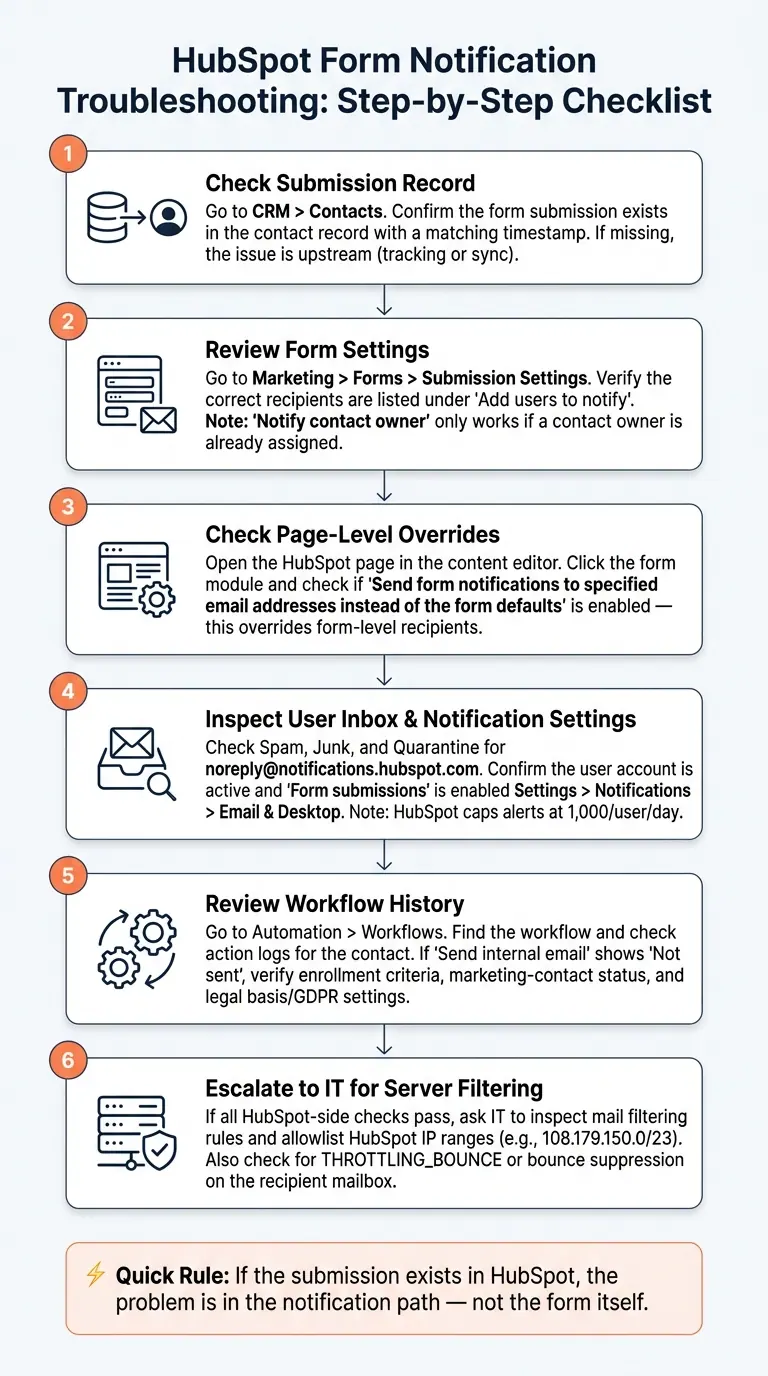
HubSpot Form Notification Troubleshooting Checklist
When a teammate says leads are sitting in HubSpot but no one got an email, the job is simple: find where the chain broke.
Start in CRM > Contacts. Open the contact record and make sure the submission is there with the matching timestamp. If the submission is missing, the issue is upstream. That points to tracking or sync, not notifications.
Then go to Marketing > Forms, choose the form, and open Submission Settings. Check that the right recipients are listed. One easy thing to miss: if the form lives on a HubSpot page, the page-level recipient settings override the form defaults.
Once you've confirmed the submission exists, work outward in a set order. Go from the form to the recipient, then the workflow, then the mail server.
Check the user's Spam, Junk, and Quarantine folders for noreply@notifications.hubspot.com. After that, confirm the user is looking at the right mailbox, the account is active, and the Form submissions notification setting is turned on. Also note this gotcha: if a team alias like sales@company.com is used, one person unsubscribing will unsubscribe the whole list. HubSpot also has a hard cap of 1,000 email notifications per day per user.
If the inbox and profile checks look clean, the next stop is usually workflow logic.
Go to Automation > Workflows, find the right workflow, and review its history for that contact. In the workflow history, check whether Send internal email ran for the contact. If the status says Not sent, review enrollment, marketing-contact status, and legal basis.
For submissions coming from Reform, check the HubSpot record first. Make sure the record reaches HubSpot before you test notification logic or alert behavior.
If the HubSpot-side checks pass, the issue is often server-side mail filtering. At that point, ask IT to inspect mail filtering rules and allowlist HubSpot.
Use this order for the checks:
- Submission
- Form settings
- Page override
- User inbox
- Workflow history
- Server filtering
How to prevent HubSpot form notification failures going forward
After you fix delivery issues, the next job is keeping notifications in good shape. That usually comes down to a few repeat checks: who gets alerts, how workflows route them, and whether the form data coming in is clean.
Keep recipient lists and notification settings up to date
When someone changes roles or leaves the company, take them off the recipient list. It sounds basic, but stale recipients are one of those small issues that can keep causing trouble.
Check Users & Teams now and then for bounced or inactive recipients, and remove them from the list.
Use workflows to send targeted alerts without creating noise
Once your recipient lists are clean, use workflows to send only the alerts that matter. Standard form notifications go to a fixed group of recipients. Workflows give you more control, so you can route alerts based on what the contact submitted, like territory, product interest, or lifecycle stage.
That means the right people get the right submissions, without filling everyone’s inbox with stuff they don’t need.
Also check that any new team member added to a workflow has the workflow notification setting turned on under Settings → Notifications → Email & Desktop. If not, HubSpot will log a delivery failure for that user.
Improve form quality with validation, routing, and spam prevention
The last layer is input quality. Bad submissions burn through alerts and make follow-up weaker. HubSpot only sends form notification emails when the default Email field contains a valid address. So if you improve email quality at the moment someone fills out the form, you cut down on notification failures too.
For Reform-to-HubSpot submissions, Reform's built-in email validation, spam prevention, and conditional routing help filter low-quality entries before they reach your CRM.
Conclusion: The checks that fix most HubSpot form notification failures
After the setup and troubleshooting checks above, most failures usually come down to a small set of repeat issues. In most cases, the problem ties back to four areas: submission, recipients, overrides, and workflows. Check them in that order.
If the submission reached HubSpot, the issue sits in the notification path. At that point, shift your attention to mailbox delivery. Bounced addresses and mail filters can stop alerts before they ever land in the inbox.
If notifications are sent through a workflow, review that route on its own. Verify enrollment and action logs.
Keep recipient lists up to date, and test after each change.
FAQs
Why is HubSpot logging submissions but not sending alerts?
This usually comes down to a notification or email delivery issue.
Start by checking your personal form or workflow notification settings. HubSpot won't send alerts if the user hasn't opted in, so even a small setting there can stop emails from showing up.
If those settings look right, the messages may be landing in spam. They can also get blocked by mailbox rules or your company's firewall. In some cases, the email address may have been suppressed or bounced after earlier delivery failures.
How do page-level overrides affect form notifications?
On a HubSpot page, the notification recipients set in that page’s form module override the default recipients in the form editor.
Here’s what that means in plain English: if page-level overrides are turned on, the default recipients won’t get notifications for that page unless they’re added there by hand.
So if alerts are missing, check the page-level settings and make sure your email address is listed.
What should I check first when a notification is missing?
First, check your spam, junk, or quarantined folders to make sure the notification didn’t get filtered.
Then confirm a few basics in HubSpot:
- The notification email on your user profile is correct
- Form submission notifications are turned on in your global settings
- The form was published after any recent edits
If the email still doesn’t show up, run a simple test by adding an alternate email address to the notification list.
Related Blog Posts
Get new content delivered straight to your inbox

The Response
Updates on the Reform platform, insights on optimizing conversion rates, and tips to craft forms that convert.


Drive real results with form optimizations
Tested across hundreds of experiments, our strategies deliver a 215% lift in qualified leads for B2B and SaaS companies.
