
.webp)
Klaviyo Form Embed Code: Fixing Errors


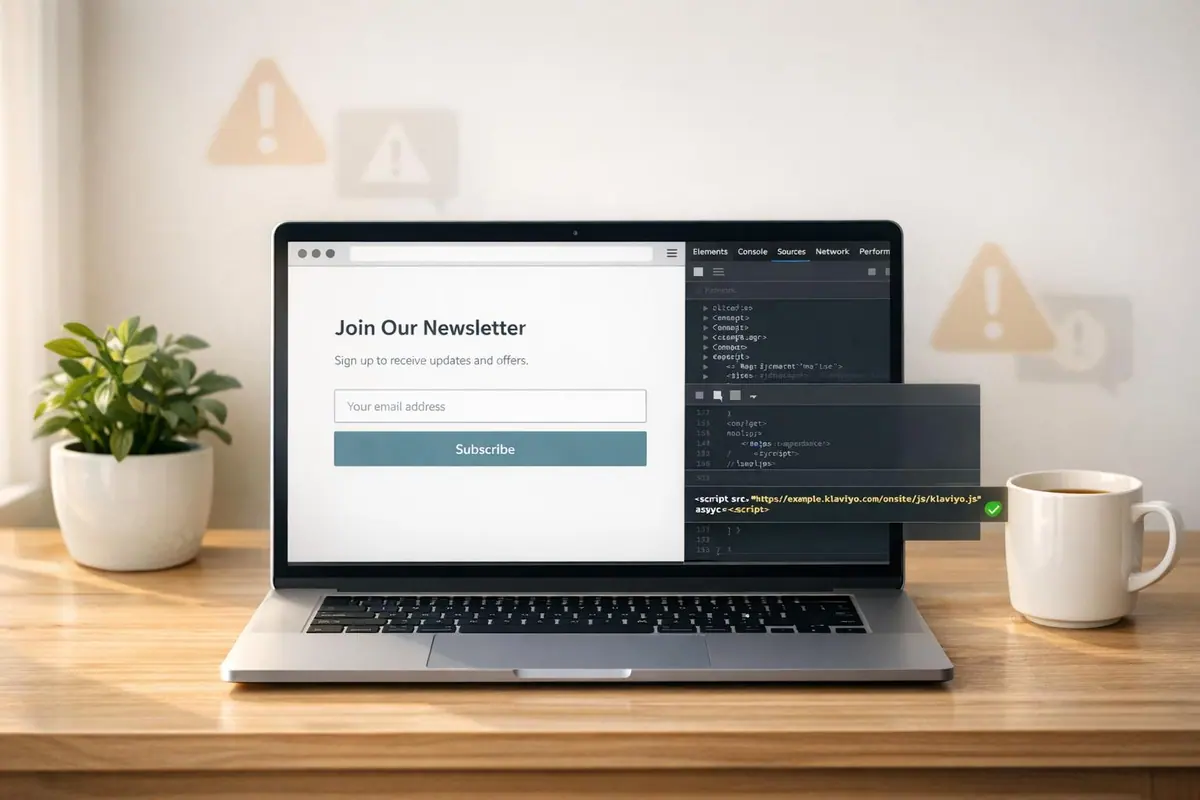
If your Klaviyo forms aren’t displaying or functioning correctly, the issue often lies in the setup or conflicts with your website code. Here’s the quick fix:
- Verify Klaviyo.js Installation: Ensure the tracking script is properly installed on your site. Without it, forms won’t load.
- Publish the Form: Forms in "Draft" or "Editing" status won’t appear. Set them to "Live."
- Check for Duplicate Scripts: Multiple Klaviyo account scripts can cause conflicts. Only one should be active.
- Clear Cache and Cookies: Cached files or persistent cookies may prevent updates or visibility. Test in Incognito mode.
- Use the Exact Embed Code: Modifying the code can break functionality. Paste it exactly as provided by Klaviyo.
- Examine Targeting Settings: Ensure forms are targeting the right audience and URLs.
For advanced issues, inspect your site’s JavaScript and CSS for errors or overrides using browser developer tools. Single Page Applications (SPAs) require additional steps for forms to load properly. Always test across browsers and devices to catch compatibility issues.
Fixing these errors ensures your forms display correctly, helping you capture leads and grow your email list effectively.
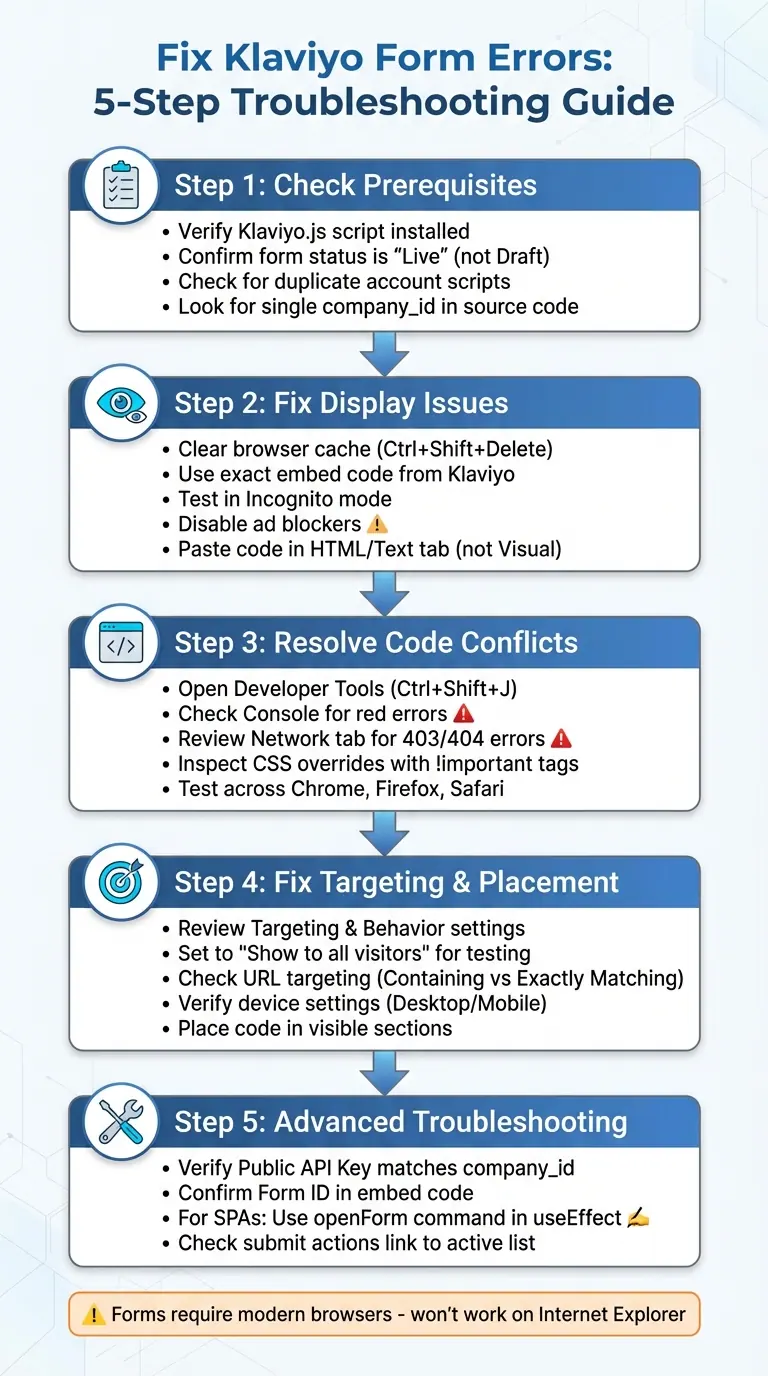
5-Step Klaviyo Form Troubleshooting Flowchart
How To Add Embed Form Klaviyo [2026 Guide]
Step 1: Check Prerequisites Before Troubleshooting
Before diving into troubleshooting, it's crucial to ensure all necessary elements are in place. Many issues stem from missing or conflicting setup details. A proper setup helps focus on resolving technical conflicts instead of configuration mistakes. Start by confirming that the Klaviyo.js script is correctly installed.
Confirm Klaviyo.js Script Is Installed
The Klaviyo.js script is a must-have for displaying sign-up forms. Without this JavaScript snippet, your embed code won’t work, even if it’s pasted correctly into your HTML. Ensuring this script is installed can save you from many display-related headaches.
"Klaviyo.js needs to be installed in order for you to publish Klaviyo sign-up forms on your website." - Klaviyo Help Center
If you’re using platforms like Shopify, BigCommerce, WooCommerce, Magento, Wix, or Prestashop, the script is automatically added during the integration process. However, for custom platforms, you’ll need to manually insert the script tag, which includes your unique six-character Public API Key.
To verify the script is properly installed, inspect the source code of your live page. Use Ctrl+F (or Cmd+F on Mac) to search for "klaviyo.js" or "company_id". A correct setup will display a single company_id that matches the Public API Key listed in your Klaviyo account under Account > Settings > API Keys.
Make Sure Your Form Is Published
For a sign-up form to appear on your site, it must be set to Live status in Klaviyo. Forms in Draft or Editing status will not display. Unlike popups or flyouts, embedded forms require two steps: publishing the form in your Klaviyo dashboard and pasting the specific <div> embed code into your site’s HTML.
"Both conditions need to be met for an embedded form to appear on site: the form must be published and the snippet added to the site code." - Julia LiMarzi, Klaviyo Employee
Confirming the form’s publication status ensures you’re not troubleshooting a non-live form, which is a common oversight.
Check for Multiple Account Scripts
Having scripts from multiple Klaviyo accounts on the same site can cause "race conditions." This happens when the browser loads one account’s script over the other, potentially preventing the correct form from displaying.
"This can cause a 'race condition' where sometimes one Klaviyo account is loaded (that has the Signup Form) or the other account is loaded (that doesn't have a Signup Form)." - Joseph Hsieh, 2025 Champion
To check for duplicate scripts, inspect your site’s source code and search for "company_id=". If you find more than one unique ID, it means multiple Klaviyo accounts are connected. To fix this, disable the Automatically add Klaviyo onsite javascript option in any secondary account, leaving only the primary account active.
For Shopify users, duplication can occur if both the automatic script (added via the Klaviyo Shopify app) and a manually pasted snippet in the theme.liquid file are present. Stick to the App Embed method and remove any manual installations. This avoids conflicts and can even improve loading speeds. Taking this step ensures your forms function as intended without interference from script conflicts.
Step 2: Fix Forms That Won't Display
Once you've ensured all prerequisites are in place, the next step is to tackle forms that refuse to show up. These display issues are often caused by cached content, code tweaks, or simple configuration errors. By pinpointing and addressing these common problems, you can quickly get your forms back on track.
Clear Your Browser Cache
Browsers store cached files to speed up website loading times. However, this "memory" can hang onto old versions of your Klaviyo forms, preventing updated changes from appearing on your site.
"Think of a cache as your browser's short-term memory... Sometimes, it holds onto these old pieces for too long and doesn't 'see' the new ones you've just published." - Giselle Mauldin, Aloha Help Center
Start with a hard refresh before clearing your entire cache. On Windows, press Ctrl+F5; on Mac, use Cmd+Shift+R to force-reload the page. If the problem persists, clear cached files by pressing Ctrl+Shift+Delete (Windows) or Cmd+Shift+Delete (Mac) to open the "Clear browsing data" menu.
Klaviyo cookies browsers for one year after a visitor dismisses a popup. This means users won't see the same form again for 365 days unless they clear their cookies. To bypass this, test your forms in Incognito or Private Browsing mode.
For WordPress users, don't forget to clear both your browser cache and any caching plugins like WP Rocket or W3 Total Cache after making updates.
Use the Exact Embed Code from Klaviyo
Klaviyo forms depend on specific JavaScript triggers to display correctly. Any changes to the embed code - like altering the <div> class ID - can stop the Klaviyo.js script from working properly.
"If you're using an embedded form, verify that you have the correct embed code installed within your site's code exactly as it appears in the installation model." - Klaviyo Help Center
When working in WordPress, always paste the code into the Text/HTML tab rather than the Visual editor. The Visual editor may strip or modify the code, causing it to show as plain text instead of a functional form.
To confirm your embed code is intact, right-click on your webpage, choose View Page Source, and use Ctrl+F to search for "Klaviyo." You should find both the main .js script and your form's specific div (e.g., <div class="klaviyo-form-XXXXXX"></div>).
"Klaviyo forms rely on JavaScript to render. Check that the
<script>tags in the embed code are intact and no WordPress plugins or settings are blocking JavaScript." - Christian Nørbjerg Enger, Klaviyo Partner
For testing purposes, temporarily disable ad blockers or privacy extensions, such as DuckDuckGo Privacy Essentials, as these can interfere with form scripts.
If these steps don't resolve the issue, consult the quick fixes table below for more troubleshooting tips.
Common Issues and Quick Fixes
Here’s a handy table to troubleshoot common form display problems:
| Problem | Symptom | Quick Fix |
|---|---|---|
| Form in Draft | Form never appears on any page | Check that the form's status is set to "Live" (see Step 1). |
| Cookie Persistence | Form appeared once but won't show again | Clear browser cookies. |
| Cache Issues | Changes in Klaviyo aren't showing | Clear browser cache and any site-side caching plugins. |
| Modified Code | Code shows as plain text on the page | Paste the code into your CMS's "HTML" or "Text" tab. |
| Ad Blockers | Form blocked by browser extensions | Disable ad blockers or privacy tools like DuckDuckGo for testing. |
| Browser Incompatibility | Form works in Chrome but not in other browsers | Use a modern browser; Klaviyo forms don’t work on Internet Explorer. |
Keep in mind that Klaviyo sign-up forms require modern web browsers and won’t display in Internet Explorer.
Step 3: Fix JavaScript and CSS Conflicts
Once you've confirmed the prerequisites and resolved basic display issues, it's time to dive into your site's JavaScript and CSS. Conflicts in these areas can lead to visual glitches or even prevent your forms from working altogether. Common culprits include CSS overrides or JavaScript errors that disrupt the loading or display of your Klaviyo forms. After ensuring proper installation and fixing display problems, focus on identifying and resolving these code conflicts.
Use Browser Developer Tools to Spot Issues
Browser developer tools are your best friend when it comes to troubleshooting code conflicts. They let you see what's happening behind the scenes as your Klaviyo form loads. To access these tools:
- Chrome: Press Option + Command + J (Mac) or Control + Shift + J (PC).
- Firefox: Use Option + Command + K (Mac) or Command + Shift + J (PC).
- Safari: First enable the "Develop" menu in Preferences > Advanced, then press Option + Command + C.
In the Console tab, look for red error messages. These will highlight JavaScript issues, including file names and line numbers. Meanwhile, the Network tab shows whether scripts are failing to load, often indicated by HTTP status codes like 403 (forbidden) or 404 (not found).
"The scripts in red [in the Network tab] are the ones that are not loading properly... 403 and 404 errors indicate that the access to those scripts has been forbidden by the requested server."
- Kelsey McEvoy, Klaviyo Employee
For CSS conflicts, right-click on any misaligned form element and choose Inspect. The Styles panel will show which CSS rules are applied and whether any are being overridden. Pay close attention to properties with strikethroughs, as these are being superseded by other rules. Be particularly wary of !important tags in your site's stylesheet - they can override Klaviyo's default styles.
"If the forms do not look like how they are in the Klaviyo editor, this is due to the CSS styles from the site overriding it. You will need to check the styles for any popup related styles which may have an 'important' tag."
- Arpit Banjara, Lead Email Marketing Specialist, Flowium
You can toggle CSS rules on and off using the checkboxes in the Styles pane to pinpoint the exact rule causing the issue. Additionally, the Layout or Computed tab offers a visual breakdown of padding, borders, and margins, which can help you identify spacing problems.
| Tool Tab | Primary Use | Key Indicators of Conflict |
|---|---|---|
| Console | JavaScript execution errors | Red error text; file names and line numbers |
| Elements/Inspector | CSS and layout issues | Crossed-out text in Styles pane; !important tags |
| Network | Loading speed and script delivery | 403/404 status codes; duplicate Klaviyo.js files |
Test Across Browsers and Devices
Your form may look great in one browser but break in another. Different browsers interpret CSS and JavaScript in slightly different ways, which can cause rendering issues. Testing your form in Chrome, Firefox, and Safari will help you determine if the issue is browser-specific or universal.
Also, check how your form behaves on both desktop and mobile devices. Responsive design conflicts can lead to forms that appear distorted or are completely hidden on smaller screens. Keep in mind that Klaviyo forms won't work on Internet Explorer, so don't waste time troubleshooting there.
Simplify Your HTML Code
The more complex your code, the higher the chance for conflicts. Remove any outdated or unnecessary JavaScript that could be causing 404 errors or slowing down execution. For instance, installing the Klaviyo "Active on Site" script multiple times - once via integration and again manually - can lead to slow loading or display issues.
Stick to the basics when embedding your form. Use only the required div:
<div class="klaviyo-form-FORM_ID"></div>
Avoid wrapping this div in additional HTML tags, as they might inherit conflicting styles from your site's CSS. While Klaviyo.js loads asynchronously and won't block other elements on your page, heavy scripts elsewhere can still delay your form's appearance.
If you're using WordPress and can't resolve the issue, try switching to a default theme temporarily. This can help you determine whether your current theme or a plugin is behind the conflict. By isolating the problem, you'll be one step closer to a solution.
sbb-itb-5f36581
Step 4: Fix Targeting and Placement Problems
Make sure your forms are targeting the right audience and are positioned where they’ll show up as intended. Proper configuration of targeting settings and embed code placement is key to avoiding display issues.
Check Your Targeting Settings
You’ll find all audience and display settings in the Targeting & behavior section of the Klaviyo form editor. Review options like targeting all visitors, new visitors, existing profiles, or specific lists. If you’re testing in incognito mode, ensure "Don't show to existing Klaviyo profiles" is turned off to prevent cookie-related visibility problems.
"Typically for an embedded form, you may want it to be set to 'Show to all visitors'"
- Joseph Hsieh, 2025 Champion, Retention Commerce
For URL-based targeting, use "Containing" to apply forms across multiple pages (e.g., all blog posts) or "Exactly Matching" for specific pages like landing pages. Wildcards () can expand targeting (e.g., yoursite.com/products/ will display the form on all product pages). Location-based targeting relies on IP addresses and is handy for showing forms by country or for GDPR compliance. Device-specific settings let you choose between desktop, mobile, or both.
When using UTM parameter targeting to align forms with specific ad campaigns, remember Klaviyo uses "AND" logic - visitors must match every parameter you’ve set for the form to appear.
| Targeting Category | Options Available | Best Use Case |
|---|---|---|
| Visitor | New profiles, existing profiles, specific lists/segments | Welcome discounts for new users; cross-sell offers for existing customers |
| URL | Containing, Exactly Matching, Wildcards (*) | Displaying a discount form on collection pages |
| Location | Show/Hide by country or region | Showing GDPR-compliant forms to EU visitors |
| Device | Desktop, Mobile, Both | Using "Tap-to-text" buttons for mobile users |
| UTM | Source, Medium, Campaign, Term, ID | Matching popups to specific ad campaigns |
Place Code in Visible Sections
Once your targeting is set, ensure the embed code is placed in a visible and fully loaded section of your site. Embedded forms appear as soon as the page loads and can’t be manually dismissed by users. Placing forms in the site footer is a common practice for growing email lists since it complements other forms on the site. However, Klaviyo only records views for forms visible in the user’s viewport. Footer forms requiring scrolling will show lower view counts but more accurate engagement data.
Avoid embedding forms in collapsible sections, hidden tabs, or elements with CSS properties like display: none. If you’re using a footer form, keep it simple by only asking for email addresses.
Fix Platform-Specific Problems
Make sure your embed code isn’t blocked by late-loading or collapsed elements.
Shopify Users
For Shopify, ensure the Klaviyo app embed is enabled in your integration settings. Without this, forms won’t display even if the code is correctly added. For Shopify 2.0 themes, use the "Klaviyo Embedded Form" app block in the theme customizer instead of pasting the code into liquid files. If forms aren’t appearing, check that targeting isn’t set to "Don't show to existing Klaviyo profiles".
For EU, EEA, UK, and Swiss visitors, Klaviyo may not recognize existing profiles unless users provide consent through Shopify’s Customer Privacy settings. This could cause forms set to hide from existing profiles to appear for everyone.
"If you select 'Target visitors in a list or segment,' the visitor will not see the form (even if they are otherwise in the list or segment) because they will not be identified [without consent]."
- Klaviyo Help Center
WordPress Users
When working with WordPress, use the "Text" tab in the editor to avoid code corruption. If your form still doesn’t show, temporarily switch to a default theme like "Twenty Twenty-Three" to identify theme conflicts. Also, clear your site-wide cache if you’re using plugins like WP Rocket or W3 Total Cache, as they can block new forms from appearing.
| Platform | Common Troubleshooting Step | Why It Happens |
|---|---|---|
| Shopify | Enable "App Embed" | Modern Shopify themes require app embed toggling in theme settings |
| Shopify | Check Customer Privacy API | EU/UK consent rules can block forms from triggering |
| WordPress | Use "Text" Tab in Editor | The "Visual" editor often breaks <script> and <div> tags |
| WordPress | Clear Plugin Cache | Caching plugins may serve outdated pages without the new form code |
These adjustments ensure your forms are technically sound and reach the right audience effectively.
Step 5: Advanced Troubleshooting Methods
Now that you've tackled the basics and intermediate steps, it's time to dig deeper into diagnosing more complex issues. When simple fixes don't cut it, you may need to explore advanced configurations and compatibility challenges.
Check Your API Key and Form ID
For Klaviyo to function properly, your Public API Key (also called the Company ID) and Form ID must match exactly between your Klaviyo account and your website's code. Here's where to find them:
- The Public API Key is part of the
klaviyo.jsscript tag:
src="https://static.klaviyo.com/onsite/js/klaviyo.js?company_id=PUBLIC_API_KEY" - The Form ID is visible in the URL of your form editor:
https://www.klaviyo.com/forms/<FORM_ID>
To confirm these IDs are correct:
- Open your page source (Ctrl+F or Cmd+F) and search for "Klaviyo."
- Verify that the
company_idin the script matches the Public API Key in your Klaviyo account settings. - Check the
<div>tag in your embed code to ensure its ID matches the Form ID from your form builder URL.
If the IDs don't align, your form won't display correctly.
Use your browser's developer tools (press F12 or right-click and select "Inspect") to check the Console and Network tabs. Look for errors like 403 or 404 related to Klaviyo scripts - these often signal blocked server access or incorrect IDs. Also, ensure your form's Submit Actions are linked to an active list in Klaviyo. If the list has been deleted, form submissions will fail.
If the issue persists, you may need to address challenges specific to modern web frameworks.
Fix Single-Page App (SPA) Loading Issues
Once your identifiers are verified, focus on problems that arise with Single-Page Applications (SPAs). Frameworks like React, Next.js, Gatsby, or Vue often cause issues because Klaviyo forms rely on the DOMContentLoaded event, which doesn't trigger during client-side navigation. This can result in forms not loading after the initial page load.
"The short answer is that our forms don't play nicely with Single Page Applications that use browser-side routing... it isn't possible to programmatically refresh the form at this time."
- Connor Barley, Klaviyo Solution Architect
To resolve this, manually trigger the form in a lifecycle hook. For instance, in React, you can use useEffect to push the openForm command:
window._klOnsite = window._klOnsite || [];
window._klOnsite.push(['openForm', 'YOUR_FORM_ID']);
For better performance in SPAs, consider using a no-code form builder to create a custom HTML form and submitting data directly to Klaviyo using their AJAX endpoint or server-side Lists API. Before submitting, call the identify method to ensure proper user tracking:
_learnq.push(["identify", {$email: email}]);
If these workarounds don't work, you can host the form on a separate page and embed it using an iframe. This forces a reload for each navigation and ensures the form initializes properly.
When all else fails, turn to developer tools for further analysis.
Advanced Debugging with Developer Tools
Chrome Developer Tools can provide deeper insights into embedding issues. These tools are especially useful for identifying script loading problems:
- Open the Network tab and look for scripts marked in red with 403 or 404 errors. These indicate access or permission issues.
- A "failed" error often means the script's domain name can't be resolved, which could point to DNS configuration problems.
If you're using Google Tag Manager to load the script, Klaviyo may display an "Unable to detect installation" warning. You can safely ignore this if you've manually verified that the script is present on your live site.
Conclusion
To fix Klaviyo form embed errors, start by checking the basics and then tackle any technical conflicts. Here's a quick recap: confirm the Klaviyo.js script is installed, ensure the form is live, and verify there's only one active account script running. After that, address any display problems by clearing your cache, using the exact embed code from Klaviyo, and reviewing your targeting settings - like URL, device type, and visitor groups.
If these initial steps don’t work, dive deeper with browser developer tools to identify JavaScript conflicts, CSS overrides, or loading issues. As Kelsey highlighted, resolving these script problems ensures forms load instantly. For websites using Single Page Application (SPA) frameworks, you might need additional troubleshooting to get the form to initialize properly.
The stakes are high: forms that don’t load can result in lost leads and missed conversions, which is why many brands use expert form strategies to ensure reliability. This is especially crucial now, as Klaviyo only tracks form views when they appear in the viewport (effective December 6, 2024). Fixing embed issues not only improves the accuracy of your submit rate metrics but also boosts your list growth. Even a simple footer form asking for just an email address can significantly increase opt-ins, though multi-step forms often perform better when they work seamlessly.
Thorough testing is key. Use incognito mode and unique email addresses to bypass browser cookies and see the forms as a new visitor would. Keep in mind that persistent cookies can affect testing accuracy.
FAQs
How do I confirm my Klaviyo Public API Key and form ID match?
To ensure your Klaviyo Public API Key and form ID are correctly aligned, check that the form ID in your embed code matches the corresponding form in your Klaviyo account. Additionally, verify that the Public API Key in the embed code is identical to the one listed in your account settings. If you're using caching plugins or a CDN, clear the cache to prevent mismatches caused by outdated data.
Why does my Klaviyo form work on first load but not after SPA navigation?
When using SPA frameworks like Next.js or Gatsby, Klaviyo embed forms may not reinitialize after navigation because they typically load only once per session or page load. To resolve this, you'll need to implement custom logic that re-triggers the form rendering whenever a navigation event takes place in your SPA.
How can I tell if CSS or JavaScript on my site is breaking the form?
To figure out if CSS or JavaScript is causing problems with your form, use your browser's developer tools. Right-click on the form and choose "Inspect" to dive into the code. Pay close attention to CSS rules, especially any that include !important, as these can override other styles or even hide the form entirely.
Next, check for duplicate or conflicting JavaScript scripts. Open the console in your developer tools to look for any errors that might be disrupting the form's functionality. These steps can help pinpoint and resolve the issue.
Related Blog Posts
Get new content delivered straight to your inbox

The Response
Updates on the Reform platform, insights on optimizing conversion rates, and tips to craft forms that convert.




Drive real results with form optimizations
Tested across hundreds of experiments, our strategies deliver a 215% lift in qualified leads for B2B and SaaS companies.
