
.webp)
Missing Next Button in Multi-Step Form



If your Next button is missing, the problem is usually not the button itself. In most cases, I’d check step state, branch rules, CSS, and JavaScript first.
Here’s the short version:
- Wrong step index can make the form think it’s already on the last step
- Broken conditional paths can leave a step with nowhere to go
- CSS rules like
display: none,opacity: 0, or overflow can hide the button - JavaScript errors can stop the button from rendering or working
- Wrong button type like
type="submit"can submit the form instead of moving forward
I’d debug it in this order:
- Check the DOM - is the button there at all?
- Check the active step - is the form on the step it thinks it is?
- Check computed styles - is CSS hiding it?
- Check branch logic - does every answer path lead to another step?
- Check the console - are script errors blocking the button?
A simple rule helps: first step = Next, middle steps = Back + Next, last step = Back + Submit. When I keep that logic in one place, I cut down the chance of the button disappearing later.
One broken step can tank form completion. Even small UX issues can hurt conversions, and multi-step forms often see drop-offs between steps when navigation fails. So this is not just a UI bug - it can cost leads and sales.
The rest of the article walks through the causes, the debug process, and the fixes in plain terms.
Common Causes of a Missing Next Button
Start with the form’s internal state. Then move to routing and rendering. In most cases, the Next button goes missing because step state, branch rules, and UI code stop lining up.
Hidden Step States and Incorrect Step Rules
Most multi-step forms depend on one variable, like currentStep or currentStepIndex, to decide which button to show. The pattern is simple: show Next on the middle steps and show Submit on the last one. When that variable holds the wrong value, the form can hide the button too soon or show the wrong control.
One common cause is an off-by-one error. In a zero-based 3-step form, step 2 is the last step. So if currentStep changes to 2 as soon as step 2 loads, the form treats that step like the end and hides Next too early.
There’s another easy-to-miss case here too. If the Next button only appears when a step has an .active class, and a routing bug stops step 2 from ever getting that class, the button won’t show up at all. The markup may still exist in the DOM, but the user never sees it. A quick way to spot this is to log currentStep inside navigateToFormStep() and compare the value to the step that’s on screen.
Conditional Logic That Removes Valid Navigation Paths
Bad branch setup is one of the most common reasons a Next button disappears. If a branch has no outbound rule, the form has nowhere to go next. At that point, Next may vanish or stay on screen but do nothing.
A more subtle issue comes from wrong field IDs in show/hide rules. Say a rule is supposed to hide the Next button for field ID 10, but it points to field ID 1 instead. Now the button disappears on the wrong step, which can be maddening to trace.
It helps to check every answer path, not just the obvious ones. That includes empty values, odd inputs, and other edge cases. Each branch should lead to a defined next step.
CSS or JavaScript Issues That Hide or Disable the Button
Sometimes the step logic is fine and the routing is fine, but the button still looks gone. At that point, the problem is often in how the button is rendered.
CSS can hide a button in a few different ways:
display: noneremoves it from the layoutvisibility: hiddenhides it but keeps the spaceopacity: 0makes it invisible while it can still be clicked
On mobile, media queries or overflow clipping can also push the button off-screen or tuck it behind another element. So the button may not be gone at all. It may just be out of view.
JavaScript can cause the same kind of headache. If event listeners bind before the DOM is ready, or if the script looks for .next while the button actually uses .btn-next-step, the click handler never attaches. The result: the button appears, but clicking it does nothing.
One more gotcha: buttons inside a form default to type="submit". If your Next button uses that default, it can trigger a full form submission instead of moving to the next step. Set it to type="button" so it behaves like a step control.
If the button still seems missing after these checks, the next move is to inspect the DOM, computed styles, and console output.
sbb-itb-5f36581
How to Debug a Missing Next Button Step by Step
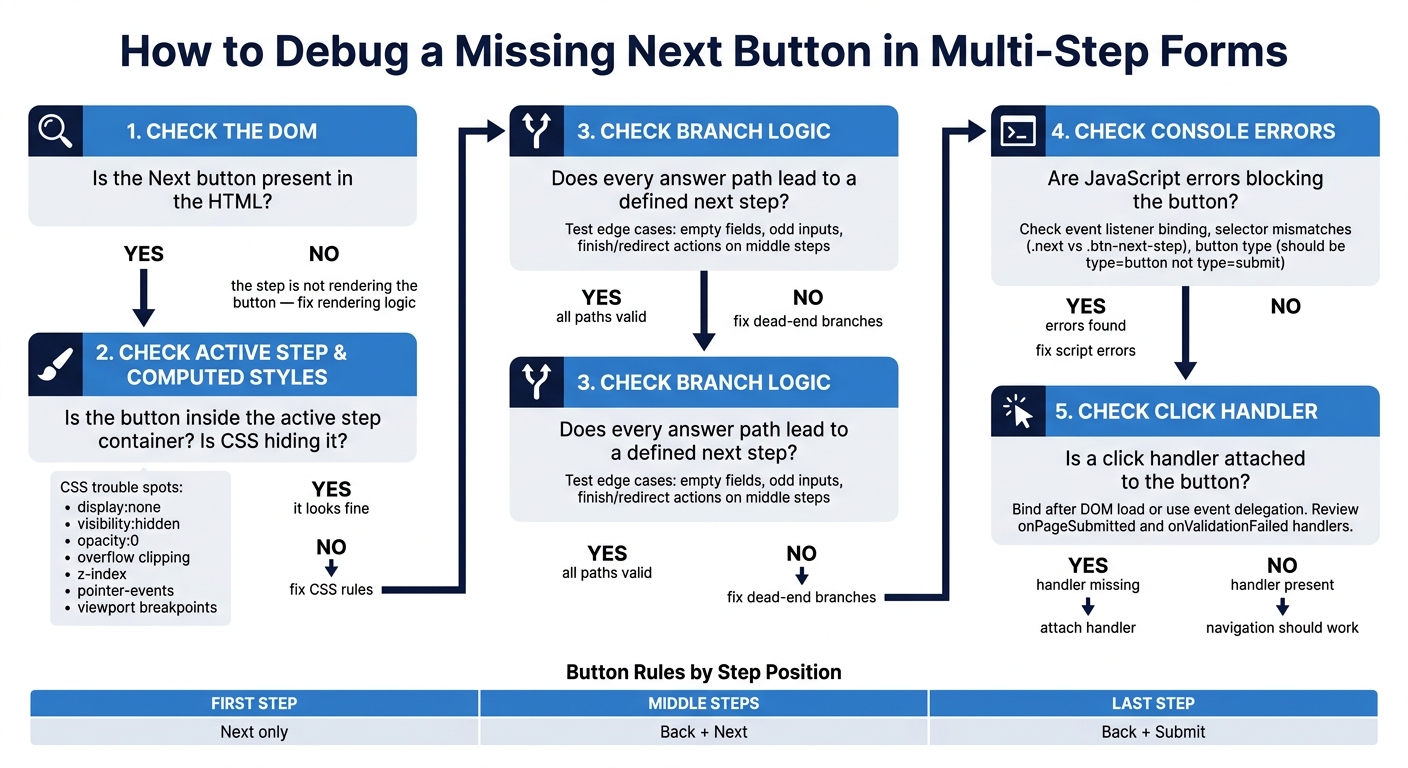
How to Debug a Missing Next Button in Multi-Step Forms
Use DevTools to figure out what's going on with the button. The goal is simple: find out whether the button is not in the DOM, hidden by CSS, blocked by form logic, or failing because of JavaScript. Start with the part that's most likely to be at fault: markup first, then logic, then script.
Check the DOM, Active Step, and Computed Styles
Open DevTools and search for the button in the Elements panel. If the element is in the DOM but you can't see it, you're dealing with a style issue. If it isn't there at all, that step isn't rendering the button.
Check the usual CSS trouble spots:
displayvisibilityopacitypointer-events- container height
- overflow
z-index
Also resize the viewport to see if the button disappears at certain breakpoints. That kind of issue is easy to miss.
Then confirm the button is inside the active step container. Also check whether it has disabled or aria-disabled="true". A button can look fine and still do nothing if it's disabled.
If the element is present and the styles look right, the next place to look is branch logic.
Trace Conditional Logic and Branch Rules Across Each Path
Map out each step, each rule, and where each path goes. Then compare that map with your form's current logic. You're looking for dead ends, deleted step links, or answers that send users to a finish or redirect action even though the Next button is still supposed to show.
In Reform's logic editor, inspect every middle-step rule for actions that end the flow early, such as finish or redirect. Test edge cases too, especially empty fields. An "is empty" condition can quietly trigger a finish action and remove Next with no clear warning.
If every path looks correct, the issue usually comes down to a script or event handler problem.
Review Console Errors and Click Handlers
Open the Console, trigger the button, and trace any JavaScript error back to the script and line number.
If no error shows up, check whether a click handler is attached. If it isn't, bind it after DOM load or use event delegation. If you're using custom scripts, review onPageSubmitted and onValidationFailed too. Missing validation feedback can make the actual failure harder to spot.
Once you know whether the problem comes from markup, logic, or event handling, you can apply the right fix below.
Fixes That Restore Reliable Step Navigation
Set Consistent Button Rules for First, Middle, and Final Steps
Once you’ve found the break, set button state from one source of truth. A simple rule set works best: first step = Next, middle steps = Back + Next, final step = Back + Submit.
Put those rules in one config, one component, or one builder setting so a random condition somewhere else can’t override them. Here’s a React example:
const stepConfig = [
  { id: 'contact', showBack: false, showNext: true, showSubmit: false },
  { id: 'details', showBack: true, showNext: true, showSubmit: false },
  { id: 'review', showBack: true, showNext: false, showSubmit: true },
];
Your rendering should read from this array, and that’s it. Nothing else should control button visibility. That’s how you stop middle steps from hiding Next because someone slipped in a conflicting rule in another part of the app.
Clean Up Conditional Logic and Validation Dependencies
Two things usually make conditional logic brittle: messy field values and validation that’s tied to whether a button shows up instead of what happens when someone clicks it.
On the data side, normalize inputs before routing logic runs. If a branch checks country === "US" but users can also enter "U.S." or "United States", that check will fail for part of your audience with no warning. It’s the kind of bug that hides in plain sight. Use self-selection options like dropdowns or radio buttons when routing depends on a field value, and map free-text variations to one canonical value at input time. That keeps Next button rules tied to a small set of stable states instead of a messy pile of string checks.
On the validation side, keep Next visible on active steps. When the user clicks it, block the move forward and show inline errors next to the fields that need attention. That way, navigation stays predictable, and validation does its own job instead of interfering with button display.
Use a Structured Form Builder When Navigation Bugs Keep Recurring
If the same navigation bug keeps coming back after code changes, move the step logic into the builder. Custom multi-step forms often scatter navigation state across too many files and conditions. Each edit then becomes a bit of a gamble.
A structured form builder like Reform handles step sequencing at the platform level, so Next, Back, and Submit states come from the current page order. Conditional routing is defined declaratively - if Business size is Enterprise, jump to the Enterprise extras step - and every branch points to a valid next step.
Reform also separates validation from navigation. Event handlers like onPageSubmitted let you return specific error messages without changing the button’s rendered state. Step-level analytics show where users stall.
Conclusion: Prevent Missing Next Buttons Before They Hurt Conversions
Once you fix the root cause, the next job is simple: make sure the same navigation bug doesn’t come back. Missing Next buttons usually trace back to state, logic, styling, or script errors. The way to stop them is with clear rules and path testing.
The best time to catch this stuff is before launch. Map every path through the form, including odd answers and blank optional fields. Then check that the Next button is visible, enabled, and working on every step. Also test on the devices and browsers your audience uses most.
After launch, look at drop-off data to spot the first broken step. If one step’s completion rate suddenly falls, check navigation and remove friction through validation on that step first. A missing Next button often shows up as a sharp drop between steps, and catching that early is a lot cheaper than finding it after a campaign is already live.
If step data keeps showing regressions, move navigation into one system. Centralize step rules, keep validation separate from button visibility, and use Reform when you want one place to manage navigation and analytics.
FAQs
Why is my Next button missing on one step?
A missing Next button on one step usually comes down to one of three things: a logic mistake, a hidden-state conflict, or that step’s navigation settings.
Start with the step’s conditional logic. If the logic sends users to another step or ends the flow early, the Next button may not appear the way you expect.
Then check for hidden required fields. This is a common gotcha. A field can be hidden from view but still marked as required, which can interfere with navigation.
It’s also worth looking at the step’s footer and navigation controls. If those settings are hidden or turned off for that step, the Next button won’t show up at all.
How can I tell if CSS or JavaScript is causing the issue?
Check Chrome DevTools Console and Network for errors or failed requests. A silent JavaScript failure can stop navigation without showing anything on the page. After that, confirm whether the Next button’s click handler fires.
Also inspect the CSS. Look for display:none, invalid visibility:none, hidden wrappers, clipping caused by overflow:hidden, or a broken step-state sync. The form’s current step and its error state should line up with what the user actually sees.
What should I test before publishing a multi-step form?
Before publishing, test the entire flow from start to finish. Make sure Next, Back, and Submit all work as expected, validation runs on the current step and again on final submit, and hidden required fields or old error messages don't stop people from moving forward.
Go beyond the happy path, too. Check conditional branches, moving backward through the form, dependent field resets, async checks, mobile and device behavior, slow network performance, and saved-progress resume so users land on the right step when they come back.
Related Blog Posts
Get new content delivered straight to your inbox

The Response
Updates on the Reform platform, insights on optimizing conversion rates, and tips to craft forms that convert.




Drive real results with form optimizations
Tested across hundreds of experiments, our strategies deliver a 215% lift in qualified leads for B2B and SaaS companies.
