
.webp)
Permission Errors In Constant Contact: 6 Causes


A Constant Contact login doesn’t guarantee API access. I start with the failed request: a 401 usually points to a token problem, while a 403 points to an access limit.
I check these six causes before changing the integration:
- User role limits: Does the connected user have permission for that action?
- Missing OAuth scopes: Does the app have the scope the endpoint requires?
- Expired access tokens: Is the request using a current token?
- Revoked app consent: Did someone disconnect the app?
- Outdated API login flows: Is the integration using supported OAuth 2.0 endpoints?
- Account-level restrictions: Is the account active with the required product access?
A successful form submission doesn’t mean the API request worked. In a Reform workflow, I check the form, middleware, and API separately. Then I <u>retest the same failed request</u> after fixing access - and share only redacted error details if support is needed.
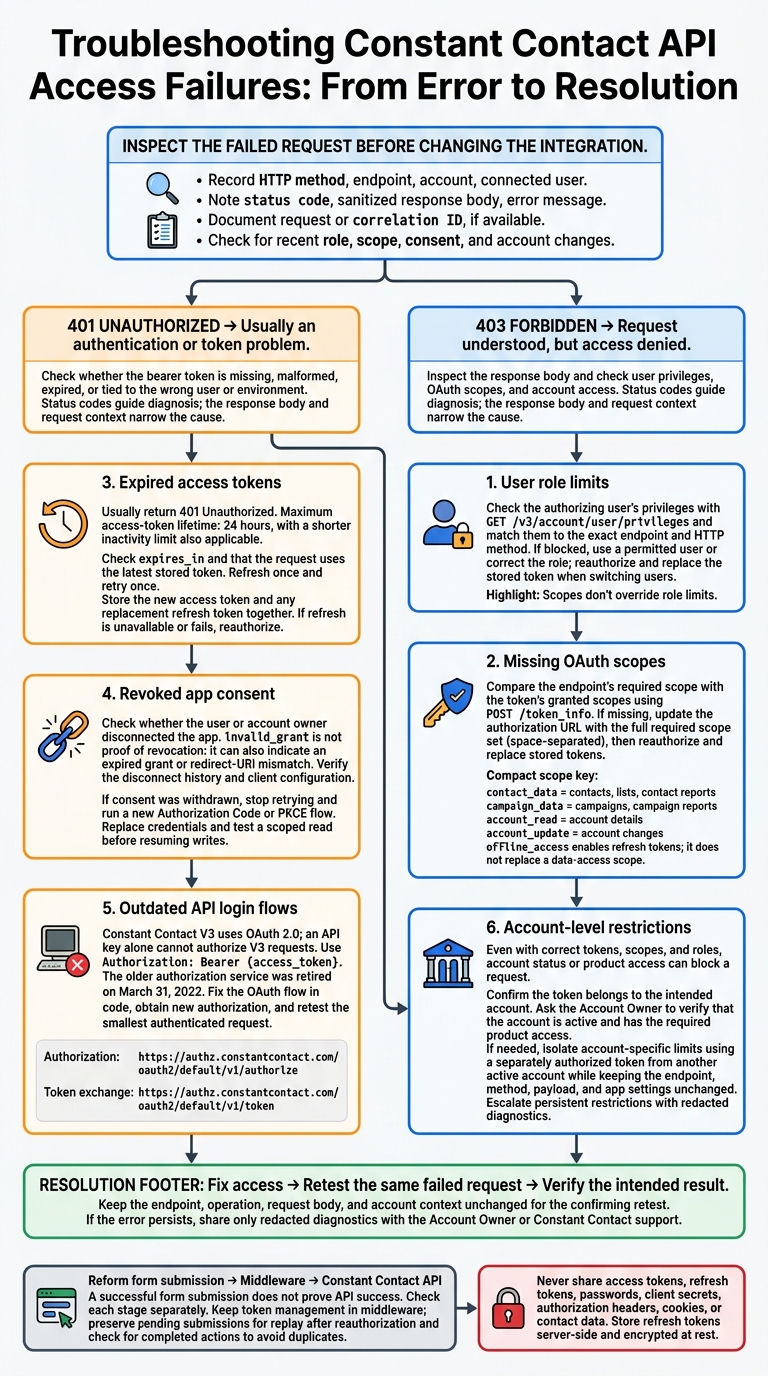
Constant Contact Permission Errors: Troubleshooting Flow
Check the Failed Request First
Start with the failed request to tell authentication problems apart from permission problems before changing anything else.
Read the Status Code and Response Body
A 401 response points to an authentication problem. The bearer token may be missing, malformed, expired, or tied to the wrong user or environment. If it expired, get a new token through the OAuth flow that supports refresh tokens. Issuing refresh tokens requires offline_access.
A 403 response means the request was understood, but access was denied. Common causes include missing scopes, insufficient user privileges, or a deactivated application. Compare the endpoint’s required scope with the token’s scopes. Then check the connected user’s privileges through /account/user/privileges.
Save the HTTP status, sanitized response body, error_key, error message, and any request or correlation ID. An access_denied response with an insufficient-privileges message points to the user’s permissions. A scope-related response points to the OAuth authorization request.
Record the Endpoint, User, and Access Changes
Record the HTTP method, endpoint, connected user, account ID, app name or version, and whether the request used the V3 API. Note the failure timestamp in MM/DD/YYYY, h:mm a.m./p.m. format, including the time zone. Record the token’s age - not the token itself.
Build a timeline of changes before the first failure: role updates, scope changes, app consent revocation, reconnects, and account-setting changes.
Sanitize diagnostics before saving or sharing them. Remove authorization headers, access and refresh tokens, client secrets, passwords, cookies, and contact data.
If you have a working request, compare it with the failed request. Focus on differences in the user, account, method, endpoint, and scopes. If the issue still points to account-level restrictions, send the redacted record to support to help isolate which of the six causes applies.
sbb-itb-5f36581
1. User Role Limits
If the 403 indicates insufficient privileges, check the user’s role first.
Account Owners and Account Managers can access campaigns, contacts, contact lists, and reports. Campaign Creators can create and edit campaigns and view contact lists. They cannot access contacts, change contact lists, view reports, or send campaigns.
Use GET /v3/account/user/privileges to check the authorizing user’s permissions. Match those permissions to the exact endpoint and HTTP method, not just the resource type.
If the role blocks the request, ask an Account Owner or Account Manager to run it. Or reauthorize the integration with a user who has permission and replace the stored token. Grant only the access the workflow needs.
Retest the request after fixing access. Scopes don’t override role limits: the app needs the right scope, and the user needs the right privilege. If the role is correct, check the token scopes next.
2. Missing OAuth Scopes
If the user has the right role, check the token’s scopes next. A missing scope can cause a 403 Forbidden response.
Check the endpoint docs and HTTP method to find the required scope. contact_data covers contacts, lists, and contact reports; campaign_data covers campaigns and campaign reports; account_read covers account details; and account_update covers account changes.
Then compare the required scope with the token’s granted scopes. Use POST /token_info to check what the token actually has.
Requesting new scopes won’t change an existing grant. If a scope is missing, update the authorization URL with the full required scope set. Separate scope names with spaces - not commas. Include offline_access only if the integration needs refresh tokens; it doesn’t replace a data-access scope.
Run the OAuth flow again using the updated authorization URL. Exchange the returned authorization code for a new token set, then replace that account’s stored access and refresh tokens. Retry the request with the new access token.
3. Expired Access Tokens
Expired access tokens usually return 401 Unauthorized. Constant Contact sets a maximum lifetime of 24 hours, plus a shorter inactivity limit measured from the token’s last use.
Store expires_in and calculate when the token will expire. If your OAuth flow supports refresh tokens, refresh before the 24-hour or inactivity limit, leaving a small safety margin.
When you get a 401, check that the request uses the latest stored access token. Refresh once and retry once. Store the new access token and any replacement refresh token together before retrying. Don’t refresh before every call: Constant Contact rate-limits the token endpoint.
Keep refresh tokens server-side and encrypted at rest. Never put them in browser code, URLs, or logs. If refresh fails because the token is missing, invalid, revoked, or unsupported by your OAuth flow, send the user through OAuth again. If refreshing doesn’t resolve the error, check app consent, the legacy auth flow, and account restrictions.
4. Revoked App Consent
Revoked consent means the user or account owner withdrew the app’s permission. The grant is no longer valid, so the integration needs authorization again. Treat this as a grant problem - not a token-refresh problem.
Check whether the user or account owner disconnected the app before the failures started. Then inspect the token endpoint’s error response. An invalid_grant error can point to revoked consent, an expired grant, or a redirect-URI mismatch. Compare the first invalid_grant error with the disconnect date or consent change, and verify the client configuration and redirect URI before calling it a revocation issue.
If consent was withdrawn, stop retrying the failed request and start a new Authorization Code or PKCE flow. Use your Reconnect Constant Contact action, request the scopes the endpoint requires, and make sure the user reconnects the correct account.
Deleting stored credentials does not restore authorization. Once the user reauthorizes, exchange the new code for tokens and securely replace the old credentials. Test a read request within the granted scopes before resuming writes. If reauthorization doesn’t clear the error, check the authentication flow next.
5. Outdated API Login Flows
If reauthorization still fails after user, scope, and token checks pass, the integration may be using an outdated login flow.
Constant Contact V3 uses OAuth 2.0. An API key alone cannot authorize V3 requests. Send the access token in the Authorization: Bearer {access_token} header.
Check for direct account login, a legacy endpoint, or API-key-only authentication. The integration must redirect to the OAuth authorization endpoint, exchange the authorization code for tokens, and attach the bearer token to V3 requests. Fix the OAuth flow in code, not in form fields. If it still fails, check the endpoints themselves.
Constant Contact retired its older authorization service on March 31, 2022. Use these endpoints:
- Authorization:
https://authz.constantcontact.com/oauth2/default/v1/authorize - Token exchange:
https://authz.constantcontact.com/oauth2/default/v1/token
Valid client credentials won't make retired endpoints work.
After updating the auth flow, retest the smallest authenticated request before checking mapping or headless form logic.
6. Account-Level Restrictions
Even when the token, scopes, and user role are correct, account status or product access can still block the request.
If the 403 response body links access_denied to account status, treat it as an account-level restriction.
Confirm that the token belongs to the intended account. Then check its current privileges with GET /account/user/privileges.
Ask the Account Owner to confirm that the account is active and has the required product access. A contact read may succeed even when other actions fail.
To isolate account-specific limits, retry the same request with a separately authorized token from another active account. Keep the endpoint, method, payload, and app settings unchanged.
If the restriction persists, send a redacted record to Constant Contact support. Include the account ID, endpoint, method, status code, sanitized response body, failure time in U.S. Eastern Time, and correlation ID, if available.
If the account passes these checks, the next place to check is the form-to-API handoff.
Separate Form Submissions From API Access
In a Reform workflow, keep form collection, middleware processing, and Constant Contact API access separate. A valid submission can still fail at the API stage. Treating each as its own step helps you pinpoint whether the problem came from the form, middleware, or Constant Contact.
Start by confirming that the form created a submission record. Then check whether middleware received and queued the payload. Validate its fields separately from authorization: valid form data does not grant API access. Constant Contact scopes control which categories of data the application can use. If middleware sent the request, check the HTTP status code and response body to distinguish payload errors from role, scope, or token problems.
Keep token management in middleware. If token renewal fails, save the submission and reauthorize the connection.
Use a durable queue to store each submission’s ID, status, attempts, and timestamps. Keep tokens out of logs. After reauthorization, replay pending records, checking for previously completed actions to avoid duplicate contacts. Use the queued records to match each failure to its cause in the table below.
Permission Error Troubleshooting Table
After checking the HTTP status and response body, use this table to narrow down the cause.
| Observed symptom | Likely permission cause | Constant Contact check | Corrective action |
|---|---|---|---|
| The request works for the Account Owner but returns 403 for a Campaign Creator or non-owner user. | User role limits | Call GET /account/user/privileges for the failing user. Compare their privileges with the endpoint’s requirements. |
Ask an Account Owner or Account Manager to assign the right role or perform the request. Reauthorize if you switch users. |
| Contact requests work, but another endpoint returns 403. | Missing OAuth scopes | Compare the granted scope with the scope the endpoint requires. | Request the required scope, get user approval, and replace the stored tokens before retrying. |
| A request that previously worked starts returning 401. | Expired access tokens | Check the token’s expiration. Expired access tokens return 401. | Refresh the token or reauthorize, securely replace the stored credentials, and retry. |
| Requests that previously worked fail after the app is disconnected. | Revoked app consent | Confirm that the grant still exists for the current user and app. | Reauthorize with the required scopes, replace the token set, and retest. |
| The integration still uses a retired Constant Contact auth flow or endpoint. | Outdated API login flows | Compare the OAuth authorization and token-exchange URLs with the current endpoints. | Move to a supported OAuth 2.0 flow, update the settings, and get new authorization. |
| Multiple authorized users receive 403 for the same account endpoint. | Account-level restrictions | Check the account-specific requirements for the endpoint and method. | Ask the Account Owner or Constant Contact support to review the account’s status and restrictions. |
Once you’ve narrowed down the cause, retest the same request with a user you know has permission. This ensures your integration works smoothly, much like creating high-converting lead forms that rely on seamless data flow.
Conclusion: Fix the Access Issue and Retest
Once you’ve matched the symptom to its likely cause, fix the issue and retest the same request. Check the status code to determine whether the failure involves authentication or permissions.
Review the endpoint, method, timestamp, account, user, status, response body, and recent access changes. Retest with the same endpoint, operation, request body, and account context. Check both the response and the intended result - a successful request to another endpoint doesn’t confirm the fix. In Reform workflows, check the submission and API handoff separately to pinpoint where the failure occurred.
If the error persists, send the timestamp with its time zone, account and app IDs, sanitized error response, and attempted fixes to the Account Owner or Constant Contact support. Never share access tokens, refresh tokens, passwords, or client secrets.
FAQs
Why do permission errors keep returning after I reconnect?
Reconnecting may not fix every access issue. Missing roles or scopes can still block access. OAuth credentials may also become invalid after the original user changes their password or leaves the company. Account-level restrictions and duplicate rules can look like permission failures, too.
Check that the connected account is active and has the required permissions in Constant Contact. Then confirm that the required scopes are enabled in your app configuration.
How can I prevent permission errors when user roles change?
Use a dedicated integration user with a system administrator profile or a defined integration permission set - not an individual employee account. This keeps access consistent when employees leave or change roles.
Review permissions quarterly to confirm the account has the read and write access it needs. After a role change, check its required scopes and privileges, or reconnect the integration with an account that has the right access level.
How can I recover failed submissions without duplicating contacts?
Before retrying a failed submission, look up the contact by email. If there’s a match, update that contact rather than create a new one.
For every retry, include a unique idempotency key, such as a submission ID, so the system recognizes the request and prevents duplicate records.
Related Blog Posts
Get new content delivered straight to your inbox

The Response
Updates on the Reform platform, insights on optimizing conversion rates, and tips to craft forms that convert.



Drive real results with form optimizations
Tested across hundreds of experiments, our strategies deliver a 215% lift in qualified leads for B2B and SaaS companies.
