
.webp)
Scaling Forms Without Exceeding HubSpot API Limits



When your forms start racking up submissions - whether from a product launch or a marketing push - you’re not just managing leads; you’re managing the strain on HubSpot’s API. Here’s the deal: HubSpot enforces strict rate limits, especially for burst activity (like 50 requests per 10 seconds for unauthenticated endpoints). Go over that, and you’ll face errors, blocked IPs, and lost data.
To avoid these headaches, you need to:
- Use queues: Process form submissions steadily instead of all at once.
- Batch API calls: Combine multiple requests into one to save resources.
- Monitor usage: Track HubSpot’s API headers to stay under limits.
- Handle errors smartly: Use exponential backoff and retry delays for 429 errors.
- Optimize workflows: Cut unnecessary API calls by caching data and using webhooks.
If your form submissions are pushing limits, it’s not just about upgrading your plan - it’s about smarter integration design. Let’s dive into the details.
Now you can track your HubSpot limits with the CRM Limits API!

Understanding HubSpot API Limits
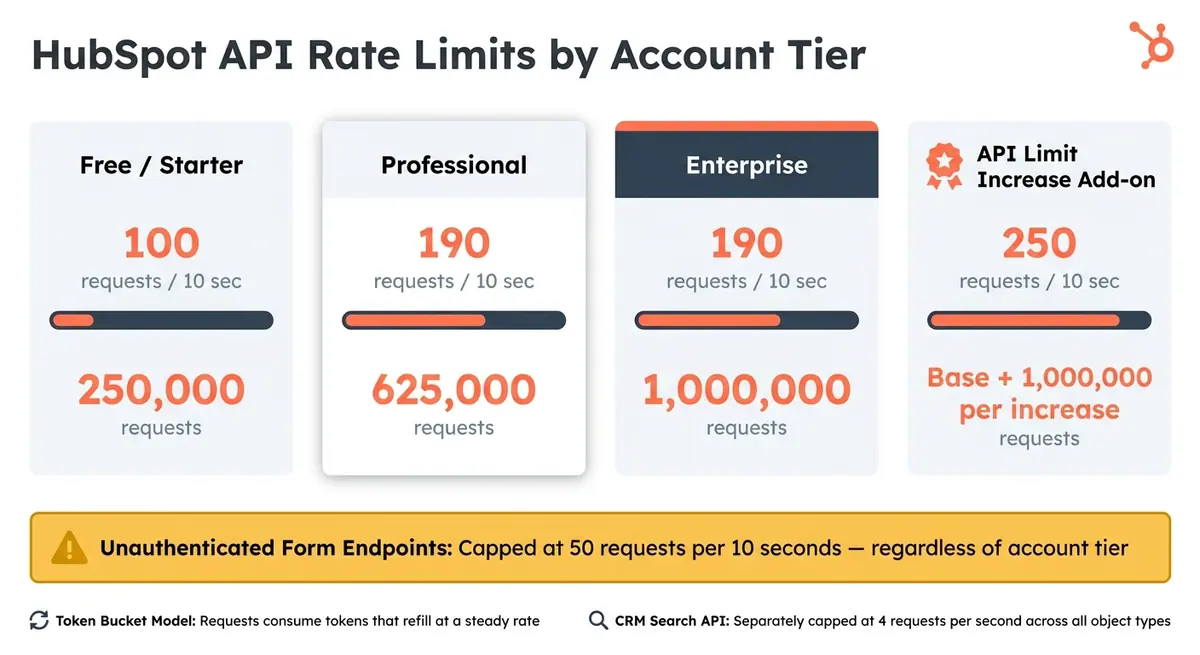
HubSpot API Rate Limits by Account Tier
How HubSpot API Rate Limits Work
HubSpot imposes two types of API limits: burst limits (requests allowed per 10 seconds) and daily quotas. While both are important, burst limits often cause the most trouble during high-traffic periods, such as form submission spikes.
Here's a breakdown of the limits by account tier:
| Account Tier | Burst Limit (Per 10 Sec) | Daily Limit |
|---|---|---|
| Free / Starter | 100 requests | 250,000 requests |
| Professional | 190 requests | 625,000 requests |
| Enterprise | 190 requests | 1,000,000 requests |
| API Limit Increase Add-on | 250 requests | Base + 1,000,000 per increase |
Important: Unauthenticated form endpoints are capped at 50 requests per 10 seconds, regardless of your account tier.
HubSpot uses a token bucket model to manage API usage. Each request consumes a token from a bucket that refills at a steady rate. If the bucket empties faster than it refills, you’ll hit the limit.
How Form Submissions Generate API Calls
Submitting a form doesn’t just trigger a single API call. Depending on your integration, one submission might initiate multiple actions: creating a contact, updating a company record, creating a deal, or enrolling a workflow. That could mean four or more API calls for a single form submission - before even factoring in deduplication checks.
"The most significant gap in common HubSpot integrations is the tendency to treat the API as an unlimited, always-available data pipe rather than a shared resource with specific limits." - Campaign Creators
This is where things get tricky during traffic spikes. For example, if 30 users submit a form at the same time and each submission triggers 5 API calls, that’s 150 requests in seconds - well beyond the unauthenticated endpoint limit of 50 requests per 10 seconds.
The CRM Search API adds another layer of complexity. It’s capped at just 4 requests per second across all object types. This limitation often becomes a bottleneck when deduplication checks are performed on every submission. These compounded requests make it clear why keeping an eye on API usage is so important.
Tracking and Managing API Usage
To avoid hitting limits, tracking and managing your API calls is crucial. HubSpot provides real-time usage data through response headers included with every API call. Key headers to monitor include:
X-HubSpot-RateLimit-Remaining: Shows how many requests you have left in the current 10-second window.X-HubSpot-RateLimit-Daily-Remaining: Displays your remaining daily requests.
By monitoring these headers, your system can adjust request rates proactively to avoid hitting hard limits.
Additionally, HubSpot’s dashboard under Development > Monitoring > API call usage offers historical data on API consumption. This tool is invaluable for identifying recurring spikes tied to specific workflows or integrations.
One useful benchmark: if you’re building an app for the HubSpot Marketplace, you’ll need to keep error responses under 5% of total daily requests to maintain certification. Even if you’re not publishing an app, this is a good internal target to aim for.
Diagnosing API Rate-Limit Issues in Your Forms
Common Setup Mistakes That Cause Rate-Limit Issues
Rate-limit problems often stem from inefficient integration designs. As Integrate IQ explains:
"Most broken integrations are not high-volume systems. They are low-efficiency systems."
For instance, creating contacts, deals, and associations through separate, sequential API calls can quickly rack up over three requests per form submission. Instead, use batch endpoints that handle up to 100 records per call to cut down on resource usage.
Another common misstep is excessive polling. Polling HubSpot too frequently wastes API calls, especially when no new data is available. Switching to webhooks, which send data only when an event occurs, eliminates this unnecessary load.
Static metadata is another culprit. Fetching it repeatedly for every submission, instead of caching it, drains your API budget. Similarly, running multiple independent workers without coordinating their request budgets can lead to overshooting the rate limit. When workers act as though they each have full access to the API quota, their combined calls can easily exceed the burst window.
For high-volume scenarios, switching from unauthenticated to authenticated endpoints can significantly increase the burst limit - from 50 to between 100 and 200 requests per 10 seconds.
These inefficiencies not only waste API resources but also set the stage for the error signals discussed below.
Error Signals and What They Mean
HubSpot communicates rate-limit issues through HTTP 429 errors. These responses include a policyName field, which identifies the specific limit that was exceeded. For example:
- A
policyNameof"DAILY"means your 24-hour quota is exhausted. You'll need to wait until midnight (portal time) for the quota to reset. - A
policyNameof"TEN_SECONDLY_ROLLING"indicates you've hit the burst limit, which typically requires only a short pause.
As Campaign Creators advises:
"When a 429 'Too Many Requests' error does occur, it should be treated as a diagnostic signal to slow down."
Beyond the 429 error, here are some other signals to watch for:
| Error Signal | Meaning | Recommended Action |
|---|---|---|
HTTP 429 + policyName: DAILY |
Daily quota exhausted | Pause until midnight (portal time) |
HTTP 429 + policyName: TEN_SECONDLY_ROLLING |
Burst limit hit | Wait a few seconds, then retry with backoff |
| Error Code 1015 | IP blocked after 10+ rapid 429s in one second | Halt all requests for 60 seconds |
| HTTP 423 | Concurrency lock from simultaneous updates | Add a 2-second delay before retrying |
| HTTP 502 / 504 | Processing timeout under sustained load | Pause briefly and retry with exponential backoff |
If your system continues to send requests after hitting the burst limit - causing 10 or more 429 errors within a second - HubSpot may escalate to an IP-level block for one minute, returning error code 1015. Retrying immediately without proper backoff can worsen the situation.
Always log the correlationId from error responses. This is crucial information for HubSpot support when troubleshooting API failures.
Estimating API Demand from Your Forms
Once you've identified inefficiencies and error signals, the next step is to estimate your API usage. Start by reviewing your historical API activity in HubSpot through Settings > Integrations > API Calls or the Monitoring > API call usage dashboard.
To calculate your per-submission API cost, map out the actions triggered by a single form submission. This might include:
- Contact creation
- Deal creation
- Association calls
- Deduplication lookups via the CRM Search API
- Workflow custom code that calls back into HubSpot
Handling these tasks separately can cost 5 to 7 API calls per submission. By using batch upsert endpoints (like /crm/v3/objects/contacts/batch/upsert with idProperty: "email"), you can reduce this to a single call.
Next, multiply the per-submission cost by your submission volume. For example, if your form averages 500 submissions per hour at 6 API calls each, you're looking at 3,000 calls per hour - roughly 8 calls every 10 seconds. This is manageable under a Professional plan's burst limit of 190 requests per 10 seconds. However, if submissions spike to 2,000 per hour, the demand jumps to around 33 calls every 10 seconds, potentially hitting the CRM Search API's cap of 4 requests per second.
A good rule of thumb: if any single integration or worker uses more than 30% of your daily API budget, it's time to rework it into batch processes. Additionally, set up alerts to notify your team when daily usage hits 80% of the limit - preferably by 6:00 PM - so you can throttle activity before the quota resets at midnight.
sbb-itb-5f36581
How to Scale Form Submissions Without Hitting API Limits
Managing API usage effectively is key to handling high volumes of form submissions without running into restrictions. These strategies work hand in hand with earlier diagnostic steps to help your system scale smoothly.
Using Queues for Asynchronous Processing
One common mistake in handling large volumes of form submissions is processing them immediately upon arrival. During traffic surges, this can lead to simultaneous API calls, quickly maxing out your burst limit.
To address this, implement a queueing layer to separate form submissions from direct API calls. Tools like Redis, AWS SQS, or Google Cloud Tasks act as buffers. Submissions are queued instantly, and a worker processes them at a steady pace. This approach evens out traffic spikes and ensures API requests stay within HubSpot's rolling 10-second burst limit.
"The HubSpot API rate limit isn't something you bolt on later – it's a core architectural concern." - Anze Koprivec, Cofounder and MD, Scopious Digital
Centralize your outgoing calls to maintain a consistent and controlled request rate.
Batching API Calls to Reduce Volume
Asynchronous processing pairs well with batching, which further decreases API load. HubSpot's batch endpoints allow you to handle up to 100 records in a single request, significantly reducing the number of API calls per submission.
For example, Carter McKay, Lead Developer at PivIT Global, showcased the impact of batching in September 2023. His team reduced their API requests from 2,627 to just 31 - and eventually to a single request using GraphQL - when fetching task data for 100 contacts. This represented a 99.9% reduction in API calls.
For form submissions, the /crm/v3/objects/contacts/batch/upsert endpoint is especially effective. It can create or update records using email as the identifier, eliminating the need for separate read-then-write operations and avoiding 409 conflict errors.
Handling HTTP 429 Errors and Retries
Even with batching, occasional HTTP 429 errors are inevitable. The worst response is to retry immediately, especially if multiple workers are involved. Simultaneous retries can create a thundering herd effect, further straining the API.
Instead, check the Retry-After header in the 429 response to determine how long to wait. Use exponential backoff with random delays: start with a 1-second wait, then double it (e.g., 2 seconds, 4 seconds), adding a random offset of 0–500ms each time. This spreads out retries, reducing the risk of overloading the system. For ongoing issues, implement a circuit breaker to temporarily pause requests, giving the API time to recover.
Sending Only the Data You Need
Every unnecessary field in a form submission can trigger extra workflows, updates, or lookups, eating into your API limits. Streamline your workflows and send only the essential data.
Cache metadata that rarely changes - like property definitions or schemas - locally in tools like Redis to reduce API calls. This simple step can free up a significant portion of your daily API budget.
Also, avoid relying on the CRM Search API for routine deduplication. It’s limited to just 4 requests per second across all object types, regardless of your plan. Instead, use the batch upsert method with idProperty: "email". This approach handles deduplication directly, bypassing the Search API.
How Reform Helps Streamline Form Integrations

Reform reduces backend API usage by filtering out invalid or unnecessary data before submission. Features like email validation and spam prevention lower the number of records needing processing or deduplication in HubSpot. Conditional routing ensures only relevant fields are collected based on user responses, keeping payloads streamlined. Additionally, lead enrichment gathers richer contact details without requiring additional questions, cutting down on follow-up API lookups.
For teams on the Pro plan, Reform's native HubSpot integration ensures only essential data is passed along, helping to minimize API costs from the outset.
Configuring HubSpot to Support High-Volume Form Submissions
To handle high-volume form submissions effectively, it's crucial to align your HubSpot settings with your submission strategies. Proper configuration ensures that even during peak activity, your form submissions stay within HubSpot's API limits.
Choosing the Right Plan and App Type
For managing high-volume forms, the Enterprise plan is your best bet. It allows for 1,000,000 daily requests and provides higher burst limits. If you're currently using unauthenticated endpoints (limited to 50 requests per 10 seconds), consider switching to authenticated endpoints, which support up to 150 requests per 10 seconds. Alternatively, you can opt for an API Limit Increase add-on.
"If your application is currently using the unauthenticated (v2 & v3) Form Submission endpoints and it requires more than the proposed 50 requests per 10 seconds rate limit, we recommend migrating to the new authenticated submission endpoints." - HubSpot Developer Changelog
The API Limit Increase add-on boosts the burst limit to 200 requests per 10 seconds and adds an extra 1,000,000 daily requests. You can purchase up to two packs per account.
When configuring your app, you'll have two main options:
- Private apps: Easier to set up but share the account's overall daily limit.
- OAuth apps: Require more setup effort but are better suited for production integrations involving multiple portals.
Once you've chosen the right plan and app type, focus on reducing unnecessary API calls in your internal workflows.
Cutting Down API Calls from Workflows and Automations
Workflows in HubSpot can unintentionally eat into your API limits. Actions like updating properties or searching for contacts count against your limit. However, there’s an important exception: webhook calls triggered by workflows don’t count toward the API rate limit.
"Webhook calls made via workflows do not count towards the API rate limit." - HubSpot Docs
This makes webhooks a more efficient option for real-time notifications compared to polling or API-heavy workflows. Tom Beckett, an inbound and revenue operations strategist at CRM Curator, emphasizes this point:
"Search is rate-limited separately and aggressively. Replace POST /crm/v3/objects/contacts/search with a webhook subscription where possible. Push beats pull."
Another way to save on API calls is by caching static metadata - like property definitions or owner lists - locally for at least 24 hours. Fetching metadata such as /crm/v3/properties/contacts repeatedly can consume up to 50% of your API budget unnecessarily.
Setting Up Monitoring and Alerts for API Usage
To keep track of API usage, monitor response headers like X-HubSpot-RateLimit-Daily-Remaining and X-HubSpot-RateLimit-Remaining. Set up alerts to notify you when daily usage drops below 10%. You can also access real-time usage data via Development > Monitoring > API call usage in HubSpot.
For added monitoring, set alerts to trigger if rate limits are exceeded more than 10 times within 5 minutes. If you’re using a queue-based system, keep an eye on queue depth and P95 job completion time - a growing queue can signal that workers are falling behind. Conduct weekly reviews of your API usage dashboard to identify and address unexpected spikes caused by new workflows or automations.
Conclusion: Key Takeaways for Scaling Forms
To wrap things up, let’s focus on strategies that make form integration with HubSpot APIs smooth and efficient. By using asynchronous queues, you can handle traffic spikes without overloading the system. Batch endpoints are a game-changer, letting you process up to 100 records in a single API call, cutting down on unnecessary requests. Instead of relying on polling, webhooks ensure API calls are triggered only when meaningful changes occur. And don’t forget about metadata caching - it saves your integration from wasting API calls on static data, helping you stay within your daily budget.
From an infrastructure perspective, the right HubSpot plan and authenticated endpoints can make a big difference. Keeping workflows streamlined is equally important. If you find yourself nearing the daily cap often, revisit the earlier discussion on the API Limit Increase add-on for tailored solutions.
Ultimately, scaling efficiently is all about doing more with less. Conduct weekly audits of API usage, prioritize real-time lead routing, and keep an eye on X-HubSpot-RateLimit headers to catch potential issues early. If your forms are hitting limits, the answer usually lies in reducing wasted calls, not just increasing capacity. A smartly designed integration grows with you, avoiding constant troubleshooting and ensuring smooth operations.
FAQs
How do I calculate API calls per form submission?
To figure out the number of API calls triggered by a form submission, you need to account for every request tied to that single user action. For instance, submitting a form might involve tasks like checking for duplicate entries, updating contact details, and logging engagement data - this typically requires 3–4 API calls. Review your integration setup carefully to identify all the endpoints involved. When feasible, opt for batch endpoints, which can process up to 100 records in one request, helping to cut down on overall API usage.
What’s the best way to dedupe contacts without using Search?
To clean up duplicate contacts without using Search, HubSpot offers built-in tools and custom automation options. For starters, HubSpot automatically identifies duplicates by email when contacts are created through forms, manual entry, or imports.
For larger datasets, you can export your contact records, use tools like VLOOKUP in Excel to spot duplicates, and then re-import the data using Record IDs to update existing entries. If you have access to Operations Hub, you can take it a step further by setting up custom workflows to detect and merge duplicates automatically.
How should I retry safely after a 429 rate-limit error?
To deal with a 429 error effectively, avoid retrying requests immediately, as this can lead to further throttling. Instead, look for the Retry-After header in the response. This header indicates how long you should wait before making another request.
A good approach is to use exponential backoff combined with jitter (a random delay). This method staggers retries, preventing multiple requests from being sent at the same time. By following these steps, your integration can recover smoothly while staying within HubSpot’s API limits.
Related Blog Posts
Get new content delivered straight to your inbox

The Response
Updates on the Reform platform, insights on optimizing conversion rates, and tips to craft forms that convert.




Drive real results with form optimizations
Tested across hundreds of experiments, our strategies deliver a 215% lift in qualified leads for B2B and SaaS companies.
