
.webp)
WCAG Guidelines for Accessible Forms


Forms are essential for online interactions, but inaccessible forms exclude millions of users with disabilities. The WCAG (Web Content Accessibility Guidelines) ensure forms are usable for everyone by focusing on four principles: Perceivable, Operable, Understandable, and Robust (POUR). These principles help create forms that work with assistive technologies, comply with legal standards like the ADA, and improve usability for all.
Key takeaways:
- Perceivable: Use visible labels, proper color contrast, and text alternatives for non-text elements.
- Operable: Ensure keyboard navigation works seamlessly, with logical tab orders and visible focus indicators.
- Understandable: Provide clear instructions, descriptive error messages, and group related fields logically.
- Robust: Use semantic HTML and ARIA attributes to ensure compatibility with screen readers.
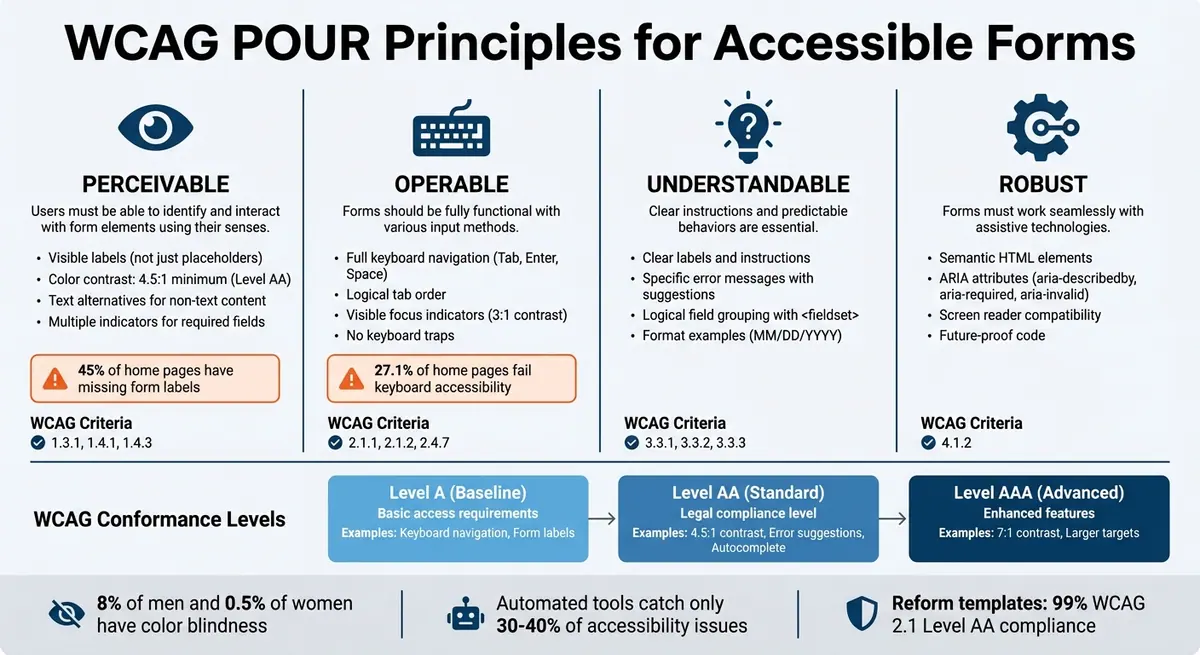
WCAG POUR Principles Framework for Accessible Forms
How to make accessible forms - with lots of examples!
sbb-itb-5f36581
WCAG Guidelines and POUR Principles
The Web Content Accessibility Guidelines (WCAG) provide a detailed framework for creating accessible forms. These guidelines ensure that digital content, including forms, is usable by everyone, regardless of ability. WCAG 2.1, introduced in 2018, expanded accessibility features for mobile devices and users with low vision, often achieved through multi-step form structures. In October 2023, WCAG 2.2 added updates focusing on cognitive accessibility and mobile usability improvements.
At the heart of WCAG is the POUR framework, which stands for Perceivable, Operable, Understandable, and Robust. Here's a quick breakdown:
- Perceivable: Users must be able to identify and interact with form elements using their senses - whether through sight, sound, or touch.
- Operable: Forms should be fully functional with various input methods, like keyboards or voice commands.
- Understandable: Clear instructions and predictable behaviors are essential for usability.
- Robust: Forms must work seamlessly with assistive technologies, such as screen readers, and remain functional as technology evolves.
"Accessible forms aren't just the right thing to do - they're better for everyone".
WCAG 2.1 and 2.2 Conformance Levels
WCAG outlines three levels of conformance to measure accessibility:
- Level A: The baseline requirements for accessibility. Without meeting these, forms may be entirely unusable for some individuals. For example, this level includes features like keyboard navigation (2.1.1) and clear form labels (3.3.2).
- Level AA: Considered the global standard, it ensures a broader range of accessibility. Key criteria include a minimum color contrast ratio of 4.5:1 for text, error suggestions (3.3.3), and support for autofill using the
autocompleteattribute (1.3.5). - Level AAA: The most advanced level, offering enhanced accessibility features. It includes higher contrast ratios (7:1), larger clickable areas, and more sophisticated error prevention. However, even at this level, not all content may be fully accessible to everyone.
| WCAG Level | Impact on Form Design | Key Success Criteria Examples |
|---|---|---|
| Level A | Basic access requirements | 1.3.1 Info and Relationships, 2.1.1 Keyboard, 3.3.2 Labels |
| Level AA | Standard for legal compliance | 1.3.5 Identify Input Purpose, 1.4.3 Contrast (Minimum), 3.3.3 Error Suggestion |
| Level AAA | Advanced accessibility features | 1.3.6 Identify Purpose, 1.4.6 Contrast (Enhanced), 2.5.5 Target Size |
How POUR Principles Apply to Forms
The POUR principles directly guide the design and functionality of accessible forms:
- Perceivable: Always use visible labels instead of relying on placeholder text, which can disappear when users start typing. Ensure color contrast meets accessibility standards, and avoid using color alone to indicate errors. For instance, since about 8% of men and 0.5% of women have some form of color blindness, a red border alone might not be enough to signal an error.
- Operable: Forms should be fully navigable using just a keyboard. Every field, button, and custom control must be accessible via the Tab key and activated with Enter or Space. Clear visual focus indicators are crucial to help users track their location within the form.
-
Understandable: Provide specific instructions and error messages. For example, instead of a vague "Invalid date" message, use something more helpful like "Enter date as MM/DD/YYYY." Additionally, grouping related fields with
<fieldset>and<legend>tags, or breaking long forms into steps, can make the form easier to understand. -
Robust: Use native HTML elements like
<input>,<select>, and<button>whenever possible, as they come with built-in accessibility features. For custom elements, use ARIA attributes (e.g.,aria-describedby) to link help text to the corresponding form fields.
| POUR Principle | Implementation Example | WCAG Success Criteria (Examples) |
|---|---|---|
| Perceivable | Persistent labels; error icons not reliant on color alone | 1.3.1 Info and Relationships; 1.4.1 Use of Color |
| Operable | Keyboard accessibility; visible focus indicators | 2.1.1 Keyboard; 2.4.7 Focus Visible |
| Understandable | Clear error messages; logical grouping of fields | 3.3.1 Error Identification; 3.3.3 Error Suggestion |
| Robust | Semantic HTML and ARIA attributes like aria-describedby |
4.1.2 Name, Role, Value |
Next, we'll explore how these principles shape specific design and coding practices to ensure form accessibility.
Making Forms Perceivable
The first principle of POUR emphasizes that all users should be able to identify and interact with form elements, regardless of whether they rely on screen readers, magnification tools, or face challenges like color blindness. Forms need to be accessible to everyone, aligning with screen reader compatibility and WCAG guidelines.
Text Alternatives for Non-Text Content
Every non-text element in a form must have an equivalent text description. This is a core requirement under WCAG Success Criterion 1.1.1.
For example:
- Use the
altattribute for image-based buttons (e.g.,alt="Search"for a search button with a magnifying glass icon). - For icon-only buttons, apply the
aria-labelattribute (e.g.,aria-label="Close dialog").
"Text alternatives must convey the purpose of an image or function to provide an equivalent user experience." – W3C
If an icon is paired with descriptive text, you can hide the icon from assistive technologies using aria-hidden="true". This prevents redundant announcements.
CAPTCHAs require extra care. To meet WCAG standards, provide at least two modalities - such as a visual puzzle and an audio option - so users with different sensory needs can complete the task. Additionally, include a clear text alternative explaining the CAPTCHA's purpose, like "Complete this verification to prove you're human."
For purely decorative images that don't add meaningful information, use a null alt attribute (alt="") or implement them through CSS. This ensures screen readers skip over them entirely.
Multiple Indicators for Required Fields
To make required fields clear, combine visual and programmatic indicators. For instance, you can add "(required)" directly to the label:
<label for="email">Email Address (required)</label>
If you prefer using asterisks, include an explanation at the top of the form, such as: "Fields marked with an asterisk (*) are required." Pair this with the HTML5 required attribute or aria-required="true" so that assistive technologies can announce the field's mandatory status.
It's worth noting that missing form labels are a frequent accessibility issue, appearing on 45% of home pages.
For grouped controls, such as radio buttons, place the required indicator in the <legend> element. This avoids repetitive labeling while providing clear context for the entire group.
| Method | Implementation | Why It Works |
|---|---|---|
| Text in Label | Name (required) | Clearly identifies the field as mandatory and is announced by screen readers. |
| Asterisk + Legend | * Indicates required field | Offers a standard visual cue, explained at the start of the form. |
| HTML5 Attribute | <input required> |
Enables browser validation and programmatic recognition. |
| ARIA Attribute | aria-required="true" |
Explicitly informs assistive technologies about the field's required status. |
Making Forms Operable: Keyboard Navigation and Focus
The second POUR principle emphasizes the importance of ensuring forms are accessible to users relying solely on a keyboard. This is vital for individuals with motor impairments, those using assistive tools, and anyone who prefers keyboard shortcuts. Shockingly, about 27.1% of home pages fail to provide full keyboard accessibility, highlighting an area that needs attention.
Keyboard Navigation for Forms
Success Criterion 2.1.1 (Keyboard, Level A) mandates that all form functions must be operable through a keyboard without requiring precise timing for keystrokes. This means users should be able to reach and interact with every field, button, and control using keys like Tab, Enter, and Spacebar.
To achieve this, start by using native HTML elements like <button>, <input>, and <select>, which already support keyboard functionality. For custom widgets, ensure they’re keyboard-accessible by adding tabindex="0" and handling both keydown and click events.
The tab order should follow a natural, logical sequence - usually left-to-right and top-to-bottom - to align with the visual layout (Success Criterion 2.4.3). Avoid using positive tabindex values (e.g., tabindex="1", tabindex="2") as they disrupt the natural flow. Instead, structure your HTML to reflect the desired order.
Success Criterion 2.1.2 (No Keyboard Trap, Level A) ensures users won’t get stuck in a form field or widget. For example, users should be able to exit modals or dropdowns using the Esc key or by tabbing out. To help users skip lengthy navigation sections and reach forms faster, include a "skip to main content" link.
Here’s a quick guide to standard keyboard interactions:
| Interaction | Keystrokes | Standard Behavior |
|---|---|---|
| Navigate forward | Tab | Moves focus to the next interactive element |
| Navigate backward | Shift + Tab | Moves focus to the previous interactive element |
| Activate Button | Enter or Spacebar | Triggers the button action |
| Select Checkbox | Spacebar | Toggles the checked state |
| Navigate Radio Group | Arrow Keys (↑/↓ or ←/→) | Moves between options within the group |
| Close Dialog/Menu | Esc | Dismisses the active modal or dropdown |
Test your forms without a mouse to ensure every field and button is accessible. If you encounter areas you can’t reach or activate, your users will face the same barriers.
With navigation covered, the next step is addressing visibility through clear focus indicators.
Focus Indicators for Form Fields
Success Criterion 2.4.7 (Focus Visible, Level AA) requires a visible focus indicator so keyboard users can identify which element they’re interacting with. As accessibility expert Sara Soueidan explains:
"The focus indicator is to keyboard users what the mouse cursor is to mouse users."
Without this visual cue, sighted keyboard users face significant challenges. Unfortunately, many developers disable the default browser outline using CSS (outline: none or outline: 0) without replacing it, violating accessibility guidelines.
Focus indicators should meet contrast standards (Success Criterion 1.4.11), ensuring a contrast ratio of at least 3:1 against adjacent colors. For Level AAA compliance (Success Criterion 2.4.13), the indicator area should be at least the size of a 2px-thick perimeter around the component.
To balance accessibility with design preferences, use the :focus-visible pseudo-class. This ensures focus indicators are shown only for keyboard users, while remaining hidden for mouse users. To avoid layout shifts when using borders for focus states, define a transparent border for the non-focused state.
For maximum visibility, combine properties like outline and box-shadow to create a noticeable "halo" effect. Be cautious of fixed headers, footers, or overlapping modals that might obscure the focus indicator (Success Criterion 2.4.11).
The focus indicator must remain visible as long as the element is focused - there should be no time limits. This persistent visual aid benefits not only keyboard users but also individuals with low vision, cognitive challenges, or those using screen magnifiers.
Making Forms Understandable: Labels and Error Handling
Creating forms that are easy to understand is crucial for everyone, but especially for users with cognitive, language, or learning disabilities. Without clear labels and helpful error messages, users can easily become confused about what’s required, leading to mistakes, frustration, or even giving up on the form altogether. As Vine Udosoh, Developer Guide Author at Equally AI, explains:
"When form labels or instructions are unclear, users may struggle to understand what's required, leading to mistakes, frustration, or abandonment."
This section focuses on how to design forms with clear labels and effective error handling that align with WCAG standards, ensuring better accessibility and usability for all users.
Clear Labels and Instructions
Success Criterion 3.3.2 (Labels or Instructions, Level A) emphasizes the importance of providing clear labels or instructions for all input fields, such as text boxes, checkboxes, radio buttons, and dropdown menus.
"The intent of this success criterion is to have content authors present instructions or labels that identify the controls in a form so that users know what input data is expected."
To achieve this, labels should be clearly visible and programmatically linked to their corresponding input fields using the <label> element and the for attribute, which matches the input’s id. This approach not only aids screen reader users but also creates a larger clickable area, helping those with motor disabilities.
Avoid relying on placeholder text as a substitute for proper labels. Placeholders disappear once users start typing, often lack sufficient color contrast, and may not be consistently announced by screen readers. As GetWCAG aptly notes:
"Placeholders are not labels - every form field needs a real name."
For inputs requiring specific formats (like MM/DD/YYYY) or rules (e.g., password complexity), provide clear instructions upfront. Use aria-describedby to associate these instructions with the input field while keeping the main label intact. For grouped controls like radio buttons or checkboxes, use <fieldset> and <legend> to give users the necessary context.
Consistency is key - place labels directly above text inputs or beside checkboxes and radio buttons. To indicate required fields, combine visual cues (e.g., an asterisk with a legend) with programmatic attributes like required or aria-required="true".
Once labels and instructions are in place, the next step is to ensure users can easily identify and fix errors when they occur.
Error Identification and Suggestions
Clear error handling is just as important as clear labels. It helps users understand what went wrong and how to fix it. Success Criterion 3.3.1 (Error Identification, Level A) requires that errors be clearly identified and described in text when detected. Avoid relying solely on visual cues like red borders, as these may not be noticeable to users who are blind or colorblind. Instead, include descriptive text, icons, or prefixes like "(Error)" within the label.
Success Criterion 3.3.3 (Error Suggestion, Level AA) goes a step further, requiring that corrective suggestions be provided when possible - unless doing so would compromise security. For example, instead of simply stating, "Invalid input", provide actionable guidance like "Password must be at least 8 characters" or "Enter a valid email in the format name@domain.com".
To ensure screen readers announce errors effectively, link error messages to their corresponding fields using aria-describedby. Add aria-invalid="true" to inputs that fail validation to signal the error state to assistive technologies.
For more complex forms, include an error summary at the top of the page. In these cases, multi-step forms can also help by breaking down information into manageable chunks. When users submit the form, shift focus to this summary or the first invalid field, helping them quickly locate and address the issue. This approach streamlines the process of identifying errors, making corrections, and resubmitting the form.
Real-time feedback can also be helpful. Use role="alert" or set aria-live="polite" so that validation messages are announced as soon as they appear. Place inline error messages near the relevant inputs to ensure users can easily spot and resolve issues without losing their place in the form.
Making Forms Compatible: Semantic Markup and Screen Readers
Ensuring compatibility is a key aspect of designing accessible forms. Even with clear labels and effective error handling, forms can still fall short if they don't function well with assistive technologies like screen readers. Success Criterion 4.1.2 (Name, Role, Value) specifies that all user interface components must allow their name and role to be programmatically determined, while states, properties, and values should be adjustable and capable of notifying users of changes. This ensures that screen readers can properly interpret and announce form controls for users who rely on them.
Semantic Markup and ARIA Attributes
Creating screen reader-friendly forms starts with semantic HTML. Native elements like <form>, <label>, <input>, and <button> come with built-in accessibility features that automatically communicate their name, role, and state to assistive technologies. As Uday Shetty, Senior Accessibility Consultant at Deque Systems, points out:
"The first rule for creating a truly accessible form is to use native HTML form controls as much as possible. Most of them are accessible by default with all assistive technologies, and they are semantically correct."
However, when native elements aren’t enough - such as when creating custom widgets - ARIA attributes can step in. Attributes like aria-required="true" indicate mandatory fields, while aria-invalid="true" flags validation errors. The aria-describedby attribute links instructional text or error messages to inputs, ensuring that screen readers announce them immediately after the field's label. For example, a password field might use aria-describedby to point to a hint such as "Password must be at least 8 characters."
For dynamic updates, such as real-time validation feedback, use aria-live="polite" or role="alert" to ensure screen readers announce changes without disrupting the user’s flow.
| ARIA Attribute | Purpose | WCAG Success Criterion |
|---|---|---|
aria-required |
Marks a field as mandatory before submission. | 1.3.1, 3.3.3 |
aria-invalid |
Flags invalid input that doesn’t meet requirements. | 4.1.2 |
aria-describedby |
Links additional descriptive text to a form control. | 1.3.1, 3.3.2 |
aria-labelledby |
Specifies the element(s) that label the current control. | 4.1.2 |
Once these strategies are implemented, it’s crucial to evaluate their effectiveness through thorough screen reader testing.
Testing Forms with Screen Readers
While automated tools can catch some accessibility issues, they typically identify only 30% to 40% of potential problems. This makes manual screen reader testing an indispensable step. Begin by navigating the form using only the Tab key to ensure a logical focus order. Each field should clearly announce its label, any associated instructions, and its current state (e.g., required or invalid).
Testing across multiple screen readers ensures compatibility for a wider audience. Popular tools include NVDA and JAWS for Windows, and VoiceOver for macOS and iOS. According to the 2024 WebAIM survey, VoiceOver on macOS accounts for less than 10% of desktop screen reader users, so prioritizing JAWS and NVDA is a good starting point.
During testing, confirm that error messages, state changes (such as required or invalid fields), and dynamic updates are announced promptly. The focus should automatically shift to an error summary or the first invalid field, enabling users to quickly address issues. On macOS, the VoiceOver Rotor (VO + U) can be used to review all form elements and ensure they’re properly listed and identifiable. Additionally, validate input on "blur" (when the user exits a field) or upon form submission. Real-time validation while typing can disrupt screen reader announcements and cause confusion.
Implementing WCAG Guidelines in Reform
Reform takes the principles of WCAG and integrates them directly into its platform by automating accessibility features. With its no-code approach, Reform ensures that accessibility is baked into every form by default, eliminating the need for manual ARIA coding or adjustments to semantic markup. The platform generates native HTML elements like <form>, <label>, and <input>, which are instantly recognizable by assistive technologies. This automation significantly reduces common errors that occur when forms are hand-coded. During beta testing, Reform's templates achieved 99% compliance with WCAG 2.1 Level AA standards.
Accessible Multi-Step Forms in Reform
Reform’s multi-step forms are designed with accessibility in mind, automatically implementing semantic heading structures. When a new page is created, H2 tags are generated to help screen readers communicate progress, such as "Step 1 of 5: Contact Information". This logical structure aligns with Success Criterion 1.3.1 (Info and Relationships) without requiring developers to configure headings manually.
The platform also integrates conditional logic that triggers aria-live="polite" announcements whenever fields appear or disappear based on user input. For example, in a lead qualification form, if pricing fields are revealed after selecting "Yes" for budget, screen readers like NVDA or JAWS immediately announce the new fields. One U.S. e-commerce client used these features to create a 7-step checkout form. The result? A 40% increase in screen reader completion rates and zero ADA complaints after passing WAVE and axe audits at AA level.
WCAG Compliance Features in Reform
Reform goes further by integrating an accessibility scanner powered by axe-core, which flags issues in real time as forms are built. This scanner identifies problems like missing labels (WCAG 3.3.2), low color contrast (1.4.3), or improper focus indicators (2.4.7), and offers one-click fixes. Additionally, the platform automatically applies attributes like aria-required, aria-invalid, and aria-describedby where needed.
To ensure smooth keyboard navigation, Reform optimizes tab order, skipping non-interactive elements and updating progress indicators for screen readers using aria-valuenow. Inline error messages, such as "Email invalid: use name@domain.com format", are announced upon validation failure, along with corrective suggestions like auto-formatting dates to MM/DD/YYYY. Integrations with tools like HubSpot, Salesforce, and Zapier maintain semantic markup during data syncing, while honeypot spam prevention eliminates the need for inaccessible CAPTCHAs.
Conclusion
Creating accessible forms benefits everyone. By following WCAG guidelines, you're not just helping users with disabilities - you’re improving the experience for mobile users, keyboard navigators, and anyone filling out forms in less-than-ideal conditions, like under bright sunlight.
Throughout this discussion, we’ve explored how each WCAG principle shapes form design. The POUR framework addresses key user needs: visible labels minimize confusion, keyboard-friendly navigation supports users with motor disabilities, clear error messages cut down on frustration, and semantic HTML ensures compatibility with various devices and assistive technologies.
As Uday Shetty, Senior Accessibility Consultant at Deque Systems, aptly states:
"Native HTML is the key to creating positive user experiences!"
These principles bridge the gap between technical compliance and user-focused design.
Accessible forms don’t just meet regulations - they also expand your audience, lower support costs, and reduce legal risks. With initiatives like the European Accessibility Act coming into effect in June 2025 and ongoing ADA enforcement in the U.S., accessibility is shifting from a "nice-to-have" to a standard expectation.
To truly prioritize accessibility, start by testing with real screen readers and navigating forms using only a keyboard. Also, keep in mind that around 8% of men and 0.5% of women experience color vision deficiency, so relying solely on red error messages won’t cut it - add text and icons to ensure clarity. Whether you’re designing forms from scratch or using tools like Reform that handle WCAG compliance for you, accessible forms create a better experience for everyone.
FAQs
Which WCAG success criteria matter most for forms?
The key WCAG success criteria for forms are designed to make them accessible to users with disabilities. These include:
- 1.3.1 (Info and Relationships): Ensures labels are correctly associated with form fields, making it easier for assistive technologies to interpret the content.
- 3.3.2 (Labels or Instructions): Provides clear guidance for filling out fields, reducing confusion for users.
- 3.3.1 (Error Identification): Helps users identify errors in their input.
- 3.3.3 (Error Suggestions): Offers helpful suggestions to correct those errors.
- 2.1.1 (Keyboard): Ensures the form is fully navigable using a keyboard, accommodating users who cannot use a mouse.
These criteria work together to create forms that are inclusive, easy to use, and accessible to everyone.
When should I use ARIA instead of native HTML?
Stick to native HTML elements like <button> and <input> whenever possible - they're built to be accessible right out of the box. These elements come with baked-in functionality that works seamlessly with assistive technologies, making them the go-to choice for accessibility.
However, there are times when native HTML can't quite meet your needs, especially for custom controls or more complex components that don't have a direct HTML equivalent. That's where ARIA (Accessible Rich Internet Applications) steps in. ARIA can bridge the gap by providing additional accessibility features, but it should always be a backup plan, not your first choice.
In short, prioritize semantic HTML to ensure a solid foundation of accessibility, and use ARIA sparingly to enhance areas where native HTML falls short.
How do I test a form with a screen reader and keyboard?
To test a form, start by using the Tab key to move through the fields and check if the focus order flows in a logical sequence. Pay attention to the screen reader output to ensure that labels are properly announced and correctly linked to their respective controls. Confirm that all interactive elements, such as buttons and checkboxes, can be accessed and activated using the keyboard alone. Finally, make sure that any error messages or instructions are clearly announced by the screen reader, providing users with clear and helpful feedback.
Related Blog Posts
Get new content delivered straight to your inbox

The Response
Updates on the Reform platform, insights on optimizing conversion rates, and tips to craft forms that convert.




Drive real results with form optimizations
Tested across hundreds of experiments, our strategies deliver a 215% lift in qualified leads for B2B and SaaS companies.
