
.webp)
How to Test Forms for WCAG Compliance



Testing web forms for accessibility ensures they work for everyone, including users with disabilities. The Web Content Accessibility Guidelines (WCAG) provide a framework for making forms compliant and user-friendly, focusing on principles like perceivability, operability, understandability, and robustness (POUR). Here's what you need to know:
- Common Issues: Missing labels, keyboard inaccessibility, poor error handling, and reliance on color alone for feedback are frequent problems.
- Conformance Levels: WCAG defines three levels - A (basic), AA (standard for most organizations), and AAA (strictest but not always practical).
- Testing Methods:
- Automated Tools: Use tools like WAVE or Lighthouse to detect technical errors like missing ARIA roles or low contrast.
- Keyboard Navigation: Ensure forms are fully functional using only the Tab, Enter, and Spacebar keys.
- Screen Readers: Test with tools like NVDA, JAWS, or VoiceOver to confirm labels, error messages, and instructions are announced correctly.
- Error Handling: Provide clear error messages and suggestions (e.g., "Enter a valid email address") with accessible attributes like
aria-invalidandaria-describedby.
Tip: Platforms like Reform simplify compliance by integrating accessibility features like proper labels, ARIA attributes, and keyboard-friendly navigation into form design.
Accessible forms aren't just a legal requirement under laws like the ADA and Section 508 - they also improve usability for all users and reduce form abandonment rates. Start testing your forms today to ensure they meet WCAG standards and provide a better experience for everyone.
Test a form for accessibility checklist and demo
sbb-itb-5f36581
How to Test Forms for WCAG Compliance
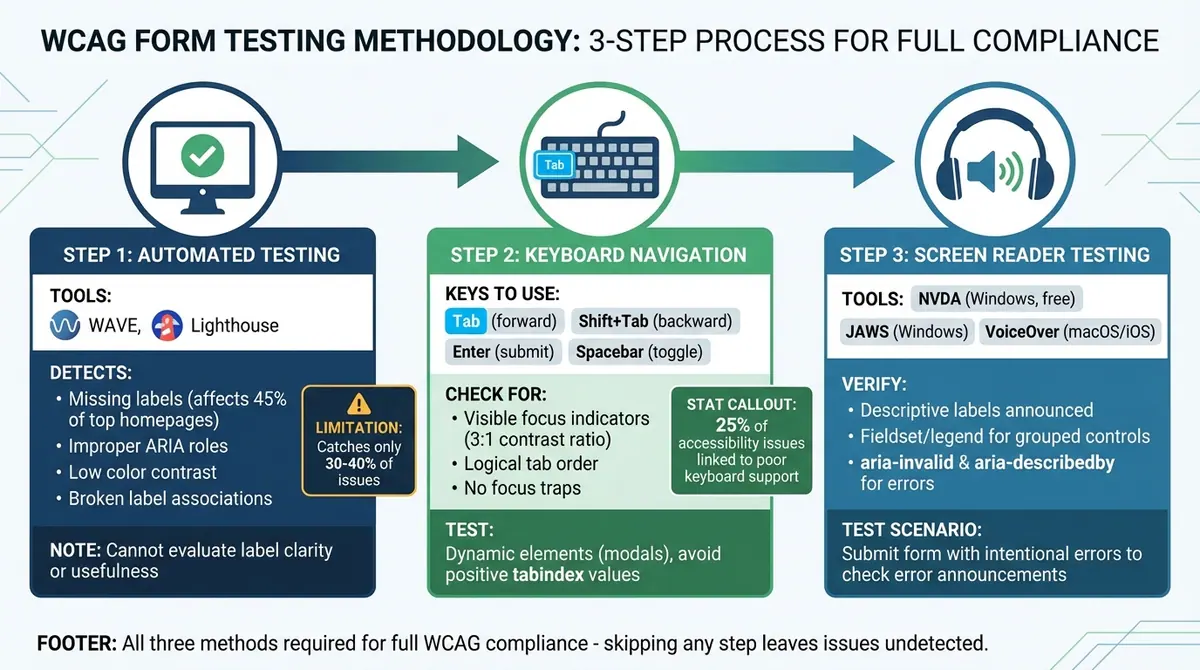
3-Step WCAG Form Testing Process: Automated Tools, Keyboard Navigation, and Screen Readers
Ensuring your forms meet WCAG standards requires a mix of automated tools, manual keyboard navigation, and screen reader testing. Each approach addresses different aspects of accessibility, so skipping any step could leave issues undetected.
Run Automated Accessibility Tests
Tools like WAVE and Lighthouse can quickly scan your forms for common accessibility issues, such as missing labels, improper ARIA roles, or low color contrast. These tools are often available as browser extensions for Chrome, Firefox, or Edge, making them handy for testing forms on password-protected pages or local files. Missing labels are a frequent problem, impacting nearly half of the top homepages online.
When WAVE highlights an error, use its "Code" feature to examine the related HTML. The Details panel provides explanations for the violation and suggestions to fix it. For instance, automated tools can detect broken labels - cases where a <label> exists but isn't properly linked to its input via matching for and id attributes. They can also verify if fields collecting personal data include the correct autocomplete attributes, as required by WCAG 1.3.5.
"WAVE and other automated tools can only identify some accessibility issues. You should also test the page with a keyboard, screen reader, and/or browser developer tools." - WebAIM
However, automated tools have limitations. While they can confirm the presence of a label and its association with an input field, they cannot evaluate the clarity or usefulness of the label text. That’s where manual testing comes in.
Test Keyboard Navigation
Manual keyboard testing uncovers usability barriers that automated tools might miss. Navigate through the entire form using only the keyboard: use the Tab key to move forward, Shift + Tab to move backward, Enter to submit, and the Spacebar to toggle checkboxes or activate buttons. Every interactive element should be accessible, and the focus should never become trapped within a field.
Pay attention to the focus indicator, such as an outline or highlight, which should be easy to see and maintain a contrast ratio of at least 3:1 against the background. The tab order should logically follow the form’s visual layout - top to bottom, left to right. Avoid removing the default focus outline with CSS unless you replace it with an equally visible alternative. Roughly 25% of accessibility issues are linked to poor keyboard support.
Dynamic elements require special attention. For example, when a modal opens, the focus should shift to it, and when it closes, the focus should return to the element that triggered it. Avoid using positive tabindex values (e.g., tabindex="1") as custom tab orders can confuse users.
Test with Screen Readers
After keyboard testing, screen reader evaluations ensure the form’s structure is accessible and logically communicated. Use widely used screen readers like NVDA (free for Windows), JAWS (Windows), or VoiceOver (built into macOS and iOS). Navigate the form using the Tab key and listen to how each field is announced.
Every form control should have a descriptive <label>, aria-label, or aria-labelledby so screen readers can announce the field’s purpose when it gains focus. For related controls like radio buttons, use <fieldset> and <legend> elements to provide context, which the screen reader will announce when entering the group.
"Screen reader users navigate using the Tab key. Although labels are announced when form inputs receive keyboard focus, other text between the form controls is usually skipped." - WebAIM
To test error handling, intentionally submit the form with errors. Screen readers should identify invalid fields using aria-invalid="true" and announce any linked error messages (e.g., via aria-describedby). This ensures that the form complies with WCAG’s Perceivable and Operable principles.
WCAG Requirements for Forms
WCAG guidelines for forms focus on error handling, clear labeling, and preventing mistakes. Following these ensures your forms are accessible to all users, including those with disabilities.
Error Messages and Suggestions (3.3.1, 3.3.3)
WCAG 3.3.1 Error Identification (Level A) requires that when an error occurs, the field with the issue must be identified, and the problem described in text that assistive technology can interpret. Visual cues, like red borders or icons, aren't enough. WCAG 3.3.3 Error Suggestion (Level AA) takes it a step further by requiring specific guidance on how to fix the error, unless this compromises security. For instance, instead of saying "Invalid input", provide a clear suggestion like, "Enter a valid email address in the format name@domain.com."
Use attributes like aria-invalid="true" and aria-describedby to link errors to their respective fields. Combine an error summary at the top of the form with inline error messages near the problematic fields. When a submission fails, shift keyboard focus to the error summary or the first invalid field, ensuring users relying on keyboards or screen readers are immediately alerted. Avoid using prefilled form fields or placeholder text as a substitute for error instructions - it disappears once users start typing and often lacks adequate color contrast. For instant validation, apply role="alert" or aria-live="assertive" so error messages are announced without needing a page reload.
"If an input error is automatically detected, the item that is in error is identified and the error is described to the user in text." - W3C
These practices ensure users receive clear, immediate feedback when they make mistakes, making forms easier to navigate.
Form Labels and Instructions (3.3.2)
WCAG 3.3.2 Labels or Instructions (Level A) mandates that all input fields have labels or instructions. Each form control must include a descriptive <label> element linked to it using matching for and id attributes.
For related controls like radio buttons or checkboxes, group them within a <fieldset> and use a <legend> to provide context (e.g., "Shipping Method"). This is especially important in interactive multi-step flows where context can easily be lost between steps. Screen readers announce this context when users interact with the group. If additional instructions are necessary, such as formatting tips like "MM/DD/YYYY", include them within the <label> or associate them using aria-describedby.
Missing labels are among the most frequent accessibility issues. Never rely on placeholder text as a substitute for labels - it vanishes when users type and isn't consistently announced by screen readers.
Error Prevention (3.3.4)
WCAG 3.3.4 shifts the focus from identifying errors to preventing them in the first place. This criterion applies to forms involving legal commitments, financial transactions, data modifications, or test responses. The aim is to help users avoid irreversible mistakes that could have serious consequences.
Error prevention involves at least one of these strategies: making submissions reversible, checking for errors with opportunities to correct them, or providing a review and confirm step before final submission.
| Technique | Description | Best Use Case |
|---|---|---|
| Reversible | Allows users to cancel or undo submissions. | Financial transactions or time-sensitive requests. |
| Checked | Automatically detects errors and prompts corrections. | Validating formats like dates or phone numbers. |
| Confirmed | Displays a summary for user review before submission. | Legal contracts, tax returns, or large data deletions. |
For example, a financial services website might prevent errors by checking if the stock market is closed before processing an order. If a user submits after hours, the system alerts them to the risks and requires confirmation to proceed or cancel, aligning with WCAG 3.3.4. Similarly, online retailers often present an "Order Confirmation" page summarizing items, shipping details, and payment information. Users must confirm or edit these details before finalizing the order, fulfilling the "Confirmed" requirement.
"The intent of this Success Criterion is to help users with disabilities avoid serious consequences as the result of a mistake when performing an action that cannot be reversed." - W3C
For critical actions like deleting a file, include a confirmation checkbox next to the submit button to encourage careful review. For Level AAA compliance (WCAG 3.3.6), these error prevention steps must apply to all user submissions, not just high-stakes transactions.
Building Accessible Forms with Reform
Creating forms that meet WCAG standards often requires specialized technical skills, but Reform simplifies the process. Its no-code platform integrates accessibility features directly, making it easy for businesses to design compliant forms without extra hassle.
Built-In Accessibility Features
Reform takes care of essential WCAG requirements automatically. For example, it ensures proper label association for all form fields, so screen readers can accurately announce each input. Unlike other form builders that rely on placeholder text, Reform keeps labels visible and consistent throughout the user’s interaction.
When users make errors, Reform provides multiple forms of feedback, including text descriptions, icons, and accessible markup using attributes like aria-invalid and aria-describedby. This ensures that even users who can’t distinguish colors receive clear error messages. For multi-step forms, Reform includes progress indicators and conditional logic while maintaining a navigation structure designed for assistive technologies. Instructions and format hints (like "MM-DD-YYYY") are also programmatically tied to their fields, so screen readers deliver the information at the right time.
Reform’s no-code design tools make creating accessible forms straightforward, eliminating the need for manual coding.
Creating Compliant Forms Without Code
Reform's visual interface automatically handles accessibility details. When you add a field, the platform generates the correct HTML structure, complete with associated labels, ARIA attributes, and keyboard navigation support. This addresses one of the most common accessibility issues, which affects 45% of home pages globally.
The platform also includes default HTML autocomplete attributes for fields like email, phone, and address, speeding up form completion and meeting WCAG 2.1 AA requirements. Real-time validation, aligned with WCAG 3.3.1/3.3.3, helps users catch and fix errors immediately, reducing form abandonment rates. By automating these features, Reform ensures forms are compliant from the start, streamlining WCAG testing procedures.
With around 16% of the global population living with a disability, accessible forms are not just a legal necessity but also a way to reach a broader audience. Reform supports compliance with laws like the ADA and the European Accessibility Act, which will be enforced starting June 2025.
Combining Accessibility with Performance
Reform goes beyond compliance to improve user experience and boost conversions. Features like lead enrichment and real-time analytics let you monitor form performance while ensuring all users can complete them successfully.
Multi-step forms with conditional routing simplify the experience for everyone, including screen reader users, by reducing cognitive load. Privacy-first error handling ensures that feedback is accessible without exposing sensitive information, balancing usability with security.
"Accessible forms aren't just ethically right - they're better forms for everyone." - Orbit AI
Since automated tools catch only 30–40% of potential accessibility issues, using a platform like Reform with built-in accessible design significantly lowers the risk of non-compliance. By embedding accessibility into every form from the start, Reform helps organizations create forms that work for everyone while meeting legal and ethical standards.
Conclusion
Testing Process Summary
Ensuring your forms meet WCAG compliance involves a layered approach. Start with automated tools like Lighthouse or WAVE to catch technical issues, such as missing ARIA roles or poor color contrast. Next, manually navigate your form using only the Tab, Enter, and Spacebar keys to confirm that all controls are accessible and have visible focus indicators. Finally, test with screen readers to ensure labels, instructions, and error messages are properly announced. It’s important to note that automated tools alone can only detect a portion of accessibility issues. Manual testing and assistive technology checks are essential for achieving full compliance. These steps not only help identify issues but also improve the overall user experience.
Why Accessible Forms Matter
Accessible forms are easier for everyone to use, making them more understandable and user-friendly. This directly impacts conversion rates by reducing form abandonment. With nearly 20% of the population living with some form of disability, WCAG compliance opens your business to a much larger audience. Beyond the practical benefits, accessibility is also a legal obligation under laws like the ADA and Section 508, which helps you avoid potential lawsuits while reinforcing your commitment to inclusivity. As the W3C Web Accessibility Initiative explains:
"Forms can be visually and cognitively complex and challenging to use. Accessible forms are easier to use for everyone, including people with disabilities".
By thoroughly testing your forms, you ensure they not only meet user needs but also contribute to your business goals.
Getting Started with Compliance
Begin by auditing your forms for common issues, such as missing labels or problems with keyboard navigation. For new forms, consider tools like Reform, which integrate accessibility features such as proper label association, ARIA attributes, and keyboard navigation by default. Make accessibility a priority from the design stage to ensure compliance from the outset. Regular audits will help you maintain these standards as your forms evolve.
FAQs
What WCAG success criteria matter most for forms?
When designing accessible forms, there are several essential WCAG criteria to keep in mind:
- Non-empty accessible names (4.1.2): Every form control should have a clear and non-empty accessible name to ensure assistive technologies can identify them.
- Clear labels (1.3.1): Labels should be descriptive and directly associated with their respective form controls, making it easier for users to understand their purpose.
- Instructions and error messages (3.3.1, 3.3.2, 3.3.3): Provide clear guidance on how to complete forms and include helpful error messages to assist users in correcting mistakes.
- Keyboard accessibility (2.1): Ensure that all form elements can be navigated and used with a keyboard alone, accommodating users who rely on keyboard navigation.
By following these principles, forms can be made functional and accessible for everyone.
What accessibility issues do automated tools miss in forms?
Automated tools are great for catching straightforward issues like missing labels or contrast problems. However, they often fall short when it comes to more complex challenges. These include checking focus states, ensuring smooth keyboard navigation, verifying the logical order of elements, and assessing the clarity of instructions or error messages. To meet full WCAG standards, manual testing and user feedback are crucial. These methods help uncover the subtle issues that automated tools simply can't catch.
How can I verify screen readers announce form errors correctly?
To make sure screen readers handle form errors properly, focus on accessible error messaging. Start by prefixing error messages with “Error:” for clarity and include an error summary at the top of the page for quick navigation. Utilize ARIA attributes like aria-describedby to link error messages to specific fields and aria-invalid to indicate which fields contain errors. Always test your forms with screen readers such as NVDA, JAWS, or VoiceOver to ensure errors are announced promptly and accurately during user interactions.
Related Blog Posts
Get new content delivered straight to your inbox

The Response
Updates on the Reform platform, insights on optimizing conversion rates, and tips to craft forms that convert.




Drive real results with form optimizations
Tested across hundreds of experiments, our strategies deliver a 215% lift in qualified leads for B2B and SaaS companies.
