
.webp)
Accessible Multi-Page Forms: 9 Segment Tips


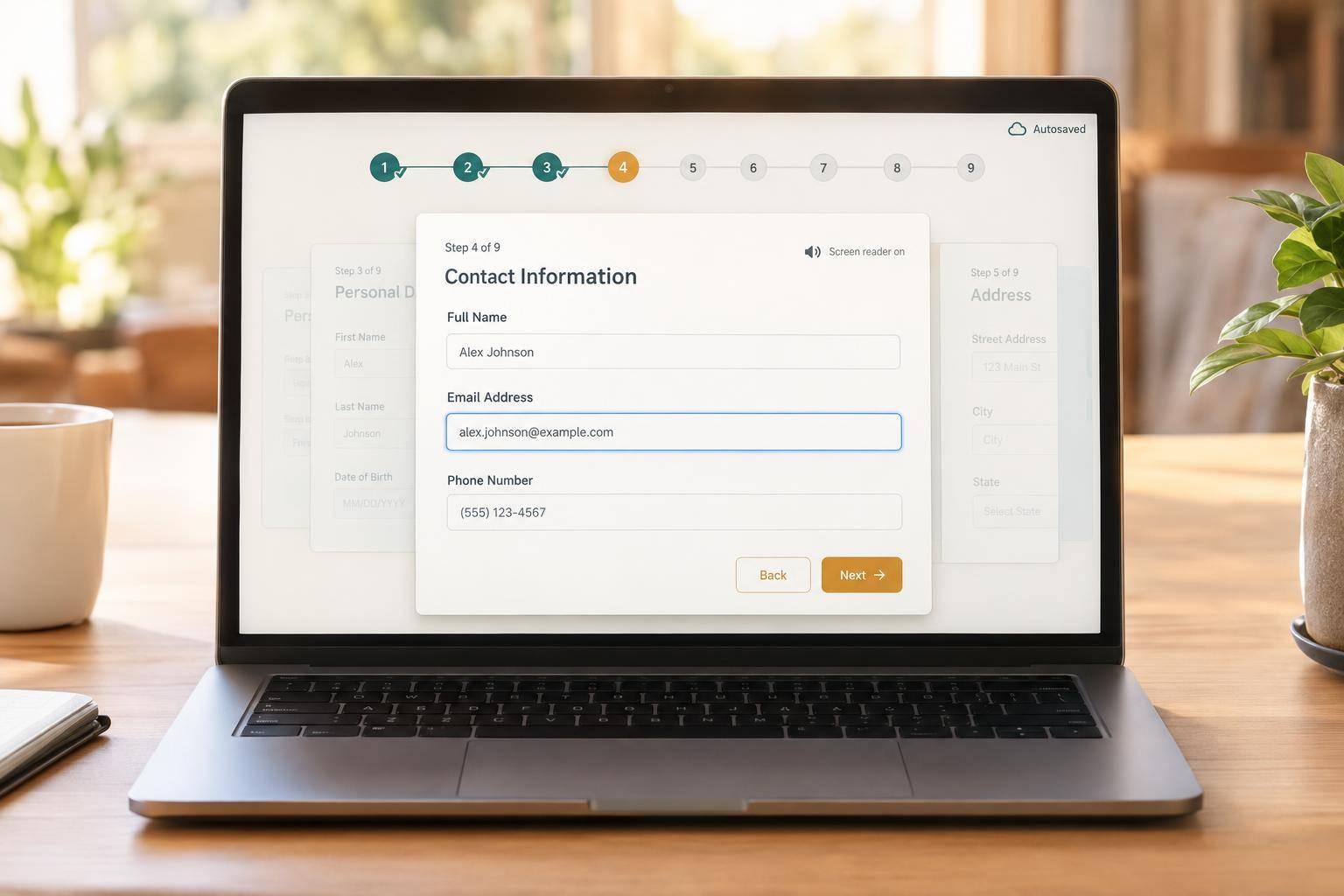
I don’t judge a form’s accessibility by how few fields fit on each page. I check whether you can follow the steps, fix mistakes, and return without losing answers.
These 9 checks guide my review:
- Give each step one clear task.
- Keep field labels and requirements visible.
- Put easier questions before complex or sensitive ones.
- Show the current step and accurate progress.
- Keep Back and Continue predictable.
- Save answers and explain how to return.
- Make fields and buttons work with mobile keyboards.
- Update branching paths without asking for answers twice.
- Test every route with a keyboard and screen reader.
My rule: <u>test the whole journey</u> - including errors, changed answers, and saved drafts - not just the path to Submit.

Accessible Multi-Page Forms: Test Every Route
How to make accessible forms - with lots of examples!
sbb-itb-5f36581
1. Give Each Step One Clear Goal
Define what the step should do before choosing its fields. For each field, ask whether it’s needed now, required by law, or better left for later. Remove questions that aren’t needed, and make the step’s purpose clear in its labels.
Group related controls with a <fieldset> and a short <legend> so screen reader users can identify the group’s question.
Validate without losing answers. When users select Continue, keep their entries in place and show each error beside its field. Mark invalid fields with aria-invalid="true" and link error messages using aria-describedby. After a failed attempt, move focus to the error summary or the first invalid field.
Conditional routing can help keep each step focused, but you still need to test it with keyboards and screen readers, especially as users move between steps.
2. Keep Field Labels Clear and Visible
Keep labels visible as users type so people can finish each step faster and with fewer errors. Use specific labels such as “Work email,” not disappearing placeholders. Ask for one piece of information per field.
Place labels directly above their controls. Mark required fields and add “(optional)” to labels for optional fields. When a field needs more explanation, add short helper text and link it with aria-describedby.
Check each control’s accessible name to make sure it matches the visible label. Then test whether a screen reader announces it. Clear labels also help users scan later steps.
3. Save Complex Questions for Later
Once labels are clear, arrange questions by the effort they take to answer. Start with the easiest, highest-value fields to help users keep going. This is a core principle for creating high-converting lead forms. Ask for basic details - name, email, and company - first. Save role, team size, and industry for later steps, followed by harder questions about requirements, timeline, and budget. Group fields by topic, not field type.
Before asking for sensitive information or complex details, explain why you need them. Give each step a clear name using multi-step form design best practices so users know what’s coming next.
Use conditional routing to skip qualification steps that don’t apply. When the path changes, renumber the remaining steps so progress stays accurate, with no gaps in the sequence. Keep that path visible as users move forward.
4. Show the Current Step and Total
Once each step has one job, which is why multi-step forms beat static ones, make its position clear. Place the step name and total above the form fields. Use text as the main progress cue, with bars and icons as supporting cues. Mark the active step with aria-current="step" so assistive technology announces it.
If routing changes the path, show step names instead of a fixed total. This keeps progress accurate and helps users see what comes next.
Contact → Details → Review
After each transition, move focus to the new step heading or first control. Match the tab order to the visual order, and test with NVDA or VoiceOver to confirm that step labels and current states are announced correctly.
Keep the Back and Continue controls in the same place on every step so users know where to find them.
5. Keep Navigation Predictable
Once each step has one goal, make moving between steps just as clear. Use Continue on intermediate steps and Submit on the last step. Include an explicit Back control on every step except the first. Predictable navigation helps users finish multi-step forms fast and recover when they need to make changes.
Back should never trigger validation. Keep it separate from forward validation, preserve entered answers, and leave it available when validation fails. For longer forms, add a review page with Edit links to earlier steps.
Keyboard behavior should also be predictable, so users can move through the form without getting trapped. Pressing Enter should move to the next field, or submit only when the user reaches the final field.
6. Let Users Save and Return
Autosave longer forms so users can pick up where they left off after an interruption. Save at each step change to help reduce abandonment on longer qualification forms.
Show a visible confirmation when progress is saved. Explain how users can return through a secure resume link, with their answers restored at the correct step. Tell them how long drafts stay available, and warn them before drafts expire.
Returning to a saved form needs the same clear state changes as moving between steps. Test recovery by completing several steps, closing the browser, and opening the resume link. Repeat the test on mobile and with NVDA or VoiceOver. Check that answers remain saved, the restored step is announced, and focus moves to that step’s heading.
7. Plan for Mobile Keyboard Use
Keep mobile steps short and easy to complete with the on-screen keyboard. Group fields that use the same keyboard to reduce scrolling and keyboard switches. Keep the Next button above the keyboard and the active field in view. Users should never need to dismiss the keyboard to continue.
Match input types to the task. Use type="email" or type="tel" where appropriate, along with matching autocomplete values.
For codes such as a U.S. ZIP code, use
type="text"withinputmode="numeric"andautocomplete="postal-code"instead oftype="number".
Test every step on a phone using touch, zoom, and the on-screen keyboard. Make sure all fields and buttons remain visible and reachable when the keyboard opens.
8. Handle Answers When Routes Change
When conditional routing changes the path mid-form, recalculate the remaining steps. Update the step labels and total to match the new path.
Don’t ask for the same answer twice. Keep answers that still apply, prefill fields when users return to them, and skip questions that no longer apply.
On the review page, show only answers that apply to the current path. Test every path with a keyboard and screen reader.
9. Test Each Route With Assistive Technology
Map every branching answer to the steps it leads to, then test every route using keyboard-only navigation and common desktop and mobile screen readers.
Use the map to check that each route clearly communicates progress, structure, and errors under actual assistive-tech conditions:
- Check that progress is clear, labels are readable, and grouped controls announce the right context.
- Submit invalid answers on every branch. Verify that focus moves to the error summary or first invalid field and that each error message is tied to the correct control.
- Verify that Back preserves data and that earlier answers remain when users refresh or resume a draft.
- On mobile, confirm that the right keyboard appears, each step fits without horizontal scrolling, and stacked controls remain readable.
Repeat these checks after route changes and when resuming drafts.
Form Segment Accessibility Checklist
Use this checklist to review every branch of your form before launch.
| Segmentation decision | Common accessibility risk | Recommended safeguard | Verification method |
|---|---|---|---|
| 1. One clear goal | Too much information appears at once, which can increase perceived effort. | Use an <h1> for the step title to simplify the process. |
Confirm that the heading and fields focus on one task. |
| 2. Clear labels | Placeholders disappear when users type. | Keep labels visible. Connect each <label> to its input with matching for and id values. |
Click each label to check that its input receives focus. |
| 3. Complex questions later | Difficult or sensitive questions appear too early. | Start with easier questions, then arrange fields in the order users expect. | Review the question order and where users drop off. |
| 4. Current step and total | Users can't tell how much is left. | Show progress and identify the current step with aria-current="step". |
Check that the spoken step and visible total match the active route. |
| 5. Predictable navigation | Moving between steps causes lost focus or confusion. | Use clearly labeled Back and Continue buttons. Move focus to the new heading. | Test the flow with Tab, Shift+Tab, and Enter. |
| 6. Save and return | Interruptions erase completed work. | Autosave whenever users move between steps, and store drafts securely. | Enter answers, leave, and return. Compare the restored values with what you entered. |
| 7. Mobile keyboard flow | The wrong keyboard slows typing or hides controls. | Set appropriate type and inputmode attributes, and keep the active field visible. |
Test keyboard layouts and field visibility on physical phones. |
| 8. Changed routes | Users see irrelevant fields or skip required logic. | Update later steps when users change an answer that controls branching. | Change an earlier answer, then inspect the resulting questions and saved answers. |
| 9. Assistive technology testing | Automated checks miss broken interactions. | Test every route with NVDA or VoiceOver. | Check spoken labels, grouped questions, errors, and step changes. |
Conclusion
Accessible multi-page lead forms need steps that work well together. Keep the flow clear and preserve answers across every branch, saved session, and device - not just the main path.
FAQs
How many fields should I put on each step?
Aim for 3–5 fields per step, though 2–4 often works even better. Fewer fields help users stay engaged and keep each step from feeling overwhelming.
Group fields by theme, such as personal identity, project context, or requirements. Leave complex or sensitive questions for later, once users have already put in some effort.
How can I keep saved answers secure?
Keep saved answers linked to the intended session or user flow. Use client storage, such as sessionStorage or IndexedDB, to retain responses during connection problems while limiting exposure.
Add short privacy notes next to sensitive fields so users know how their data will be used. Save answers at each step so users don’t have to enter the same information again after an interruption.
Should I delete answers when a branching path changes?
Yes. When a user changes an answer that controls branching logic, clear dependent values that are now hidden and no longer apply. This keeps form data accurate and prevents confusion from outdated answers.
Keep previously entered information that still applies, and remove any hidden requirements that could block submission.
Related Blog Posts
Get new content delivered straight to your inbox

The Response
Updates on the Reform platform, insights on optimizing conversion rates, and tips to craft forms that convert.




Drive real results with form optimizations
Tested across hundreds of experiments, our strategies deliver a 215% lift in qualified leads for B2B and SaaS companies.
