
.webp)
How Facebook Pixel Tracks Form Submissions


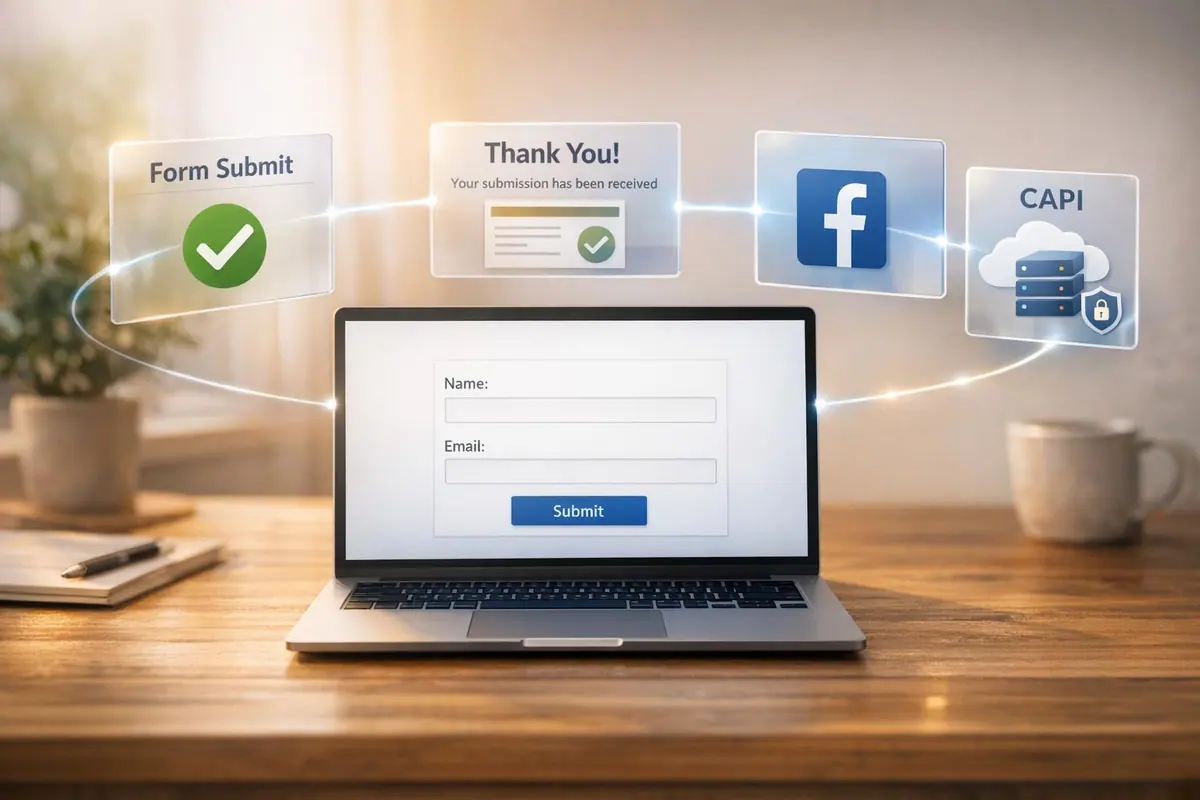
The Meta Pixel (formerly Facebook Pixel) is a JavaScript code that tracks user actions on your website, like form submissions, and sends this data to Meta. It helps identify which ads lead to conversions and refines ad targeting.
Here’s how it works:
- Events: Tracks actions like form submissions using predefined (e.g.,
Lead) or custom events. - Tracking Methods:
- Thank You Pages: Trigger events when users land on a confirmation page.
- JavaScript Listeners: Fire events when a form is submitted without page redirection.
- No-Code Tools: Platforms like Reform simplify Pixel integration without coding.
- Limitations: Ad blockers and iOS privacy features reduce tracking accuracy. Pairing with the Conversions API boosts accuracy from 40–60% to 80–95%.
- Setup: Install the Pixel in your site’s
<head>section, configure events, and test using tools like Meta Pixel Helper.
Accurate tracking ensures better ad performance and data-driven decisions.
How Facebook Pixel Tracks Form Submissions
What is Facebook Pixel?
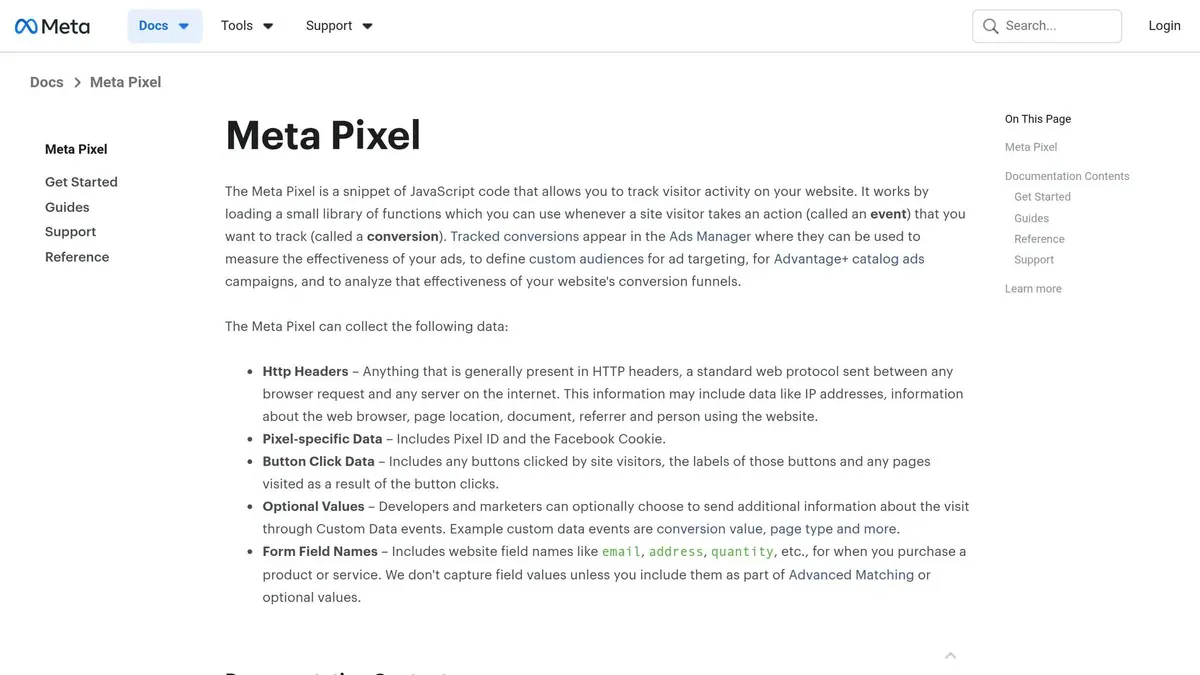
The Meta Pixel is a JavaScript snippet that you embed into your site's <head> section to track visitor behavior and send data to Meta. Once installed, it automatically monitors page views using the fbq() function. This tool helps record actions like button clicks, form submissions, and purchases, sending this data directly to your Facebook Ads Manager.
One of its perks is that it loads asynchronously, which minimizes any impact on your site's speed. On average, it only adds about 50-100 milliseconds to your initial page load time. Whenever a tracked event occurs, the Pixel sends a snippet of data to Meta. This allows you to analyze which ads prompted specific actions and helps Meta's algorithm find more users who behave like your top leads.
Let’s break down how Pixel events capture and report these interactions.
How Events Work in Facebook Pixel
Events are the actions that the Pixel monitors on your site. Meta offers standard events, which are predefined actions covering common user behaviors related to conversions. According to Meta Developers:
Standard events are predefined visitor actions that correspond to common, conversion-related activities, such as searching for a product, viewing a product, or purchasing a product
For example, the 'Lead' event is a standard event often used for tracking form submissions. When someone submits a contact form or inquiry, the Pixel fires the fbq('track', 'Lead'); event.
If you need to track more specific actions, you can use custom events. These are created with fbq('trackCustom', 'EventName'); and are perfect for unique scenarios, like monitoring progress through multi-step forms. For instance, you might use fbq('trackCustom', 'FormStep1'); to track when a user completes the first step of a form. Both standard and custom events can include additional data in JSON format. For example, fbq('track', 'Purchase', {value: 30.00, currency: 'USD'}); allows you to track transaction details.
When it comes to form submissions, the Pixel can track them in two main ways:
- URL-based tracking: This method detects when a user lands on a "Thank You" page after submitting a form.
- JavaScript event listeners: This approach fires the event as soon as someone clicks the submit button. For example, a developer might attach a
clicklistener to the form's submit button that triggersfbq('track', 'Lead');. This method is especially useful for single-page forms or AJAX submissions where the user stays on the same URL after submitting.
| Event Type | JavaScript Function Call | Typical Use Case |
|---|---|---|
| PageView | fbq('track', 'PageView'); |
Fires automatically on every page load |
| Lead | fbq('track', 'Lead'); |
Tracks form submissions or sign-ups |
| CompleteRegistration | fbq('track', 'CompleteRegistration'); |
Tracks when a user finishes creating an account |
| Custom Event | fbq('trackCustom', 'FormStep1'); |
Monitors specific steps in a multi-part form |
sbb-itb-5f36581
Setting Up Facebook Pixel for Form Tracking
Prerequisites for Setup
Before diving in, make sure you have a Meta Business Suite account to generate your 15-digit Pixel ID. You'll also need administrative access to your website's code or a tool like Google Tag Manager to implement the Pixel. If you're using a no-code platform like Reform, you can skip manual coding - just input your Pixel ID in the platform's integration settings. The Meta Pixel itself is free to create and install; costs only arise when you launch ad campaigns.
Another key step is verifying your domain within Meta Business Manager. This is essential for enabling Aggregated Event Measurement, which allows tracking on iOS 14.5+ devices. To enhance tracking reliability - especially against ad blockers or iOS privacy restrictions - you might want to pair the browser Pixel with the Conversions API.
Once you've checked these boxes, you're ready to install the Pixel base code on your website. This setup is particularly effective for tracking multi-step form submissions which often see higher conversion rates.
Installing the Facebook Pixel Base Code
After meeting all prerequisites, the next step is installing the base code. This JavaScript snippet should be added to every page where you want to track activity. You can find the code in the Meta Events Manager after creating your Pixel. By default, it includes a "PageView" event that triggers whenever a page loads.
For manual installation, copy the code from Events Manager and paste it into your website's HTML header. Place it between the <head> and </head> tags, ideally near the bottom of the header for faster loading without disrupting other scripts.
If you're using a no-code form builder like Reform, simply enter your Pixel ID in the integration settings provided by the platform. Once installed, confirm that your Pixel is working correctly by using the Meta Pixel Helper Chrome extension. Alternatively, check real-time activity through the "Test Events" tab in Meta Events Manager.
Configuring Events for Form Submissions
With the base code in place, you can now configure events to track specific actions like form submissions. For instance, use fbq('track', 'Lead'); to log form completions. Other event options include CompleteRegistration for sign-ups or SubmitApplication for applications.
There are two main ways to configure these events. The Event Setup Tool in Events Manager offers a code-free option, letting you define events by simply clicking on website buttons or URLs. For more precise control, you can manually add event code. Identify the trigger for your form submission - like a "Thank You" page load or a button click - and insert the appropriate script. To track button clicks, attach a click listener to the submit button. For URL-based triggers, add the script to the header of your confirmation page.
If you need to track something beyond Meta's standard events, you can create custom events using:
fbq('trackCustom', 'CustomEventName');
Custom event names must be strings under 50 characters. You can also add parameters for more context, like:
fbq('trackCustom', 'Contact', {dept: 'Sales'});
Just remember to avoid spaces in parameter values for compatibility. Keep in mind that each ad account can handle up to 100 custom conversions.
How to Track Lead Form Submissions with Meta Pixel
Before setting up your tracking, ensure you are creating high-converting lead forms to maximize the value of your Meta Pixel data.
Methods for Tracking Form Submissions
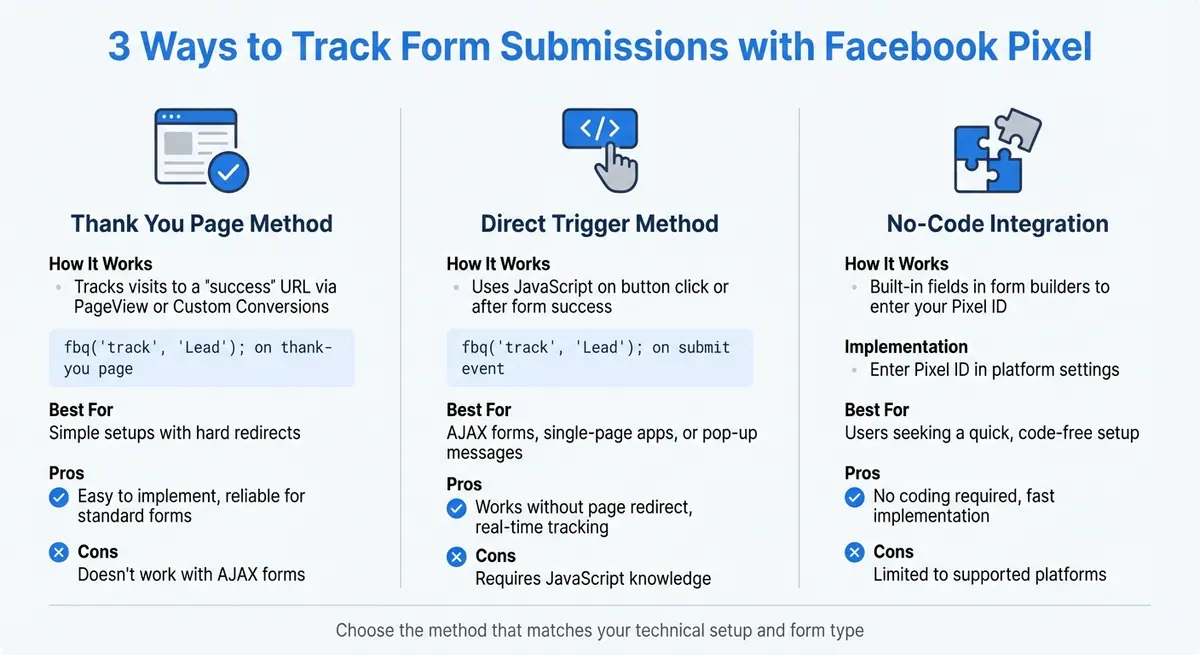
Facebook Pixel Form Tracking Methods Comparison
Once your Facebook Pixel is set up, the next step is deciding how to trigger the tracking event. The method you choose will depend on your technical setup and whether or not your form redirects users after submission.
Using Thank You Pages for Event Tracking
One straightforward way to track form submissions is by redirecting users to a dedicated thank-you page after they submit the form. When this page loads, the Pixel triggers a Lead event automatically. You can implement this in two ways:
- Add the code snippet
fbq('track', 'Lead');to the thank-you page's header. - Set up a Custom Conversion in Meta Events Manager that activates when someone visits a URL containing keywords like "/thank-you" or "/success".
This approach works best for forms that perform a hard redirect to a new URL. However, if your form uses AJAX and only displays a success message without changing the URL, this method won’t be effective. To avoid search engines accidentally triggering false conversions, mark your thank-you page as "no-index" in your SEO settings. If a hard redirect isn’t an option, you’ll need to explore other ways to trigger events.
Triggering Events Directly on Form Submission
For forms that don’t redirect - like pop-ups or AJAX-based submissions - you can fire the Pixel event right at the moment of form submission. This involves attaching a JavaScript click listener that calls fbq('track', 'Lead'); after the form successfully validates. Make sure this happens within a success callback function to avoid triggering the event prematurely.
This method is particularly useful for single-page applications or multi-step form engagement where forms display inline success messages. Just be cautious not to trigger the event on both the button click and the page load, as that could lead to duplicate tracking.
Using No-Code Form Builders like Reform
If you’re using a no-code form builder like Reform, the process becomes even simpler. These platforms allow you to integrate your Facebook Pixel without writing any code. You can just enter your Pixel ID into the platform’s integration settings, and the system will automatically trigger events upon form submission. Many no-code tools also let you set up custom thank-you pages without needing any technical expertise.
After setting up the Pixel integration, verify that everything is working correctly using the Meta Pixel Helper. Keep in mind that conversion data might take up to 30 minutes to appear. This no-code approach is perfect for those who want a quick and efficient way to track form submissions.
| Method | How It Works | Best For |
|---|---|---|
| Thank You Page | Tracks visits to a "success" URL via PageView or Custom Conversions | Simple setups with hard redirects |
| Direct Trigger | Uses JavaScript (fbq('track', 'Lead')) on button click or after form success |
AJAX forms, single-page apps, or pop-up messages |
| No-Code Integration | Built-in fields in form builders to enter your Pixel ID | Users seeking a quick, code-free setup |
Testing and Verifying Facebook Pixel Tracking
Once your Pixel is installed, testing is crucial to ensure it’s working correctly. A poorly implemented Pixel can lead to errors that might lower campaign performance by as much as 23%, wasting both time and ad spend. Research shows that 42% of advertisers encounter serious pixel setup issues. By testing your setup beforehand, you can avoid these pitfalls and ensure accurate data collection.
Using Facebook Pixel Helper
The Meta Pixel Helper is a free Chrome extension that provides instant feedback on pixel activity. When active, the extension’s icon turns blue and shows a badge indicating the number of triggered events. For example, submitting a form on your site should trigger events like "Lead" or "CompleteRegistration."
Clicking on an event provides detailed information about its performance. A green checkmark confirms the event fired successfully. A yellow warning suggests some missing parameters, such as value or currency, while a red error indicates a critical issue that needs immediate resolution.
Analyzing Events in Meta Events Manager
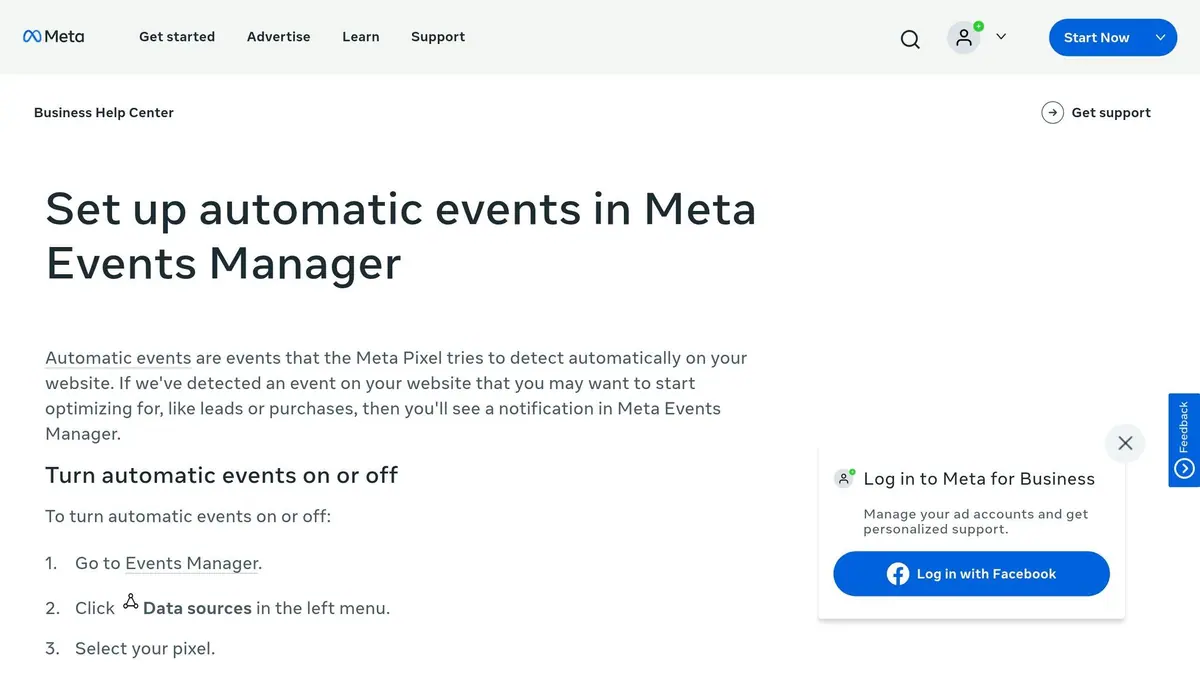
The Test Events tool in Meta Events Manager offers a deeper look at Pixel activity. To access it, go to your Pixel in Events Manager, then click the Test Events tab. Select "Test Browser Events", enter your website URL, and click "Open Website" to add a test parameter. After completing a form submission on your site, the event should appear in the tool with a "Processed" status within seconds.
Review the event to ensure all parameters - like content_category, value, or form_id - are transmitting correctly. If you’re using both the Pixel and Conversions API, check that the "Deduplicated" column says "Yes" to confirm conversions aren’t being counted twice. Note that it may take up to 20 minutes for data to populate in the main Overview tab. If events show up in Pixel Helper but not in Events Manager, double-check the "Manage Event Blocking" settings in Meta to approve any new custom events manually. Proper event tracking is critical to shaping your ad strategy effectively.
Best Practices for Accurate Form Tracking
To ensure your form tracking is as precise as possible, follow these guidelines. Research highlights that a 10-15% variance between raw lead numbers and recorded Facebook conversions is common due to factors like ad blockers, incognito browsing, and cookie restrictions. Staying within this range requires careful attention to duplicate event tracking, privacy regulations, and consistent monitoring.
Avoiding Duplicate Event Tracking
Duplicate events can distort your data, making it harder to measure performance. Meta handles this by deduplicating events based on the event_id and event_name parameters. If these match and are sent to the same Pixel ID within a 48-hour window, Meta automatically discards the duplicate. Here's an example of how the syntax should look:
fbq('track', 'Lead', {}, {eventID: 'UNIQUE_ID'});.
For browser-based setups, duplicates can occur from page refreshes or revisits to confirmation pages. To avoid this:
- Set confirmation pages to
noindexin your SEO settings. - Remove confirmation pages from navigation menus.
- Use the "URL equals" rule when creating custom conversions instead of "URL contains" to prevent events from triggering on similar URLs.
If you're using multiple Pixels on the same page, functions like trackSingle can help limit event firing to specific Pixel IDs.
Ensuring Privacy Compliance
Privacy laws like GDPR and CCPA require specific measures to protect user data before tracking begins. Under GDPR, explicit consent - such as an "I agree" checkbox - is mandatory before firing the Pixel. Meta provides tools to manage this process. For example:
- Use
fbq('consent', 'revoke')before theinitcall to pause tracking. - Switch to
fbq('consent', 'grant')once the user accepts the consent banner.
For CCPA compliance, businesses with over 50,000 California visitors annually or revenue exceeding $25 million must honor "Do Not Sell" requests. Meta’s Limited Data Use (LDU) feature can restrict data processing for California residents. To configure this, use the dataProcessingOptions parameter. If a user opts out, ensure your Google Tag Manager variables pass empty strings for sensitive data like email or phone numbers.
Starting September 2, 2025, Meta will flag and block custom conversions that involve sensitive terms, such as those related to health conditions or financial details, for use in new campaigns. Regularly review your custom conversions to ensure compliance.
Using Real-Time Analytics to Optimize Tracking
Once you've addressed duplicate events and privacy requirements, real-time analytics can help fine-tune your tracking. For example, if your form records 100 submissions but the Pixel only tracks 85 leads, it could indicate users are dropping off before the event fires or ad blockers are interfering.
When testing, disable ad blockers to ensure accurate data capture.
Reform's real-time analytics provide insights into form starts, completions, and drop-off points alongside Pixel data. This dual-layer approach helps pinpoint whether issues stem from tracking errors or user behavior, allowing you to adjust accordingly. Implementing interactive multi-step forms can further reduce this friction while gathering more granular data.
| Tool | Purpose | Real-Time? |
|---|---|---|
| Meta Pixel Helper | Verifies browser-side event triggers and script errors | Yes |
| Test Events Tab | Confirms Meta is receiving and processing events server-side | Yes |
| Events Manager Activity | Analyzes event volume and health over time | No (30-60 min delay) |
| Form Analytics | Tracks drop-off points and compares form starts vs. Pixel leads | Yes |
Conclusion
Setting up Facebook Pixel for tracking form submissions isn’t just about adding a snippet of code - it’s about creating a reliable system for gathering data that drives smarter ad decisions. Without proper tracking, it’s tough to pinpoint which ads or audiences are genuinely bringing in leads. By following the steps in this guide - installing the base Pixel code, setting up standard events like "Lead", and verifying everything with tools like the Meta Pixel Helper - you’ll ensure you’re capturing the key data Meta’s algorithm needs to fine-tune your campaigns.
Accurate tracking does more than just tally up conversions. It helps Meta’s algorithm zero in on users most likely to complete forms, makes it easier to retarget visitors who didn’t convert, and supports the creation of Lookalike Audiences based on your top leads. All of this translates into better ad performance and a clearer connection between your ad spend and the value it generates.
For even greater precision, pairing the browser-side Pixel with the Conversions API (CAPI) can boost data accuracy from 40–60% to as much as 80–95%.
FAQs
Should I track form submissions with a thank-you page or a JavaScript trigger?
Using a JavaScript trigger is a smart choice for tracking form submissions because it captures the event as soon as the form is submitted. This approach works even when there’s no redirect to a thank-you page, ensuring the data is logged accurately. Depending only on a thank-you page for tracking can lead to gaps or errors, especially for forms that don’t navigate away after submission.
How do I stop the Pixel from counting the same lead twice?
To stop Facebook Pixel from counting the same lead more than once, use event deduplication. Assign a unique event ID to each lead submission. This allows Facebook to recognize and skip duplicate events. Additionally, double-check your setup to ensure that only one script or tag triggers the lead event at any given time. If you're using tools like Google Tag Manager, make sure your tags are configured correctly to prevent overlaps.
Do I need the Conversions API to track leads accurately?
You don’t always need the Conversions API to track leads accurately. The Facebook Pixel, with its standard and custom events, is usually enough to handle form submissions effectively. That said, integrating the Conversions API can enhance data accuracy and reliability, particularly when browser restrictions or ad blockers disrupt tracking efforts.
Related Blog Posts
Get new content delivered straight to your inbox

The Response
Updates on the Reform platform, insights on optimizing conversion rates, and tips to craft forms that convert.


Drive real results with form optimizations
Tested across hundreds of experiments, our strategies deliver a 215% lift in qualified leads for B2B and SaaS companies.
