
.webp)
How to Debug Keyboard Traps in Multi-Step Forms



I debug keyboard traps in 4 steps: reproduce, trace, fix, and retest. Start with Tab and Shift+Tab, note where navigation stops, and check document.activeElement to see which control holds focus.
Here’s what I check in Reform multi-step forms:
- Every path: Next, Back, conditional fields, errors, and submission.
- Focus behavior: DOM order, hidden controls, keyboard handlers, and focus after step changes.
- Modal exits: Keyboard access to Close and Escape, followed by focus returning to the opener.
- Recovery: Reachable buttons, working skip links, clear error focus, and retained answers.
A modal can loop focus while it’s open. A keyboard trap leaves you without a keyboard exit - the distinction covered by WCAG 2.1.2.
I finish with keyboard and screen reader tests, recording each route and its actual focus targets. <u>An automated scan alone is not a pass.</u> Reform’s routing and embed settings are a starting point, not proof that users can finish the form.
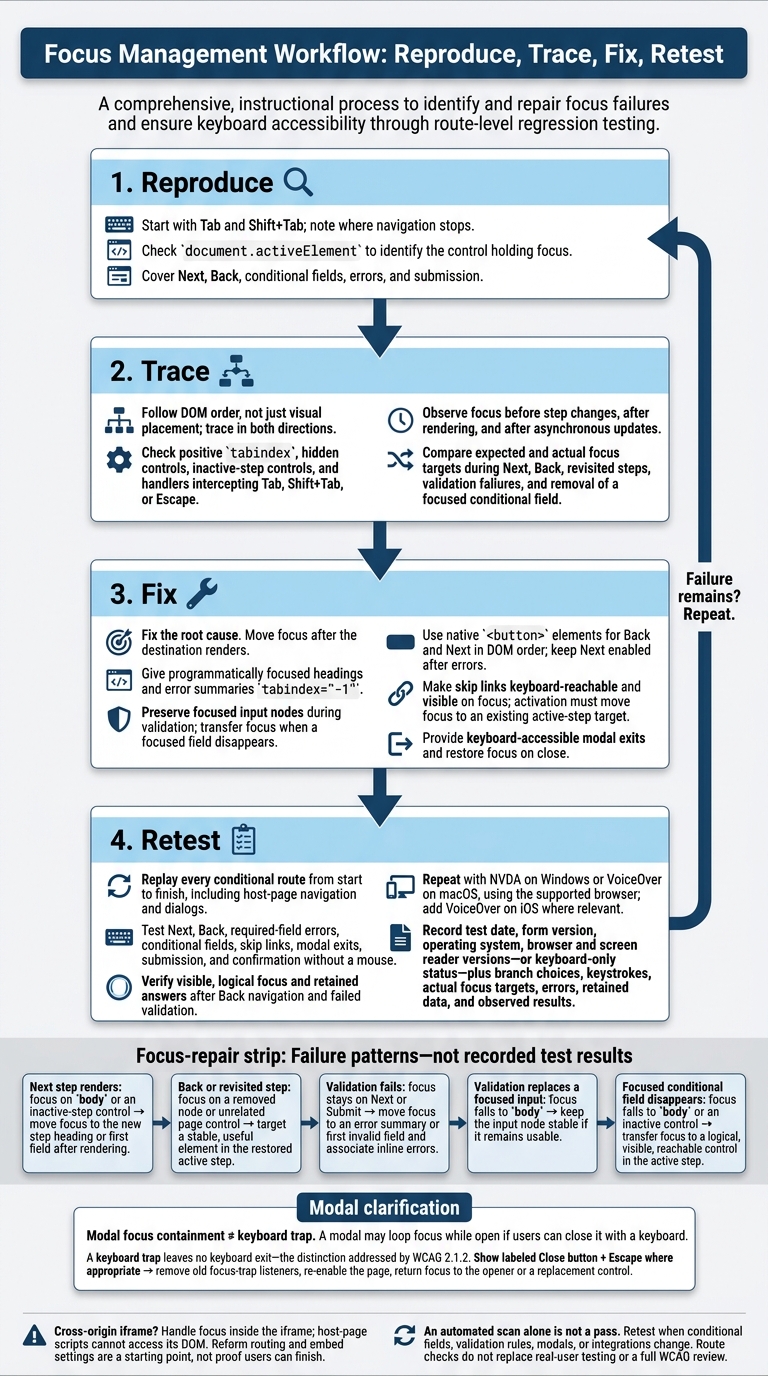
Debug Keyboard Traps in Multi-Step Forms: 4 Steps
Trace Tab Order Across Steps
Check DOM Order and Hidden Controls
After reproducing the trap, map the expected tab sequence: page links, skip links, fields, progress controls, Back, and Next. Trace it in both directions through DOM order, not just visual placement. CSS can put controls in the right place on screen while keyboard navigation takes a different path.
Check for positive tabindex values, misplaced conditional fields, and controls in inactive steps that still receive focus. Visually hidden content may also receive focus, so test hidden and disabled states separately. Give step headings and error summaries tabindex="-1" so they can receive programmatic focus only.
Where the sequence breaks, inspect custom widgets and their keyboard handlers. A handler that intercepts Tab, Shift+Tab, or Escape can trap focus. Progress indicators that let users change steps must also work with a keyboard.
Track Focus During Step Changes and Validation
Check focus before a step change, after rendering, and after asynchronous updates. Test Next, Back, revisited steps, failed validation, and what happens when a conditional field disappears while it holds focus.
Replace the entries in the “Actual focused element” column with the IDs or selectors you observe.
| Form state | Expected focus destination | Actual focused element | Observed failure | Required fix |
|---|---|---|---|---|
| Next step renders | New step heading or first field | body or an inactive-step control |
Focus is lost or left behind | Move focus after the destination renders |
| Back navigation or revisited step | A useful target in the restored step | Removed node or unrelated page control | Focus does not follow the restored content | Target a stable element in the active step |
| Validation fails | Error summary or first invalid field | Next or Submit button | Errors are difficult to locate | Move focus to the summary or invalid field and associate inline errors |
| Validation updates a focused input | Same input, if it remains usable | body |
Re-render replaced the focused input | Keep the input node stable during validation |
| Focused conditional field disappears | A logical, visible control in the active step | body or an inactive control |
Removing the field strands focus | Explicitly transfer focus to a reachable control |
Use the failure pattern you observe to choose the focus fix.
sbb-itb-5f36581
Testing 2.1.2 No Keyboard Trap | Manual WCAG Auditing Tutorial
Fix Focus Behavior
Fix the root cause. For Reform forms, start with the routing and embed settings. If the form runs in a cross-origin iframe, handle focus inside that iframe - host-page scripts cannot access its DOM. Use the failure pattern from the previous section to choose the right fix below.
Set Focus After Step Changes and Errors
Move focus once the new step has rendered. If you focus a heading through code, give it tabindex="-1". When validation fails, move focus to the destination identified during tracing.
Provide Modal Exits and Return Focus
For modal traps, fix the trap itself, not the surrounding page. Add a labeled Close button that works with a keyboard, and support Escape where appropriate. When the modal closes, remove old focus-trap listeners, re-enable the page, and return focus to the opener or a replacement control.
Keep Conditional Fields and Next Buttons Reachable
Move focus into newly revealed content only when the user needs to act there. If you remove a field that has focus, move focus back to a reachable control.
Use native <button> elements for Back and Next, placed in DOM order. Keep Next enabled after errors so users can trigger validation and see what needs fixing.
Make Skip Links Move Focus Correctly
After fixing conditional fields, check that skip links still land on the active step. Make each link reachable by keyboard and visible when focused. Point it to an existing target, adding tabindex="-1" to that target when needed.
Activating a skip link must move focus to its target so Tab continues from that point. The link should skip surrounding content - not required fields or validation.
Retest Every Form Route
After each focus fix, replay every multi-step form route from start to finish. Include all conditional branches, host-page navigation, and dialogs. Confirm that focus can leave components, return where expected, and land on a valid target. A clean automated scan does not prove someone can finish the form. Treat each route as a separate regression check.
Run Keyboard and Screen Reader Tests
Complete each route without a mouse in at least one desktop browser. Use Tab and Shift+Tab throughout, and test Next, Back, required-field errors, conditional fields, skip links, modal exits, submission, and confirmation. Make sure entered data survives both Back navigation and failed validation.
Track focus through the entire form. It should stay visible, follow a sensible order, and never land on hidden or disabled controls. Check that step changes and submission errors send focus to clear destinations, closing a modal restores focus, and keyboard users can tab out of nonmodal components.
Repeat these routes with NVDA on Windows or VoiceOver on macOS, using the browser you support for that screen reader. Add VoiceOver on iOS where it matters. Check labels, group names, and error announcements.
Record Results for Each Route
Record the test date, form version, operating system, and browser and screen reader versions - or note that the test was keyboard-only. Log the exact branch choices and keystrokes, inline errors, any error summary, and whether entered data stayed intact.
Use the regression table below as a starting checklist, not evidence of a pass. Create one row per actual conditional route, and repeat the checklist for each tested configuration. Enter results only after observing the behavior. Include actual focus targets and details of any failures.
| Tested route | Keyboard path | Focus destination | Modal behavior | Validation behavior | Result |
|---|---|---|---|---|---|
| Each conditional route: Next and Back | Record choices, Tab, Shift+Tab, and activation keys | Record expected and actual targets after each transition | Record any dialog encountered | Check required fields and retained data | |
| Each route: error recovery | Leave required fields empty; activate Next or Submit; correct errors | Record error summary or invalid-field destination | Record if applicable | Check inline feedback, announcements, and retry | |
| Each route containing a modal | Open; navigate both directions; close through available exits | Record opening target and return target | Check containment and each exit | Check if applicable | |
| Each route: submission and confirmation | Complete fields; activate Submit | Record failure or confirmation destination | Record if applicable | Verify recovery after failed submission | |
| Skip links | Activate; continue with Tab | Record target and next Tab destination | Record if applicable | Check if applicable |
Conclusion: Reproduce, Trace, Fix, and Retest
Follow the focus path traced above: reproduce the failure, find where focus breaks, fix the control or state change responsible, and retest every affected route.
Users should be able to complete the form without a mouse. That means a logical tab order, reachable Next and Submit buttons, working skip links, modal exits that work with a keyboard, and predictable focus return. A modal may intentionally loop focus only while the dialog is open and users can close it with a keyboard.
Retest whenever conditional fields, validation rules, modals, or integrations change. Passing route checks doesn't replace testing with real users or a full WCAG review.
FAQs
How can I find intermittent keyboard traps?
Test your form manually: use Tab to move forward and Shift+Tab to move backward. Check every interactive element, including dropdowns, radio buttons, and error messages. Make sure you can move into and out of each one without getting stuck.
After closing a modal, confirm that focus returns to the element that opened it. For multi-step forms, check that focus moves logically to the next heading or field. Repeat these checks across all conditional branches.
When should I focus a step heading instead of a field?
When a user moves to a new step, focus the step heading to help them understand where they are - especially when the step includes a lot of information or introduces a new topic. Focus the first input field instead when the priority is helping users start entering information right away.
Both approaches are acceptable. Don’t leave focus on the browser body or hidden elements, which can confuse keyboard users.
How can I test focus inside a cross-origin iframe?
The provided search results do not explain how to test focus inside a cross-origin iframe. They cover manual keyboard navigation, screen reader evaluations, and browser developer tools for checking tab order and focus indicators in standard forms.
Related Blog Posts
Get new content delivered straight to your inbox

The Response
Updates on the Reform platform, insights on optimizing conversion rates, and tips to craft forms that convert.




Drive real results with form optimizations
Tested across hundreds of experiments, our strategies deliver a 215% lift in qualified leads for B2B and SaaS companies.
