
.webp)
How to Optimize Tab Order in Web Forms



Tab order is the sequence in which interactive elements (like form fields and buttons) are focused when navigating with the Tab key. A logical tab order is essential for accessibility, helping keyboard users, including those with disabilities, navigate forms efficiently. Poor tab order frustrates users - 54% abandon tasks when the focus order doesn’t match the visual layout.
Here’s what you need to know:
- Default Behavior: Browsers follow the order of elements in the HTML, not their visual arrangement. Misaligned CSS and HTML can confuse users.
- Common Issues: Hidden elements, misplaced focus, and improper use of
tabindexdisrupt navigation. - Key Fixes:
- Structure HTML logically (top-to-bottom, left-to-right).
- Use
<fieldset>and<legend>for grouping related fields. - Avoid positive
tabindexvalues (e.g.,tabindex="1+"). - Test tab order manually or with browser tools like DevTools.
- Advanced Scenarios: Multi-step forms, modal dialogs, and dynamic content require careful focus management.
For a smoother experience, align your HTML with the visual flow and test thoroughly. Logical tab order ensures compliance with accessibility standards and makes forms easier to use for everyone.
Improve Webform Usability with :focus and tabindex
sbb-itb-5f36581
How Browsers Handle Tab Order by Default
To make form navigation smoother, it's important to understand how browsers handle tab order by default. Browsers follow the sequence of interactive elements as they appear in the HTML. Elements like <input>, <button>, <select>, <textarea>, and <a> are automatically included in the tab sequence in the order they are written in the code.
Issues often arise when CSS is used to change the visual layout without adjusting the HTML structure. For example, CSS properties like flex-flow: row-reverse, the Flexbox order property, or CSS Grid placement can visually rearrange elements but leave the HTML order unchanged. This can lead to confusing behavior where the focus indicator doesn't match the visual flow - like a button that appears first on the screen but is last in the code. This highlights the importance of structuring your HTML deliberately, as discussed in the next section on auditing tab order.
"The tabbing sequence is the order of the code, which no longer matches the visual order, creating a disconnect for keyboard users." - web.dev
Assistive technologies like screen readers rely on the order of elements in the HTML, not the visual arrangement. When the layout seen on the screen doesn't match the source code, users who depend on these tools may find the sequence disorienting. The CSS Grid specification even emphasizes that layout properties should only handle visual styling, not logical content order.
Hidden elements can also complicate matters. If an interactive element is moved offscreen using CSS positioning but isn't hidden with display: none or visibility: hidden, it will still be part of the tab order. This can make it seem like the focus has disappeared as users navigate through the form.
The best practice? Structure your HTML in the intended navigation order and reserve CSS for styling purposes. These principles set the stage for the adjustments covered in the following sections.
Step-by-Step Guide to Optimizing Tab Order
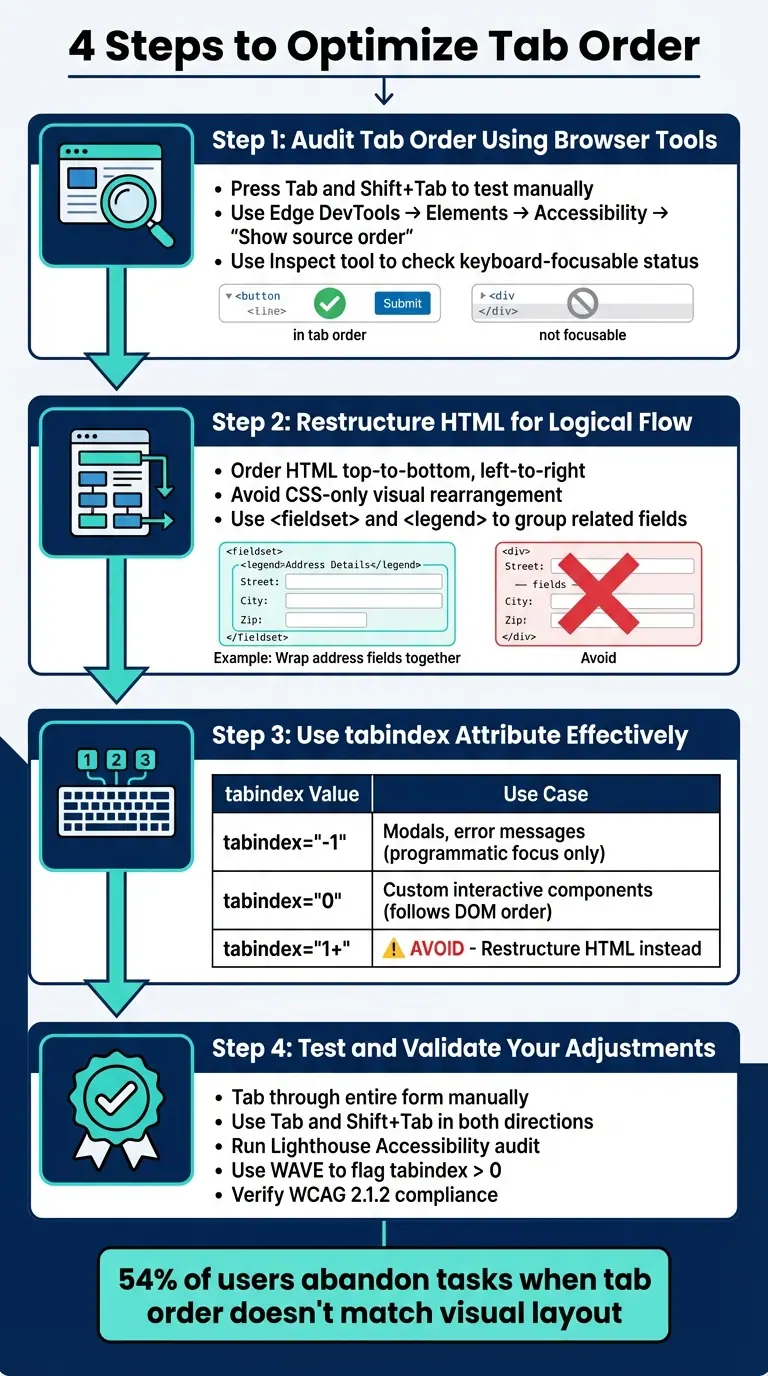
4-Step Guide to Optimizing Web Form Tab Order for Accessibility
If you’ve noticed issues with the way your forms handle tab navigation, don’t worry - there’s a clear path to fixing them. By following these steps - auditing the current state, restructuring your HTML, using the tabindex attribute wisely, and validating your changes - you can ensure a smooth and logical tabbing experience, which is one reason multi-step forms beat static ones for complex data collection.
Audit Tab Order Using Browser Tools
Start by manually testing the tab order. Press Tab and Shift + Tab to see if the focus moves through the form in a logical way. This simple test often highlights mismatches between the visual design and the actual HTML structure.
For a deeper dive, use browser tools like Microsoft Edge DevTools. Open DevTools (Ctrl+Shift+I on Windows or Cmd+Option+I on Mac), go to Elements, select the Accessibility tab, enable Show source order, and click on your form element. This will display numbered labels on interactive elements, showing the exact order browsers follow. It’s an easy way to spot inconsistencies between the source code and the visual layout.
In both Chrome and Edge, use the Inspect tool (the top-left icon in DevTools) and hover over form fields. The tooltip will include a keyboard-focusable row. A green checkmark means the element is in the tab order, while a gray crossed-out circle means it’s not. If a button or field isn’t focusable, check the Event Listeners tab for handlers on non-semantic elements like <div> tags - this often signals missing keyboard support.
Once you’ve identified problem areas, you’re ready to restructure your HTML.
Restructure HTML for Logical Flow
The best way to fix tab order issues is to ensure your HTML follows a logical reading flow - usually top-to-bottom and left-to-right. Avoid using CSS to visually rearrange elements without updating the source code. Properly ordered HTML benefits all users, including those relying on keyboards or assistive technologies.
For better structure, group related fields with <fieldset> and <legend> tags. For instance, wrap address fields (like street, city, and zip code) in a <fieldset> with a <legend> labeled "Shipping Address." This not only improves navigation but also helps assistive technologies announce related fields together, making forms easier to use.
Use the tabindex Attribute Effectively
Once your HTML is structured logically, you can use the tabindex attribute to fine-tune the tab order. Here’s how to use it correctly:
tabindex="0": Includes custom interactive elements (like a<div>styled as a button) in the natural tab order, based on their position in the HTML.tabindex="-1": Removes elements from the tab sequence but still allows them to receive focus programmatically via JavaScript. This is useful for elements like modal dialogs or error messages that should only receive focus when triggered.
Avoid positive tabindex values (e.g., tabindex="1" or higher). As WebAIM explains:
"tabindex values of 1+ must be avoided. These elements will receive keyboard focus before elements with no tabindex value... resulting in a navigation order that is different from the visual and/or screen reader order".
Positive values can disrupt the natural flow and make forms harder to maintain. Instead of relying on them, adjust your HTML structure.
| Tabindex Value | Focusability | Navigation Order | Use Case |
|---|---|---|---|
tabindex="-1" |
Programmatic only | Removed from Tab sequence | Modals, error messages, offscreen content |
tabindex="0" |
Keyboard & Programmatic | Follows DOM source order | Custom interactive components (e.g., styled divs) |
tabindex="1+" |
Keyboard & Programmatic | Prioritized before 0 |
Avoid; restructure HTML instead |
Once you’ve adjusted tabindex values, it’s time to test your work.
Test and Validate Your Adjustments
After making changes, test the form again by tabbing through it. Start by clicking the page title to set the initial focus, then use Tab and Shift + Tab to check navigation in all directions. Ensure that focus moves seamlessly into and out of every component without getting stuck. This aligns with WCAG Success Criterion 2.1.2.
To double-check your work, run a Lighthouse Accessibility audit in Chrome DevTools. This tool will flag issues like illogical tab order or non-focusable interactive elements. You can also use WAVE to identify elements with tabindex values greater than 0, which should be corrected. While automated tools are helpful, manual testing remains crucial for catching subtler issues.
Managing Tab Order in Complex Forms
Once you've tackled basic tab order issues, it's time to address more advanced scenarios like multi-step forms, multi-column layouts, and modal dialogs. These require extra attention to ensure users can navigate smoothly and stay oriented within more intricate interfaces.
In multi-step forms, make sure the focus automatically moves to the new page heading or the first input field when users advance to the next step. This keeps users grounded and avoids confusion. For overlays or temporary changes, return focus to the element that triggered the overlay once the user exits, allowing them to pick up where they left off.
For modal dialogs, focus trapping is essential. This ensures that keyboard navigation stays confined within the modal, preventing users from accidentally tabbing into background content. Use logic to wrap focus from the last element back to the first (and vice versa when using Shift+Tab). If you're using the native HTML <dialog> element and open it with showModal(), much of this is handled automatically. For custom implementations, capture the triggering element before opening the modal and return focus to it after the modal closes. Also, ensure users can dismiss the modal with the Escape key for a seamless experience.
In multi-column layouts, the default row-by-row DOM order can confuse users if they need to complete inputs in one column before moving to the next. The ideal solution is to restructure your HTML so fields are grouped by column rather than by row. Avoid relying on tabindex to force column navigation - it’s unnecessarily complex and prone to errors. Clean HTML structure is a better approach.
When dealing with dynamic content, such as new fields appearing or error messages being displayed, move focus to the first new item or an error summary. This ensures assistive technologies can announce the update immediately. For composite widgets like toolbars, use a roving tabindex approach: set tabindex="0" on one element (the active one) and tabindex="-1" on the others. Enable navigation with arrow keys to reduce unnecessary tab stops and improve the user experience.
How Reform Handles Tab Order Accessibility
Reform takes the hassle out of managing tab order by automating it through built-in accessibility features. Using a semantic HTML structure, the platform organizes forms into multi-step pages and "blocks" (form fields). This setup ensures that keyboard users only tab through the fields visible on their current step, avoiding the confusion of navigating an entire form at once. The page-based design keeps the tab flow logical and user-friendly.
Adjusting the form's flow is straightforward - just drag blocks between pages, no coding needed. Conditional logic tools like "Jump to" and "Skip this page" further refine the tab order dynamically. For instance, in November 2025, Reform shared an example of a VIP event registration form. When a user selected "Yes" to "Are you a VIP?", the platform automatically skipped the payment page, directing the keyboard focus to the next relevant step without unnecessary stops.
Reform also incorporates navigation aids like progress bars and navigation arrows, which help keyboard users stay oriented. You can even customize progress bar labels (e.g., "Contact Info" or "Details") to provide clear guidance for screen reader users. These tools ensure a predictable focus path, even when forms branch out due to conditional logic.
The platform’s logic capabilities go further with "And/Or" conditions, enabling complex routing while preserving accessibility. For example, a job application form can use "Jump to" logic to send candidates without a Bachelor's degree to an "Additional Qualifications Page", ensuring users only tab through fields relevant to them. The Save Progress feature (available with the Pro plan) adds another layer of convenience, allowing users to resume exactly where they left off when returning via an email link.
Conclusion
Optimizing tab order isn’t just about meeting technical requirements - it’s about ensuring forms are accessible and easy to use for everyone. When the tab order mirrors the visual layout and follows a logical sequence, users can complete tasks more efficiently and with less frustration. In fact, 54% of keyboard users abandon tasks when the tab order doesn’t align with what they see on the screen, and 72% report that unpredictable tab order is even more frustrating than slow page loading times.
The key principles are simple: align your HTML structure with the visual reading order, avoid using positive tabindex values, and rely on semantic elements. These steps not only support the 26% of U.S. adults with disabilities, but they also benefit power users who rely on keyboard navigation for speed and efficiency.
For developers creating forms from scratch, adhering to these practices ensures compliance with WCAG Success Criterion 2.4.3 (Focus Order) while improving the overall experience for all users. Testing manually with Tab and Shift+Tab remains the most effective way to validate your work.
Prefer to skip the technical details? Reform takes care of tab order optimization automatically. Its semantic structure and page-based design, paired with built-in conditional logic and focus management, provide a smooth and predictable navigation experience for keyboard users - no custom code or tabindex tweaks required. It’s a simple way to enhance usability for everyone.
FAQs
How do I fix tab order when CSS changes the visual layout?
When CSS changes the visual layout, the tab order can become disorganized if the DOM order isn't logical. Since the tab sequence is determined by the DOM structure, the best approach is to rearrange HTML elements in the source code to align with the intended tab flow. Avoid relying on CSS positioning to fix this issue.
For elements that are hidden but still focusable, use tabindex="-1" to exclude them from the tab order. This helps maintain a smooth and intuitive navigation experience.
When should I use tabindex="0" vs tabindex="-1"?
When you add tabindex="0" to non-focusable elements like <div> or <span>, they become part of the normal tab order. This means users can navigate to them using the keyboard's Tab key. On the other hand, tabindex="-1" removes an element from the tab order entirely, but it can still be focused programmatically (for example, through JavaScript). This is particularly useful for dynamic interfaces or when certain elements should only be focusable under specific conditions.
What’s the right way to manage focus in modals and multi-step forms?
When working with modals, it's important to handle focus thoughtfully. Start by directing focus to the modal's first interactive element as soon as it opens. When the modal closes, shift focus back to the element that triggered it. To keep navigation contained within the modal, use focus traps effectively.
For multi-step forms, ensure the focus moves naturally and aligns with the visual sequence. You can achieve this by using element.focus() to guide users through the steps. Always prioritize a smooth experience by avoiding instances where focus is lost or trapped. This ensures keyboard navigation remains intuitive and functional on all meaningful elements.
Related Blog Posts
Get new content delivered straight to your inbox

The Response
Updates on the Reform platform, insights on optimizing conversion rates, and tips to craft forms that convert.




Drive real results with form optimizations
Tested across hundreds of experiments, our strategies deliver a 215% lift in qualified leads for B2B and SaaS companies.
