
.webp)
HubSpot Embed vs Standalone Form Pages



If I want the fewest clicks, I’d use an embedded form. If I want a campaign page I can publish on its own URL, I’d use a standalone HubSpot page. That’s the core choice.
Here’s the short version:
- Embedded forms live on pages I already own, like pricing, product, or contact pages.
- Standalone form pages live on a separate HubSpot-hosted URL for ads, email, webinars, or outbound.
- Embedded forms cut one step because people submit without leaving the page.
- Standalone pages give marketing more control over the offer page and usually make launch simpler when site edits need engineering.
- Tracking works differently: embedded forms depend on my site setup and HubSpot tracking code, while standalone HubSpot pages report inside HubSpot by default.
- Most B2B and SaaS teams use both across different funnel stages.
If I boil it down even more:
- Use embedded for always-on, high-intent pages
- Use standalone for campaign traffic and single-offer pages
Quick Comparison
| Criteria | Embedded Form | Standalone Form Page |
|---|---|---|
| Where it lives | On my site or app | On a HubSpot-hosted URL |
| User path | Stays on the same page | Goes to a separate page |
| Best for | Pricing, product, contact, in-app | Webinars, gated assets, events, paid campaigns |
| Brand match | Matches my site layout | Depends on HubSpot templates |
| Tracking | Needs site tracking setup | Built into HubSpot |
| Launch | May need CMS or dev help | Often easier for marketing to publish |
One stat I’d watch is view-to-submission rate. HubSpot reports that on hosted pages, while embedded form performance depends more on how well my page tracking and analytics are set up. In short: pick the format based on page ownership, traffic source, and how much friction I want in the path to submit.
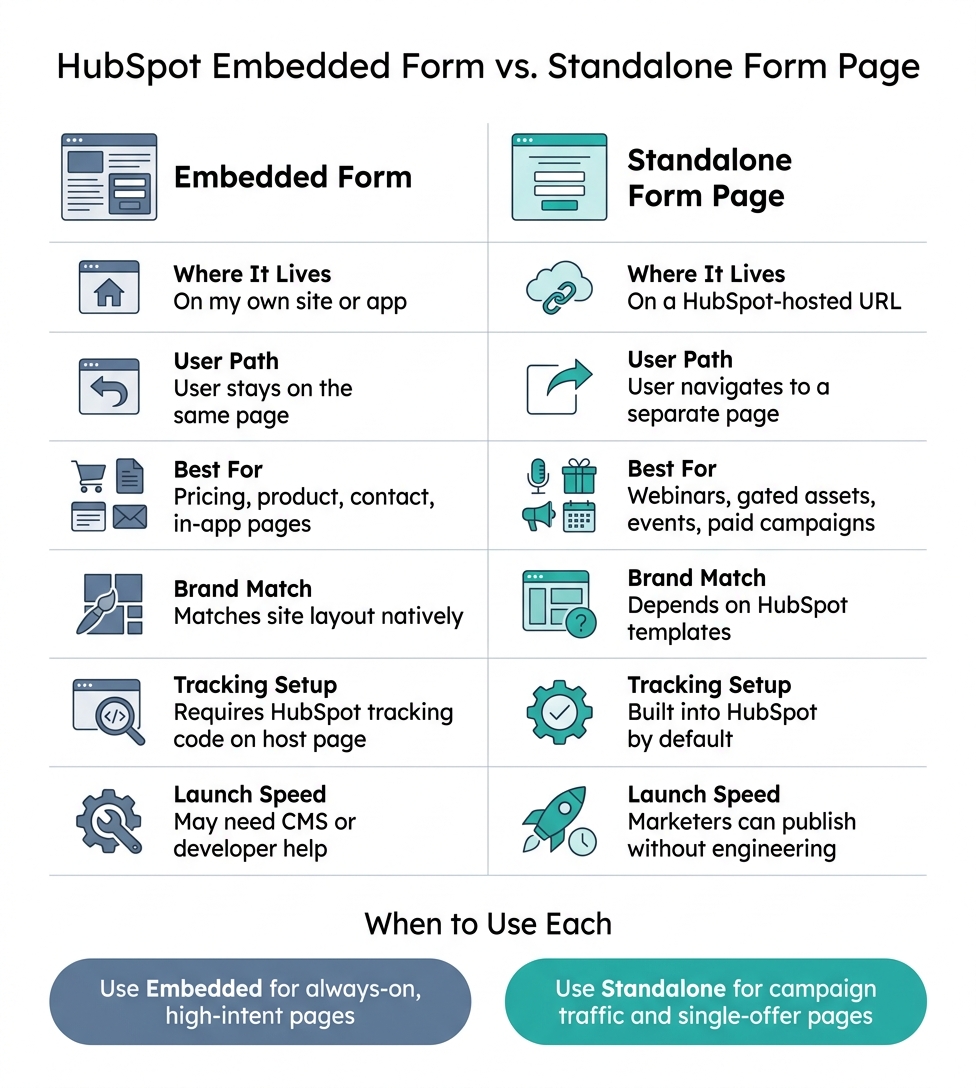
HubSpot Embedded Form vs Standalone Form Page: Side-by-Side Comparison
How Embedded HubSpot Forms Work
An embedded HubSpot form is built in HubSpot and then placed on a page you already own using embed code. When that page loads, the form appears right on the page, and every submission goes straight into HubSpot.
Conversion path on existing pages
Visitors can submit without leaving the page. That makes embedded forms a strong match for high-intent pages like pricing pages, feature pages, or in-app upgrade screens.
Why does that matter? Because the form shows up right when someone is weighing a plan, feature, or resource. There’s no extra jump and no side trip to another page. The person stays in the same flow, which helps keep attention where you want it.
That said, this shorter path works best when the page already has the right design and trust signals in place.
Page control, styling, and tracking requirements
With embedded forms, your site controls the full experience around the form. That includes layout, typography, trust signals, and CTAs. So you can put a testimonial right above the submit button, or keep a sticky pricing CTA visible while someone fills out the fields.
The downside is the setup work. The HubSpot tracking script needs to be installed on the host page so HubSpot can record views and connect submissions to contacts and sessions. For broader analytics, teams usually add Google Tag Manager or GA4 and track view, start, and submit events with HubSpot callbacks or analytics tags. If your site runs on components or a custom app framework, even small layout edits or form placement changes may need a developer.
When a campaign needs its own destination, instead of living on a page you already have, standalone form pages tend to make more sense.
Best fit for B2B and SaaS teams
Embedded forms work well for always-on lead capture on:
- pricing pages
- feature pages
- resource centers
- in-app flows
The visitor is already engaged. The form just needs to be there and easy to use.
Reform can handle the same placements with multi-step forms, conditional routing, lead enrichment, spam prevention, email validation, and real-time analytics, while still syncing to HubSpot.
When the goal moves from inline capture to a campaign-specific destination, standalone HubSpot form pages change the path.
sbb-itb-5f36581
How Standalone HubSpot Form Pages Work
A standalone HubSpot form page shifts the conversion step to a HubSpot-hosted landing page with its own URL. Unlike embedded forms, this page does the whole job on its own.
Traffic from email, ads, SDR outreach, or partner promos goes straight to that page. The visitor sees the offer, reads a short value statement, and fills out the form. Yes, it adds one more click compared with an embedded form. But that extra step can pay off when the page is built for one audience and one offer. The headline and body copy can line up closely with the message that brought the visitor there. That message match cuts friction. You see the tradeoff more clearly when you look at control, tracking, and launch speed side by side.
HubSpot-controlled reporting and attribution
Because HubSpot hosts the page, reporting stays in one system. HubSpot shows page views, submissions, and view-to-submission rate in one place.
There is a catch. Design options are limited by HubSpot themes and modules, so matching your brand exactly can be tougher. Still, the speed to launch is hard to ignore. Marketers can clone a template, update the copy and form fields, and publish without help from engineering. Using powerful form templates can further accelerate this process.
Best fit for B2B and SaaS campaigns
This setup works well for campaign-specific offers like:
- Webinar registrations
- Gated assets
- Beta access requests
- Event registrations
- Demo booking pages
In these cases, HubSpot workflow control often matters more than a pixel-perfect brand match. A webinar registration page is a good example. One submission can kick off a confirmation email, a reminder sequence, and post-event nurture from the same workflow.
If you need more advanced form UX, Reform can add multi-step flows, conditional routing, lead enrichment, and spam prevention on a HubSpot-hosted page.
Side-by-Side Comparison: Conversion Path, Control, Tracking, and Launch Speed
User experience and conversion friction
The main difference comes down to where the form lives.
With an embedded form, the user stays on the same page. With a standalone page, the user takes one more click, but the whole visit centers on a single CTA. That creates a pretty simple tension: less friction for the user versus more control for the marketer.
Embedded forms tend to work best on intent-driven pages, where someone is already reading and ready to act. Standalone pages make more sense for campaign traffic that needs a focused message and fewer distractions.
Brand fit, analytics, and implementation tradeoffs
Embedded forms usually feel like a natural part of your site because they sit inside your current layout. Standalone HubSpot pages give you more say over the page experience, though the final look still depends on HubSpot templates and modules. Tracking is different too: embedded forms rely on the tracking setup on your site, while standalone HubSpot pages report inside HubSpot by default.
Here’s the difference at a glance.
| Embedded Form | Standalone Form Page | |
|---|---|---|
| Conversion path | User stays on the same page | User moves to a dedicated URL |
| Page control | Inherits host site layout and nav | More control; nav can be removed |
| Brand fit | Native to site; consistent experience | Single-offer; may require extra template work |
| Tracking setup | Requires HubSpot tracking code on the host page | Built into HubSpot hosting |
| Launch speed | Can be fast for small changes, but often depends on CMS or developer access | Often faster once templates exist; marketers can launch without developer help |
Where Reform can add value
Sometimes the built-in HubSpot form setup feels a bit boxed in. That’s where Reform can help.
For teams that want multi-step forms, conditional routing, enrichment, spam protection, and email validation, Reform adds those options without forcing a new HubSpot process. You can use it with either setup and still sync submissions back to HubSpot.
How to Choose the Right Option for Your Team
Choose based on page ownership and funnel type
Once you compare friction, control, and tracking, the decision gets pretty simple: who owns the page, and what is the funnel trying to do? Embedded forms make sense on pages your team already manages. Standalone pages make more sense for campaign traffic that needs its own URL.
That same logic applies when you match the form to the traffic source. Evergreen flows like demo requests, "talk to sales", and newsletter signups from organic traffic usually work well with embedded forms. But when site changes depend on IT or a release cycle, standalone HubSpot pages give marketing a way to launch faster with high-converting forms.
Use both when the funnel calls for it
Most B2B and SaaS teams use both setups across different funnel stages. A simple split often works best:
- Use embedded forms on pricing, product, and contact pages
- Use standalone pages for webinars, paid campaigns, and outbound
That mix gives each funnel step the format that fits it best.
FAQs
Which option converts better?
It depends on your conversion goal and where the visitor is in their journey.
Embedded forms are a good fit when you want people to stay on your site and keep the same context. Standalone pages often convert better for campaign traffic, where fewer distractions can keep attention on the form.
You can improve conversions in either format by making the form feel easier to complete. That usually means using:
- Multi-step forms
- Conditional logic
- Prefilled fields
In most cases, the best option is the one that matches your audience and the stage of your funnel.
Can I use both form types together?
Yes. A lot of teams use both to build a flexible lead capture setup.
Standalone pages are a good fit for dedicated campaigns or social media outreach. Embedded forms make sense on key site pages like blog posts or landing pages. When you sync both with your CRM using a tool like Reform, submissions stay consistent and ready for marketing workflows.
Do embedded forms need developer help?
It depends on the platform.
With no-code tools like Reform, you can build and embed forms without technical help. That’s because field mapping and CRM data transfer are handled for you, so a lot of the setup work is already taken care of.
You’re more likely to need developer help if you’re using raw HTML, manual API integrations, or custom logic. In those cases, setup can take more work, and ongoing maintenance often needs technical support.
Related Blog Posts
Get new content delivered straight to your inbox

The Response
Updates on the Reform platform, insights on optimizing conversion rates, and tips to craft forms that convert.




Drive real results with form optimizations
Tested across hundreds of experiments, our strategies deliver a 215% lift in qualified leads for B2B and SaaS companies.
