
.webp)
Multi-Step Form State Persistence: Guide



If your multi-step form doesn’t save progress, you will lose leads. A refresh, tab close, bad connection, or validation error can wipe out data like $1,250.00, 10/15/2026, or 60601 unless the form stores drafts and restores the last step.
Here’s the short version: I’d save form state in a central JSON object, store drafts with the right layer for the job, autosave on step changes, accept partial data on draft saves, and restore people to the exact step they left. I’d also track step drop-off, save failures, and resume rates, because multi-step forms can convert 86% higher than single-page forms on long flows, and draft saving can improve conversion by up to 10%.
What matters most:
- Pick storage based on risk
localStoragefor same-device draft recoverysessionStoragefor refresh-safe sessionsIndexedDBfor offline use and larger drafts- server-side drafts for sensitive data and cross-device resume
- Autosave at the right moments
- save on Next and Back
- debounce text input by 500–2,000 ms
- use
visibilitychangeandbeforeunloadonly as backup
- Save the right data
- all field values
- current step
- step completion status
lastSavedAt- draft version
- draft ID
- Validate without clearing inputs
- validate only the current visible step
- allow draft endpoints to accept incomplete and invalid data
- run full server-side checks only on final submit
- Plan for failure
- keep values in place if autosave fails
- retry in the background
- queue unsynced saves offline
- restore focus to the step title or first field on resume
- Measure where people stop
- track
step_viewed,step_completed,validation_error,draft_saved,draft_resumed,autosave_failed, andform_abandoned
- track
A quick comparison of draft storage options:
| Storage | Best for | Main limit |
|---|---|---|
| localStorage | Same-device resume | Exposed to page scripts |
| sessionStorage | Refresh protection in one tab | Lost when tab closes |
| IndexedDB | Offline drafts and large payloads | More setup work |
| Cookies | Draft token or session ID | Too small for form content |
| Server-side | Cross-device resume and sensitive fields | Needs sync and backend work |
The main idea is simple: save often, save partial data, restore the exact step, and never wipe answers after an error.
How to Build a Multi-Page Form in Next js (Server Actions, Zod, and Local Storage)
sbb-itb-5f36581
Choose the right storage model for draft data
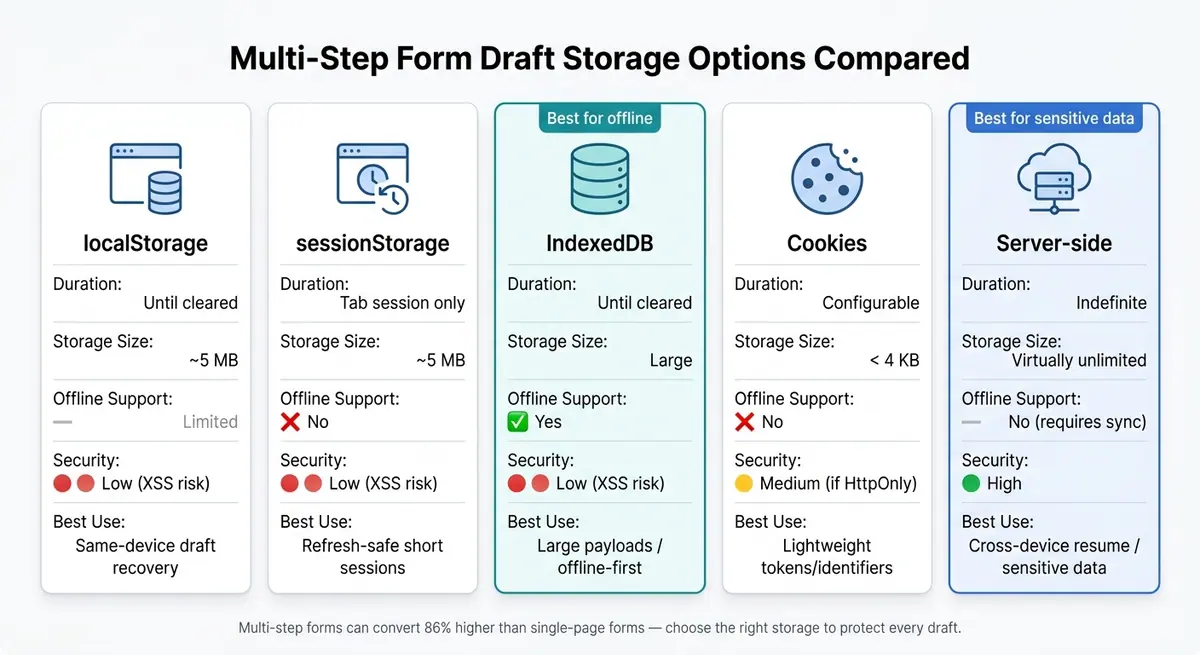
Multi-Step Form Draft Storage Options Compared
Your storage layer decides how long a draft sticks around. Does it survive a page refresh? A closed tab? A dropped connection? A switch from phone to laptop? That’s the job of storage.
So the next move is simple: pick the model that matches the kind of loss you’re trying to prevent.
Client-side storage: localStorage, sessionStorage, and IndexedDB
localStorage is the easiest way to recover drafts on the same device. It stays in place even after the browser closes and usually gives you about 5 MB of space. But there’s a catch: any script running on the page can read it. So if a form has sensitive fields, don’t put that data in localStorage unless it’s encrypted.
sessionStorage is much more short-lived. It disappears when the tab closes. That makes it useful for protecting against refresh loss during one session, but not for drafts people may come back to later.
IndexedDB is a better fit when drafts are large or the flow needs to work offline. It can store structured data and a lot more of it than localStorage. The tradeoff is setup. It takes more work to build and maintain.
Server-side drafts for authenticated or high-value flows
Server-side drafts make sense when people need to pick up where they left off on another device, or when the form includes sensitive data.
For example, if a draft includes SSNs or payment details, keeping that data on the server is the safer route. You can tie the draft to a user account or a draft ID, then rely on server-side encryption and access controls. When the person comes back, restore the draft and send them straight to the next incomplete step.
That storage choice also shapes how autosave should behave, both when writing draft data and when restoring it.
Cookies and why they rarely work as a draft store
Cookies are fine for a draft token or session ID. That’s about it.
They top out at 4 KB and go out with every request, which makes them a poor place to store actual draft content.
Where Reform fits for no-code draft persistence

| Storage Option | Duration | Storage Size | Offline Support | Security | Best Use |
|---|---|---|---|---|---|
| localStorage | Until cleared | ~5 MB | Limited | Low (XSS risk) | Same-device draft recovery |
| sessionStorage | Tab session only | ~5 MB | No | Low (XSS risk) | Refresh-safe short sessions |
| IndexedDB | Until cleared | Large | Yes | Low (XSS risk) | Large payloads / offline-first |
| Cookies | Configurable | < 4 KB | No | Medium (if HttpOnly) | Lightweight tokens/identifiers |
| Server-side | Indefinite | Virtually unlimited | No (requires sync) | High | Cross-device resume / sensitive data |
Reform's Save progress feature adds a button on each step and sends a unique resume link by email, with incomplete response tracking included.
Once storage is chosen, the next risk is losing data during autosave, validation, or recovery.
Design autosave and validation to prevent data loss
Choosing a storage model is only half the work. The other half is deciding when to save, what to save, and how to return people to the exact spot where they stopped.
Autosave triggers that work in real form flows
Save on step changes, debounce long text input, and treat visibilitychange/beforeunload as a last-shot backup.
Step change should be your main checkpoint. Save as soon as someone clicks Next or Back, before the interface moves to another step. On long text fields, add debounced input saves after 500–2,000 milliseconds of inactivity. And if nothing changed, don't save.
Use visibilitychange and beforeunload as a backup, not your main plan. Browsers may throttle or block network calls during these events, especially on mobile. When the form is submitted, clear any draft data both locally and on the server.
| Trigger | Pros | Risks | Recommended Use Cases |
|---|---|---|---|
| Step change | Clear milestone; low server load; easy to track analytically | Data on a long step is at risk until Next is clicked | Default trigger for most multi-step forms |
| Debounced input | Protects long free-text fields; saves without a button | Too-frequent saves increase server costs and race conditions | Open-text steps, grant applications, HR forms |
| Visibility change / beforeunload | Last-chance save on tab close or app switch | Unreliable; browsers may ignore network calls | Safety net only; especially useful on mobile |
| Submit | Finalizes state; natural moment to clear drafts | Doesn't help during the flow - only at the end | Final step of every multi-step form |
What to save at each draft checkpoint
Save a full snapshot: all current values, the active step, a step-completion map, lastSavedAt in UTC, the draft version, and any server draft ID.
Store canonical values, not display formatting. For example, save 125000 as a number, not "$125,000". That avoids parsing issues when the draft comes back. On debounced input checkpoints, save the changed step's fields along with the same metadata. On visibility-change checkpoints, serialize the current state and send it.
Add a draft version key. If the form schema changes in a backward-incompatible way - like adding a required field or removing a step - an older draft without that key can restore into a broken state. Bump the version, then decide whether to migrate old drafts or discard them during restore.
Once that snapshot is saved, the next step is restoring it without breaking the flow.
Validate by step, then run a final full-form check
Autosave keeps progress. Validation decides whether the person can move forward.
Each step should validate only the visible fields on that step when the user clicks Next. Don't validate future-step fields, and don't validate fields hidden by conditional logic. If validation fails, keep the user on the same step, show inline errors, and keep every value they entered.
The final submit should trigger a full server-side validation pass: cross-field rules, business logic, and deduplication. If the server sends back errors, map them to the right fields and send the user to the first step with a problem. Never call form.reset() after a validation failure. Use immutable updates that attach error metadata without changing the stored values.
One rule matters at every stage: draft endpoints must accept partial and invalid data. Autosave is not submission. If your draft API demands a complete form, unfinished drafts will fail.
Resume logic, expiration windows, and user prompts
When the form loads, check for an existing draft using the stored draft ID and timestamp. If one exists, compare its lastSavedAt value with your retention window. 24–72 hours fits short marketing forms, while 7–30 days makes more sense for applications or other high-effort flows.
If the draft is still inside that window, you have two paths. For short forms, restore it automatically and show a quiet notice. For longer or more involved forms, give people a plain choice: Resume or Start over. If the draft has expired, begin with a blank form.
For cross-device resume, send a unique email link.
Handle errors and measure drop-off
Error recovery that keeps user progress intact
Once drafts can be saved and restored, the next job is making sure save problems don't wreck the experience.
If autosave fails, keep every field value as-is, keep the user on the same step, and retry in the background. The interface should make save state plain at a glance: saving, saved, or retrying after connection loss. That way, people aren't left guessing whether their work disappeared. If the form is offline, say so directly and explain that changes are saved locally and will sync when the connection comes back.
For failures that stick around, use exponential backoff with jitter so retries don't all hit the server at once. After several failed attempts, show a short message that explains what's happening and what the user can do next. One rule matters most here: never wipe their answers and never kick them backward in the form.
Offline and reconnect behavior for autosave
Background retries help, but offline editing needs its own plan.
The moment the network drops, autosave should switch to a local unsynced queue. A durable queue in IndexedDB can store each failed save attempt, which means progress survives even if the page reloads. When the connection returns, sync queued changes to the server in order. Use timestamps or version tokens to avoid stale overwrites. If the same draft was edited in two places - for example, on a phone and a laptop - detect the conflict and present a plain choice:
- use this device's version
- keep the newer saved version
- review the differences
That gives people control without turning recovery into a mess.
When a draft is restored, send users back to their last completed step and move focus to the step title or the first field.
Step-level analytics to find abandonment causes
After recovery is working, look at where the form breaks down.
Track where users leave and what happened before they left. The main signals to watch are step completion rate, time per step, validation errors, autosave failures, and resume rate. If people spend a long time on one step and hit the same validation errors again and again, that's usually a UX problem: maybe the label is confusing, the format is too strict, or the question shouldn't be there in the first place. If time and error levels look normal but autosave failures spike, you're probably dealing with a technical problem.
The event model below ties each event to the metric it supports. When these events are sent in a consistent way, you can tell whether users don't want to continue, can't continue, or don't trust that their answers are being saved:
| Event | What it captures | Metric supported |
|---|---|---|
step_viewed |
User lands on a step | Step entry rate, step-to-step drop-off |
step_completed |
User advances past a step | Step completion rate, funnel conversion |
validation_error |
A field or step fails validation | Error rate by field, repeated error count |
draft_saved |
Draft checkpoint is stored | Save success rate, save frequency |
draft_resumed |
User returns to a saved draft | Resume rate, recovery rate |
autosave_failed |
Save attempt did not complete | Failure rate, technical error rate |
form_abandoned |
User exits before submission | Abandonment rate, exit step analysis |
Break these events down by device type, browser, and network condition. An autosave failure that shows up only on mobile Safari over a cellular connection is a very different issue from one that appears across the board.
Using Reform analytics to track incomplete submissions
If you don't want to build all of this tracking yourself, built-in analytics can save time.
Reform's real-time analytics and abandoned submission tracking surface this data directly, which makes it easier to see whether drop-off clusters around one step or shows up across the whole flow. Use onValidationFailed and onPageSubmitted to handle errors and normalize data before submission.
Test cases and conclusion: keeping form data safe in production
Core test scenarios for refreshes, failures, and resume flows
Start with the failure points most likely to wipe out drafts. That’s where form flows tend to fall apart.
The table below shows the must-run scenarios, what should happen in each case, and the main system being tested:
| Test Scenario | Expected Outcome | Primary Mechanism |
|---|---|---|
| Page refresh on any step | Fields stay filled; user stays on the same step | Client-side storage / autosave |
| Tab close and reopen | Resume prompt appears, or the form opens on the last saved step | localStorage / server-side drafts |
| "Save progress" click | User gets a unique resume link by email | Server-side drafts |
| Cross-device resume via email link | Form opens at the exact step where the user left off, with all data intact | Server-side drafts |
| Validation error on a step | Error shows; valid values stay intact. Test real-time onInput formatting for U.S. phone and currency fields, such as (555) 867-5309 and $1,250.00 |
Validation logic |
| Network failure during autosave | User sees a clear error state; inputs are not cleared | Autosave / error recovery |
| Partial abandonment after Step 1 | Step 1 saves to CRM before the user leaves mid-flow | Integration checkpoints |
A simple way to think about it: if a user refreshes, closes the tab, hits a validation error, or loses connection, the form should pick up where they left off instead of sending them back to square one.
Browser and device coverage for persistence behavior
For desktop, cover Chrome, Firefox, Safari, and Edge. On mobile, test Chrome on Android and Safari on iOS.
Also, test the form’s own step arrows instead of the browser Back button. That helps you check whether step restoration works the way the form flow intends.
Debugging checklist for data loss bugs
When a test fails, follow the trail in this order: storage, restore, validation, then analytics. That sequence usually gets you to the root cause faster.
- Check browser storage first. Open DevTools → Application → Local Storage or Session Storage and check the form slug. Confirm the saved step index matches where the user says they were.
- Review server logs for partial saves. Look for draft-save logs to confirm that partial records are being created when partial submissions are enabled.
-
Verify validation behavior. Trigger
onValidationFailedand confirm the form shows the error while retaining all valid data in other fields. - Confirm step index restoration. If data restores but Step 1 loads, the bug is in restore logic, not storage.
- Correlate drop-off with failures. Compare multi-step form abandonment with validation failures and autosave issues so you can tell whether users are leaving by choice or getting blocked.
Key takeaways
Match the storage method to the form flow. Autosave at dependable checkpoints. Validate without wiping out good data. Restore users to the same step instead of pushing them backward. Then track drop-off by step so problem areas don’t stay hidden.
Reform's abandoned-submission tracking and real-time analytics help surface drop-off points. Use analytics and resume testing to catch failures before they cost leads.
FAQs
Which storage option should I choose?
Pick the option that fits your form best, but treat every saved draft as untrusted data. Sanitize it before you store it, and encode it when you load it back.
When a user comes back to a form, revalidate the entire saved state. Hidden or conditional fields should always be treated as attacker-controlled. If you're using Reform, you can also turn on the built-in Save Progress feature in your form settings.
How often should a multi-step form autosave?
Ideally, autosave and validate data at the end of each step. That gives the server a chance to process the step, catch errors, and save the user’s progress before they move on.
A manual save option can still help. But in most cases, automatic saving on each step change is the smoothest way to keep form data consistent and checked as the user goes.
How do I restore users to the exact step?
Enable Save Progress in your form settings. Once the form is live, people will see a Save progress button on each step.
When they click it, they can enter their email and get a one-of-a-kind link to come back later and pick up exactly where they stopped. This feature is available on the Reform Pro plan.
Related Blog Posts
Get new content delivered straight to your inbox

The Response
Updates on the Reform platform, insights on optimizing conversion rates, and tips to craft forms that convert.




Drive real results with form optimizations
Tested across hundreds of experiments, our strategies deliver a 215% lift in qualified leads for B2B and SaaS companies.
