
.webp)
Why Multi-Step Forms Lose Data On Refresh


A page refresh doesn't "break" your form. It clears in-browser memory. If your multi-step form isn't saving and restoring a draft at each step, users can lose all progress in seconds.
Here's the short version:
- If nothing is saved, everything can vanish on refresh
- If autosave runs too late, the last step or last few fields may be lost
- If restore runs after the form loads, users may see blank fields or old data
- If sessions expire, cookies clash, or two tabs fight each other, drafts can disappear or roll back
- If you clear the draft before submit succeeds, one failed request can wipe out the user's work
In most cases, the problem falls into 4 parts:
- One source of truth for all step data
- A place to store it like
sessionStorage,localStorage, cookies, or a database - Restore-before-render logic so saved answers load first
- Draft cleanup only after success
A simple rule I use: save early, restore first, clear late. This approach is a cornerstone of multi-step form design that prioritizes user experience.
A few checks can help fast:
- Open Application/Storage and see whether draft data exists
- Open Network and look for canceled or out-of-order save requests
- Compare saved field keys with current form
namevalues - Test hard refresh, duplicate tabs, slow internet, and 30+ minute idle time
Quick comparison
| Failure point | What it looks like | What I’d check first |
|---|---|---|
| No persistence | All fields clear on refresh | Storage keys are empty |
| Late or canceled autosave | Latest edits disappear | Network shows canceled save |
| Bad restore flow | Draft exists but form loads blank | Restore runs after render |
| Session timeout | Data is gone after idle time | 401/419 responses |
| Cookie clash or tab conflict | Wrong or older draft appears | Shared cookie names or two active tabs |
One stat worth remembering: if even 1 of these 4 draft steps is missing, refresh recovery can fail. That’s why multi-step forms lose data more often than single-page forms.
So the fix is not to patch one field or one step. I’d treat the whole draft flow as one system: save, reload, restore, submit, then clear.
sbb-itb-5f36581
The most common reasons form data disappears after a refresh
Missing persistence layers and step-only state
Most of these failures come down to three things: nothing got saved, the save happened too late, or the saved value got lost.
If answers live only in component state, hidden fields, or the DOM, a refresh wipes them out.
This shows up a lot in multi-step forms when earlier steps unmount instead of staying in the DOM. Once a step is removed from the page, its field values disappear with it. On reload, there’s nothing left to bring back.
The fix is pretty simple in concept: save each step as the user moves through the form. That can be a session store, a cookie store, or a database. For drafts that need to stick around longer, a database-backed record is the safest route. A "Merge from Store" handler can then refill fields after a reload.
Save and restore race conditions
Even if you do have storage in place, timing can still trip you up.
If a user clicks Next before autosave finishes, the browser may cancel the request. The form moves forward, but the newest data never leaves the browser.
Delayed autosave does something similar. It leaves a gap where anything typed since the last save can vanish on refresh. The draft comes back, but it’s old.
Two rules help here:
- Debounce autosaves so you’re not sending a write on every keystroke, but flush any pending write before a step change.
- Add timestamps or revision numbers to each save request so the server can reject writes that arrive in the wrong order.
That second part matters more than it seems. Without revision checks, an older tab can overwrite a newer draft.
And even when the write works, you’re not fully in the clear. Cache, session, or cookie storage can still break restore.
Cache problems, expired sessions, and overwritten cookie values
Cache, session, and cookie issues often feel random because the form may fail only some of the time.
A stale cache can load an old form shell and then overwrite newer draft state after refresh. In plain English: the save worked, but the page came back with old markup or old JavaScript, so the wrong state got restored.
Expired server sessions are another common problem, especially in longer onboarding flows. If someone walks away and comes back later, the session may have timed out. When that happens, the draft stored there can’t be restored anymore.
Cookie collisions are easier to miss. If two forms on the same domain use the same cookie name and don’t have separate Path or Domain settings, one draft can overwrite the other.
| Failure Point | What Goes Wrong | Quick Check |
|---|---|---|
| Missing persistence layer | Data lives only in the DOM, component state, or hidden fields | Check for writes to a session, cookie, or database draft. |
| Interrupted autosave | Fast navigation cancels the save request | Look for canceled requests in the Network tab. |
| Expired server session | The session that stored the draft times out | Compare session lifetime with typical form completion time. |
| Cookie collision | Another form instance overwrites the draft cookie | Verify cookie names and Path/Domain settings are unique. |
The next step is to match each symptom to the exact failure point.
How to match the symptom to the actual cause
Match the symptom to the failure point before you try to fix anything. The symptom usually tells you which layer broke. Once you know that, you can go straight to the right fix instead of poking at the whole form stack.
Symptom-to-cause diagnostic table
Each symptom usually points to a different part of the stack. If you treat all of them like the same issue, you'll burn time and still miss the root cause.
| Symptom | Likely Cause | How to Verify | Direct Fix |
|---|---|---|---|
| All fields clear on refresh | Missing persistence layer | Check the Application panel for empty localStorage or sessionStorage keys |
Add a localStorage write or a "Save to Session" handler on every step |
| Current step clears | Step-local state not committed to storage | Check whether autosave fires on blur or step change | Trigger autosave on field blur; don't wait for the Next button |
| Draft appears, then disappears | Race condition or stale data overwrite | Check for out-of-order saves in the Network tab | Add versioning or timestamps to reject out-of-order writes |
| Data lost after 30+ minutes of inactivity | Expired server session | Check the Network tab for 401 or 419 status codes on the next save attempt | Increase session lifetime or switch to database-backed drafts |
| Duplicate-tab conflicts | Stale tab overwriting newer draft on refresh | Open two tabs, edit one, then refresh the other and watch storage | Sync only the active tab or lock the draft to one active tab |
| Data clears only on specific steps | Step missing a save handler | Check whether that step saves on transition | Add an incremental save to every step transition |
What to check in browser and server tools
Start with the Application/Storage panel. Look for draft keys in localStorage, sessionStorage, or cookies. If those are empty after a user fills out a step, the draft never got saved. If the data is there but the form still loads blank, the restore step is probably missing or set up wrong.
Then open the Network tab and watch what happens as you move between steps. Look for autosave requests that get canceled or stay pending. If a save is still in flight when the user leaves the page or refreshes, that data can vanish. It also helps to inspect the Set-Cookie headers and make sure session IDs are being passed across steps the way you expect.
Last, check the field names. Open the stored draft JSON in the Application panel and compare each key to the name attributes in the current form. If those names don't match, restore won't work even if storage itself is fine.
Once you've pinned down the failure point, use the fix that matches that layer.
Direct fixes for each failure point
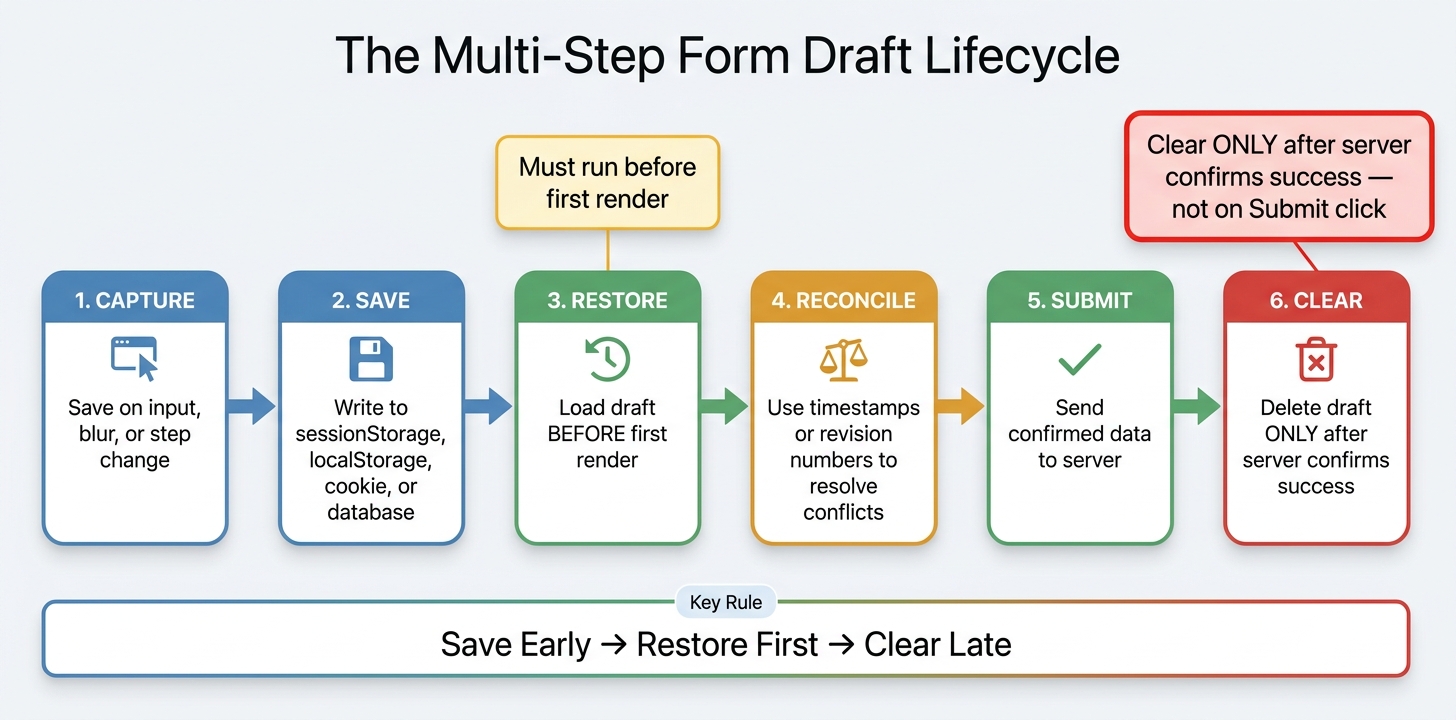
Multi-Step Form Draft Lifecycle: Save, Restore & Clear
Once you know the cause, fix it at each step.
Build a stable draft lifecycle
A steady draft lifecycle follows a clear sequence: capture, save, restore, reconcile, submit, clear. Save on input, blur, or step change. Restore before first render. When you reconcile drafts, use timestamps or server revision numbers to settle conflicts. Skip hash-based checks.
The last step often gets missed: clear the draft only after the server confirms success. If you clear it on the "Submit" click - before the server responds - a failed request can leave the user with nothing to recover.
Choose the right storage method for the form's risk and lifespan
Pick storage based on how long the draft needs to last and where it needs to last. The right fix depends on draft lifespan and what might overwrite it. Expired sessions, stale caches, and overwritten cookie values each point to a different storage layer.
| Storage Method | Best For | Key Limitation |
|---|---|---|
| sessionStorage | Same-tab continuity; short forms | Wiped when the tab closes |
| localStorage | Short drafts that need to survive tab closures | Can be overwritten by another tab |
| Server-side database | Long or sensitive forms; B2B onboarding | Abandoned records need cleanup routines |
| Cookies | Draft IDs only | Duplicate names or path/domain settings can overwrite values |
If cached pages bring back stale markup or scripts, make the form load the latest saved draft and bust the old cache when the form schema changes.
If you want fewer moving parts, use a workflow that handles draft saving and recovery for you.
Reduce custom failure points
Building and maintaining a custom draft lifecycle - conflict resolution, restore logic, session management - adds real engineering overhead. Reform's built-in multi-step forms, save drafts, and incomplete response tracking remove most custom state logic.
Test refresh behavior in your own environment, especially when sessions or cached pages are involved.
Conclusion: How to stop refreshes from wiping form progress
When a browser refreshes, JavaScript memory gets cleared. That’s normal browser behavior, not a bug. The real problem is usually a broken draft lifecycle, which puts the spotlight on your save-and-restore logic.
Once you separate save issues from restore issues, the cause gets much easier to find. If data disappears after a refresh, one of two things usually happened: the draft never got saved, or it was saved but not restored before the form rendered. Those problems usually point back to three layers: storage, timing, and session. Find the layer that failed, and the fix is usually pretty plain.
The fix doesn’t change much: save one draft, restore it before render, and clear it only after success. Think of the browser as a local draft store. Keep one source of truth, then load that draft again after a refresh.
Before launch, test these five cases:
- Hard refresh
- Back/forward navigation
- A duplicate tab
- A slow connection
- An after-deploy state check
Reform’s built-in draft saving and incomplete response tracking handle the persistence layer for you.
A refresh should be a small annoyance, not a reason for someone to fill out the whole form again.
FAQs
Why does refresh erase multi-step form data?
A page refresh can wipe out a multi-step form because the browser drops the page’s in-memory state when it reloads. If nothing saves that state somewhere else, the form starts over. That means inputs can reset unless a persistence layer stores the draft and restores it after reload.
The fix is pretty straightforward: add autosave tied to a central JSON object. Then save that draft in localStorage or on the server so progress survives a refresh. It also helps to accept partial data instead of waiting for a fully finished form, and to use versioned storage keys so old drafts don’t clash with new or changed fields.
What is the best place to store form drafts?
The best place to store multi-step form drafts is server-side storage when drafts need to survive page refreshes, work across devices, and stick around for logged-in users.
If you only need recovery on the same device, localStorage is often enough. sessionStorage works best for a single tab or browser session. IndexedDB makes sense for larger drafts or offline use. And cookies? They’re usually best kept for small identifiers or tokens, not full draft data.
In many cases, a hybrid setup gives you the best of both worlds: fast access on the device and durable storage on the server.
How can I stop two tabs from overwriting a draft?
Use conflict detection and sync logic. A simple overwrite can let stale data from an older tab replace newer entries.
Add a version token or timestamp to each save request so the server only accepts the latest update. If the server spots a conflict, it shouldn’t overwrite data by default. Instead, prompt the user to choose between the local version, the saved version, or a side-by-side review of the differences.
Related Blog Posts
Get new content delivered straight to your inbox

The Response
Updates on the Reform platform, insights on optimizing conversion rates, and tips to craft forms that convert.




Drive real results with form optimizations
Tested across hundreds of experiments, our strategies deliver a 215% lift in qualified leads for B2B and SaaS companies.
