
.webp)
Track Multi-Step Forms in GA4: 7 Fixes



If your GA4 form funnel looks wrong, the issue usually comes down to 7 checks: naming, parameters, duplicate hits, step order, GTM triggers, custom dimensions, and cross-checking against form data.
I’d treat each form step as a funnel signal, not a key event, and I’d mark only the final valid submit as generate_lead. That one choice alone can stop inflated lead counts and bad CPA math.
Here’s the short version:
- Use one shared schema across the data layer, GTM, and GA4
- Send the same step parameters every time:
form_id,step_number, andstep_name - Fire events after validation, not just on button clicks
- Remove double counting from hardcoded
gtag, Enhanced Measurement, or repeat triggers - Check step order in GTM Preview and GA4 DebugView
- Register step fields as event-scoped custom dimensions
- Compare GA4 against Reform when counts drift by 10% to 15%
A small gap is normal. But if GA4 is off by more than about 5%, I’d start checking tags and triggers right away.
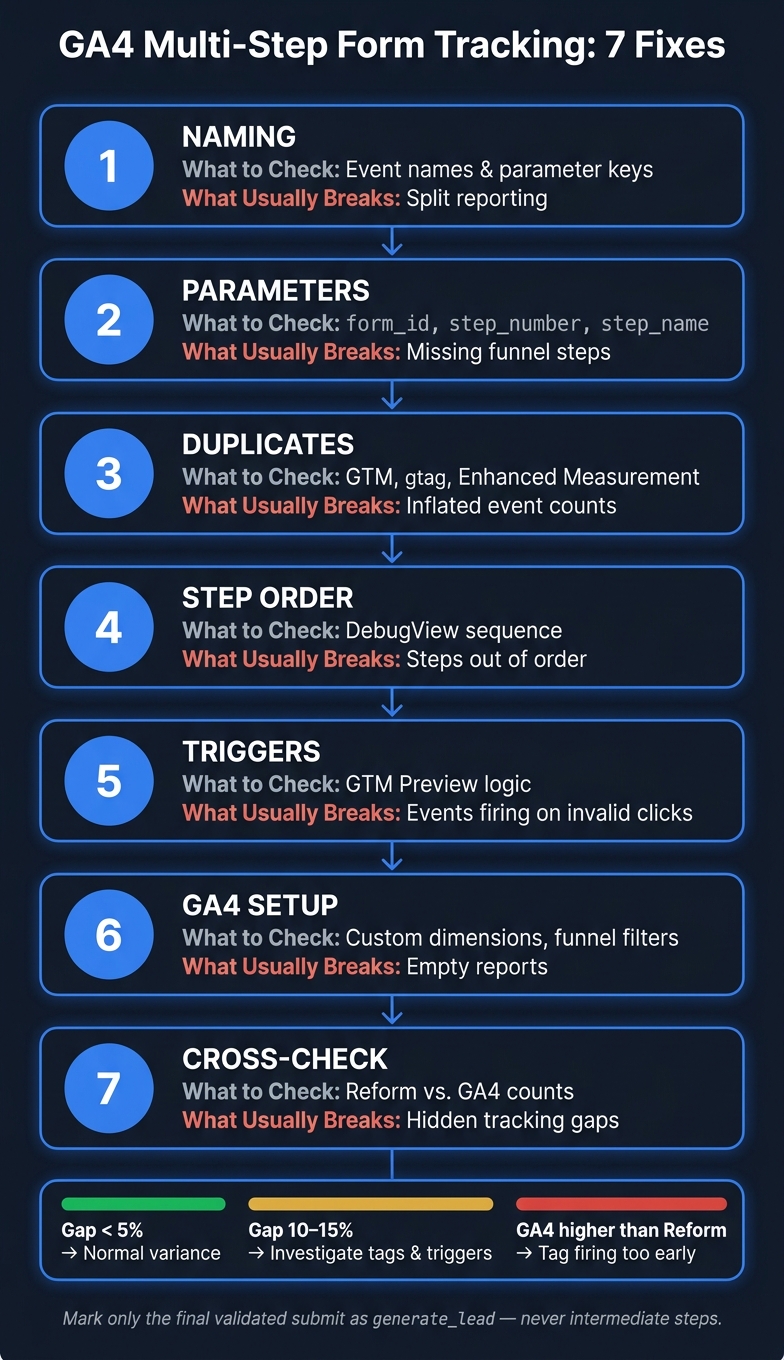
GA4 Multi-Step Form Tracking: 7-Fix Debugging Workflow
How to Track Multi-step Forms as a Funnel
sbb-itb-5f36581
Quick Comparison
| Fix | What I’d check | What usually breaks |
|---|---|---|
| 1. Naming | Event names and parameter keys | Split reporting |
| 2. Parameters | form_id, step_number, step_name |
Missing funnel steps |
| 3. Duplicates | GTM, gtag, Enhanced Measurement |
Inflated event counts |
| 4. Step order | DebugView sequence | Steps out of order |
| 5. Triggers | GTM Preview logic | Events firing on invalid clicks |
| 6. GA4 setup | Custom dimensions, funnel filters | Empty reports |
| 7. Cross-check | Reform vs. GA4 counts | Hidden tracking gaps |
If I were fixing this today, I’d start in the browser, confirm each step fires once, which is key for multi-step forms engagement, then move from Preview mode to DebugView to GA4 reports.
1. Standardize Your Form Event Names and Schema
Start by checking one simple thing: does the same form step have different names in the data layer, GTM, and GA4?
If it does, you can end up in a messy spot. The hit may still fire, but your reporting gets fragmented. One step might look like three different actions, which makes analysis harder than it needs to be.
Before you build GTM tags, lock in these three identifiers:
form_idstep_numberstep_name
Use those exact labels in the data layer, GTM, and GA4. No swaps. No alternate naming. Just one shared setup across all three layers.
For event names, keep it simple. Use a single event name for all middle steps, such as form_step_completed, and use step_number to tell those steps apart. For the final submission, use GA4’s recommended generate_lead event so it shows up in standard reports. Stick with lower_snake_case for event names and parameter keys.
| Form Stage | Event Name | Key Parameters |
|---|---|---|
| Step Completion | form_step_completed |
form_id, step_number, step_name |
| Final Submission | generate_lead |
form_id, form_name, value, currency |
Also, register form_id and step_number as event-scoped custom dimensions right away. If you skip that step, GA4 will still collect them, but they won’t appear in reports.
Once the naming is locked down, the next move is to check whether each step sends the right parameters.
2. Check That Each Step Sends the Right Event Parameters
Once your event names are set, check that each step sends the same parameter setup. Bad names can mess up reporting, sure. But missing parameters can do just as much damage.
After naming, look at the payload itself. Every step event should send form_id, step_number, and step_name. Add form_name only on the final submit event. If form_id is missing from even one step, that step can vanish from a filtered funnel report and make it look like users dropped off when they didn’t.
| Parameter | What Breaks Without It |
|---|---|
form_id |
Funnel filters fail; data from multiple forms gets mixed |
step_number |
Funnel stages can't be ordered; drop-off points become impossible to calculate |
step_name |
Hard to identify the step causing abandonment |
form_name |
Breakdowns show not set or split the same form across multiple labels |
Keep parameter names and values the same across the data layer and GTM. Small differences can split one step into two. For example, if one step is sent as Step 3 and another as 3, GA4 will treat them as separate values.
Timing matters too. These parameters should fire only after successful validation. If a user clicks Next but the form fails validation, the event should not fire. If it fires before validation, failed attempts get counted as completed steps.
And one more thing: never send Personally Identifiable Information (PII), like email addresses or phone numbers, as event parameters. That violates Google's Terms of Service.
If the payload looks right but a step still seems off, the next place to look is duplicate fires.
3. Remove Duplicate Form Step Events
If your payload looks clean but your event counts still look too high, duplicate fires are the usual problem. A single "Next" button click should send one event. If it sends two or three, your funnel data gets messy in a hurry.
One common reason is a hardcoded gtag.js snippet running at the same time as a GTM container that uses the same Measurement ID. In that setup, both can fire on their own and inflate your numbers. Check your site's source code for "gtag". If you find it outside GTM, remove it and send everything through GTM instead.
Another common issue is Enhanced Measurement overlap. GA4's built-in Form interactions tracking can send form_submit at the same time as your custom GTM tag. If you're tracking form steps with custom tags, go to Admin > Data Streams > Enhanced Measurement and turn off Form interactions to stop the double count.
Visibility triggers can also fire twice when a form step element re-renders or moves in and out of view as the page changes. In GTM, switch the trigger to Once per element or Once per page. For any step tag that might fire again after a refresh, set tag firing to Once per page.
Here’s the quick breakdown:
| Cause | Fix |
|---|---|
Hardcoded gtag + GTM |
Remove hardcoded snippet; use GTM only |
| Enhanced Measurement overlap | Turn off Form interactions in GA4 Data Stream settings |
| Visibility trigger re-firing | Set trigger to Once per element or Once per page |
| Input change triggers | Set tag firing options to Once per page or Once per event |
If the counts still look off, check the form in GTM Preview and GA4 DebugView. Then verify step order and coverage in GTM Preview and GA4 DebugView.
4. Check Step Order and Coverage in DebugView
Once you've ruled out duplicate hits, use DebugView to make sure each step fires one time and in the right order.
Start by opening GTM Preview. That turns on the debug_mode parameter for your session, which makes your activity show up in DebugView. Then head to GA4 > Admin > Data display > DebugView. Submit the multi-step form one step at a time and watch the timeline as each event comes in.
You want to see a clean flow like this: form_step_completed (step 1) → form_step_completed (step 2) → generate_lead.
Click each event and check the parameters. Make sure step_number moves up the way it should, form_id stays the same across the whole form, and step_name lines up with the stage you just completed. If step_number stays stuck at 1, or a step never shows up, the issue is probably in your trigger setup.
It also helps to run a negative test. Leave a required field blank on purpose, then click Next. The step event should not fire. If it does, your trigger is reacting to the button click instead of a valid step change. And if you're working with AJAX forms, turn on Observe DOM changes for Element Visibility triggers so GTM can detect steps that load after the page updates.
| DebugView Element | What to Verify | Red Flag |
|---|---|---|
| Event order | Logical progression (Step 1 → 2 → 3) | Steps appearing out of order or skipped |
step_number |
Increments correctly with each interaction | Parameter is missing or stays at 1 |
form_id |
Matches the specific form being tested | Events from different forms mixing in the timeline |
| Key event icon | Only appears on the final submission event | Every step is flagged as a key event |
DebugView is close to real time. Standard reports can take more than 24 hours to show data. So if DebugView shows missing steps or events arriving out of order, move on to your GTM Preview trigger logic next.
5. Review GTM Preview Mode and Trigger Conditions for Each Step
When DebugView shows a missing step or steps showing up in the wrong order, jump into GTM Preview and trace the trigger. Start with Summary > Tags Fired. Each step tag should fire only on the matching user action.
After that, make sure the tag fires after validation, not just on the button click.
A Click trigger on the Next button can fire before validation finishes. That sounds small, but it can create fake step completions, undermining the benefits of multi-step forms. If the trigger reacts to the click itself, GTM may log the step even when the form input fails validation. A safer setup is to fire from a dataLayer event like form_step_completed instead.
While you're in the Summary pane, open each fired tag and check the Variables and Data Layer tabs. Look at form_id, step_number, and step_name. Those values should match the step that just completed.
If step_number is missing or wrong, check the Data Layer Variable setup. In many cases, setting it to Version 2 fixes the issue because GTM can then read nested values the right way.
There’s one more common gotcha on step one. If your form_started tag fires more than once while someone clicks into fields or starts typing, change the tag firing option to "Once per page."
| Issue | GTM Element to Check | Fix |
|---|---|---|
| Tag fires on invalid input | Trigger Type | Switch from "Click" to a dataLayer event that fires after validation. |
step_number is undefined |
Data Layer Variable version | Set the Data Layer variable to Version 2. |
form_started fires multiple times |
Tag Firing Options | Set firing options to "Once per page." |
If Preview mode looks right, the next step is to check whether GA4 stores the step parameters for funnels and custom dimensions.
6. Check Funnel Reports and Custom Dimensions in GA4
If your form events are firing but the funnel still looks empty, the issue is often inside GA4 setup - not the form itself.
GA4 can collect step_number, form_id, and step_name, but you can't use those in Explorations or reports until you register them as event-scoped custom dimensions in Admin > Custom Definitions > Custom Dimensions. One small mismatch can throw things off, so check that the Event parameter field matches each parameter name exactly. After that, you can build the funnel around those fields.
In the Explore tab, set up a Funnel Exploration. Use the same step event from your tracking setup for each stage: form_step_completed. Then apply a filter for step_number values such as 1, 2, and 3. Add a form_id filter too, so one form's data doesn't get lumped in with another. That's what keeps step tracking clean and stops middle-of-the-funnel actions from muddying conversion reporting.
For conversions, keep it simple: only the final submission event - generate_lead - should be marked as a Key Event. The earlier steps should remain standard events. If you mark those middle steps as Key Events too, your conversion numbers can get bloated fast.
One more thing: GA4 isn't instant here. New custom dimensions and events can take 24–48 hours to show up in standard reports.
| GA4 Component | What to Check |
|---|---|
| Custom Definitions | step_number, form_id, and step_name are registered as event-scoped dimensions |
| Funnel Exploration | Each stage uses the same step event with the correct step_number filter |
| Key Events | Only the final submission event is marked as a Key Event |
| Data processing lag | Wait 24–48 hours before troubleshooting missing report data |
7. Use Reform Analytics to Cross-Check GA4 Form Data
Use Reform analytics as your baseline, then line it up against GA4 to spot missing step events. Reform logs form activity before browser-side tracking has a chance to fail, so those counts show what actually happened inside the form. The point isn't to replace GA4. It's to find the first place where GA4 starts drifting.
A gap under 5% is usually normal. A gap in the 10% to 15% range usually points to a tracking issue.
Start by comparing Reform's total submission count with the generate_lead event count in GA4:
- If Reform is higher than GA4, the
generate_leadtag is missing some completions. - If GA4 is higher than Reform, the final tag is firing too early.
That gives you a quick read on where the issue starts. If the counts are off at the end, the problem is likely in the final submit tag. If the final counts look fine but a drop shows up earlier, you're probably dealing with a step trigger issue.
For step-level gaps, use Reform's form_step_#_complete events as the reference point. Say Reform shows a steady number of Step 2 completions, but GA4 falls off a cliff there. That's a strong sign the Step 2 trigger is broken. Use the mapping below to find the first broken step.
| Reform Data Layer Event | Corresponding GA4 Event | Key Parameter to Compare |
|---|---|---|
reform.form_step_#_complete |
form_step_completed |
step_number |
reform.onFormCompleted |
generate_lead |
form_id |
The Reform integration sends a reformContext object with each event, including form.id, form.name, page.id, and page.pageNumber. If form_id and step_number don't map to the same values in GA4, the funnel gets split across reports and hides the actual problem - not the form itself.
Quick Reference Table: Common GA4 Form Tracking Problems and Fixes
Once you've checked your events in DebugView, use this table as a fast way to match each problem with the most likely fix.
| Symptom | Likely Cause | Fix to Apply |
|---|---|---|
| Inflated lead volume / lower CPA | Every form step is marked as a key event in GA4 | Fix 1: Standardize your event names and schema - mark only the final confirmed submission as a key event |
| Steps missing for AJAX or dynamic forms | Standard GTM triggers miss AJAX changes | Fix 5: Review GTM Preview Mode and trigger conditions for each step |
| Duplicate step events | GA4 Enhanced Measurement firing alongside custom GTM tags | Fix 3: Remove duplicate form step events |
| Funnel reports show no step data | step_number or form_id not registered as custom dimensions |
Fix 6: Check funnel reports and custom dimensions in GA4 |
| Steps out of order in reports | Inconsistent naming or race conditions in trigger timing | Fix 4: Check step order and coverage in DebugView |
| GA4 leads don't match form submissions | Tracking fires on "Next" button clicks regardless of validation errors | Fix 2: Check that each step sends the right event parameters |
| Missing data from iframe-embedded forms | Standard GTM triggers can't detect interactions inside the iframe | Fix 7: Use Reform Analytics to cross-check GA4 form data |
Tracking Notes for Multi-Step Forms Built in Reform
For forms built in Reform, use its data layer events to check whether GA4 is missing a step or firing the same event twice. The map below helps you spot where things start to go off the rails.
| Reform Data Layer Event | Recommended GA4 Event | Debugging Purpose |
|---|---|---|
reform.onFormLoaded |
form_displayed |
Confirms the form is loading and visible to users |
reform.onInputChanged |
form_started |
Checks the start event |
reform.form_step_#_complete |
form_step_completed |
Checks step-by-step progression and drop-off |
reform.onFormCompleted |
generate_lead |
Verifies successful final submissions |
If the mapping looks right but GA4 still misses events, open GTM Preview and inspect reformContext in real time. You want to confirm that page.pageNumber changes in the right sequence at each step. Also check that form_id and step_number line up with the matching GA4 parameters.
To make Reform events usable in GA4 Funnel Explorations, register form_id, form_name, and step_number as event-scoped custom dimensions.
Conclusion
When multi-step form tracking breaks, don’t guess. Work through it in a fixed order.
GA4 multi-step form tracking comes down to four basics: consistent schema, complete parameters, correct triggers, and no duplicate hits. That sequence makes troubleshooting much easier because it shows you where things usually go off the rails. Start with the browser test, then move to GTM Preview, DebugView, and finally GA4 reports.
Before you build funnel explorations, register form_id and step_number as event-scoped custom dimensions. And when you set up conversions, mark only the final validated submission as a key event.
That’s the fastest way to spot where a multi-step form stops sending data to GA4. When the steps, parameters, and reports match up, your GA4 funnel data is ready to improve.
FAQs
Why should only the final submit be a key event in GA4?
Mark only the final, successfully validated submission as a key event in GA4 to keep conversion data accurate.
If you count every form step as a key event, your lead numbers start to look bigger than they are. On paper, CPA can seem lower too, even though actual lead generation hasn’t changed.
Track step events for funnel analysis and drop-off. Just don’t treat them as conversions.
How do I know if my form step events are firing twice?
Use Google Tag Manager Preview mode and GA4 DebugView to trace each step in real time. If the same event shows up more than once from a single action, it’s probably firing twice.
Common reasons include:
- GA4 is hardcoded on the site and also firing through GTM
- Enhanced Measurement and custom tags are both sending the same event
- Double clicks, redirects, or script retries are triggering the event again
What should I check first if a GA4 funnel step is missing?
First, use Google Tag Manager’s Preview and Debug mode and walk through the form one step at a time. Make sure each custom event fires once and includes the right form ID and step number.
Then check GA4 DebugView to confirm the data is coming through the way it should. If the event doesn’t fire in preview, open your browser’s Network tab and look for issues like AJAX requests, hidden iframes, or JavaScript callbacks.
Related Blog Posts
Get new content delivered straight to your inbox

The Response
Updates on the Reform platform, insights on optimizing conversion rates, and tips to craft forms that convert.




Drive real results with form optimizations
Tested across hundreds of experiments, our strategies deliver a 215% lift in qualified leads for B2B and SaaS companies.
