
.webp)
Common Marketo Forms API Errors



Marketo Forms API errors can disrupt lead collection and CRM syncing, often without obvious signs. These errors can stem from misconfigurations, script issues, or exceeding API limits. Here’s what you need to know:
- Key Issues: Silent failures, domain mismatches, broken JavaScript callbacks, and rate limits.
- Common Errors:
- Forms not loading: Often caused by script timing or ad blockers.
- Submission failures: Domain inconsistencies or hidden field issues.
- Validation errors: Field mapping problems or incorrect API names.
- Server-Side Challenges:
- Authentication issues with expired tokens.
- Exceeding API rate limits or quotas.
- Payload encoding errors like UTF-8 BOM or invalid JSON.
- CRM Sync Problems:
- Field mismatches and picklist conflicts.
- Automation conflicts between Marketo and Salesforce.
Quick Fixes:
- Ensure domain consistency in
loadForm()calls. - Avoid using
deferorasyncin the script tag. - Monitor API usage to stay within limits.
- Validate hidden fields and field mappings regularly.
How the Marketo Forms API Works

The Marketo Forms 2.0 API operates using a two-object structure. The MktoForms2 global namespace handles tasks like loading and fetching forms, while individual Form objects take care of rendering and submission. The process begins when you call .loadForm(), which retrieves a form descriptor from Marketo's servers. This requires your Base URL, Munchkin ID, and Form ID. This setup is the backbone of the API's functionality, but it also introduces areas where errors can occur if not configured correctly.
Core Features of the Marketo Forms API
After the form descriptor is loaded, the API renders a standard HTML <form> element on your page. It also overrides the browser's default submit behavior, taking full control of the form submission process. While this approach is efficient, it can lead to issues if not implemented properly.
To navigate Cross-Origin Resource Sharing (CORS) restrictions, the API uses a hidden IFRAME (called XDFrame) that loads from the domain specified in loadForm(). When a user submits the form, the main page uses JavaScript's postMessage to send the field values to the hidden IFRAME. The IFRAME then completes the submission by making a same-origin POST request to Marketo's endpoint (/index.php/leadCapture/save2). However, even small inconsistencies in domain configuration or timing can disrupt this process and lead to submission errors, especially when breaking a long form into steps to improve user experience.
"The Forms 2.0 library loads a hidden IFRAME from the domain in loadForm()... the library (the one loaded by the main document) uses JS postMessage to pass form field values over to the IFRAME." - Sanford Whiteman, Level 10 Contributor, Adobe Marketo Engage Community
Each submission also includes a SHA-256 checksum of the first 20 field values, along with a checksumFields list. This acts as an integrity check, blocking bot submissions and unauthorized posts. If the checksum doesn’t match - for example, due to an unnamed hidden field in the twentieth position - a "400 Bad Request" error will occur.
| Method | Purpose | Data Flow Direction |
|---|---|---|
.loadForm() |
Fetches form configuration | Server → Client |
.vals() |
Gets or sets field values | Client-side internal |
.submit() |
Triggers validation and POST | Client → IFRAME → Server |
.onSuccess() |
Executes after successful POST | Server → Client |
Requirements for Proper Setup
Understanding how the API works highlights why precise configuration is critical. Proper setup ensures smooth operation and avoids common issues tied to the API's structure.
Domain consistency is one of the most frequent problem areas. The API creates just one XDFrame per page, based on the first domain it encounters. If you mix your Marketo instance URL (e.g., app-xx.marketo.com) with your Landing Page CNAME (e.g., pages.yourcompany.com) on the same page, the IFRAME won't be able to communicate across different origins, causing submissions to fail. To avoid this, ensure all loadForm() calls across your site use the same domain - ideally your Landing Page CNAME.
SSL is another critical requirement. If your website uses HTTPS, your baseUrl and all Marketo scripts must also use HTTPS. If not, mixed content errors will block the script from running. Additionally, the MktoForms2 global object must be fully initialized before any custom JavaScript interacts with it. Attempting to call form methods before the library is ready will lead to silent failures.
sbb-itb-5f36581
Common Client-Side Marketo Forms API Errors
Even with a well-configured API setup, client-side errors can still pop up. These issues often stem from script timing, domain mismatches, or conflicts with custom code. They’re also the most noticeable since they directly affect what visitors see. Whether it’s a form that won’t load or one that freezes during submission, the root cause is usually tied to a handful of common problems.
Form Fails to Render or Load
One frequent problem is a script loading issue. If you’ve added the defer attribute to the forms2.min.js script tag, the MktoForms2 global object won’t exist when your inline loadForm() call runs. This results in a "MktoForms2 is not defined" error. As Sanford Whiteman, a Marketo Champion, explains:
"That's because you're trying to use the global MktoForms2 object before it exists. And the reason it doesn't exist is you've added the defer attribute to the script tag... defer - by design - does not load the script immediately, instead deferring it to a background fetch."
To fix this, remove the defer and async attributes from the script tag unless your implementation specifically accounts for the library’s delayed loading before calling loadForm().
Other possible causes include:
- Unapproved Forms: If a form hasn’t been approved in Marketo’s Design Studio, it won’t render. Always double-check its approval status before embedding.
- Ad Blockers: Browser ad blockers or tracking protection may block scripts from
*.marketo.com, preventing the form from appearing.
To troubleshoot rendering issues, use the onReady callback (the optional fourth argument in MktoForms2.loadForm). If the mktoForm argument returns null, the problem might be a bad Form ID or an internal load error.
Submission Stuck on 'Please Wait'
If the form loads but freezes after a user clicks submit, check for domain consistency across all loadForm() calls on the page. The API uses a single XDFrame per page, so loading forms from different domains can lead to cross-origin submission failures.
Another potential issue involves custom scripts or expert form strategies that inject UTM parameters or hidden fields via addHiddenFields(). If an empty string is passed as a field name, and that field lands in the 20th position, the SHA-256 checksum will fail, causing a "checksum invalid" error on every submission. Reviewing your hidden field scripts for null or empty field names can resolve this issue.
For Single Page Applications (SPAs), the challenge is different. Navigating back to a form page repeatedly creates multiple Marketo form objects without clearing the old ones. As Sanford Whiteman explains:
"The problem is your site is an SPA (single-page app) and you're continually creating additional Marketo form objects whenever someone navigates back to the form page. The HTML
<form>elements are removed from the DOM, but the form objects will never be removed and the forms library still thinks they exist."
The solution? Reuse a single form object instead of re-initializing it every time someone navigates back to the form page.
Validation and Field Data Errors
Validation errors can show up as persistent error messages or fields that fail validation even when the input looks correct. Thankfully, the Forms 2.0 API offers several built-in methods to help diagnose these problems:
| Method | Purpose |
|---|---|
.validate() |
Performs a full validation check and returns true if all fields pass. |
.onValidate(callback) |
Allows you to add custom validation logic before submission. |
.getValues() |
Retrieves all current field names and values as a JavaScript object. |
.showErrorMessage(msg, elem) |
Displays a Marketo-style error tooltip on a specific field. |
.addHiddenFields(values) |
Adds hidden data to the form payload before submission. |
One quick way to identify mapping issues is by running form.getValues(). If a custom field is missing from the output, compare its API name to the field definitions in Marketo’s Field Management. Even a small difference, like capitalization, can cause the field to be quietly excluded from the payload.
Common Server-Side REST API Errors
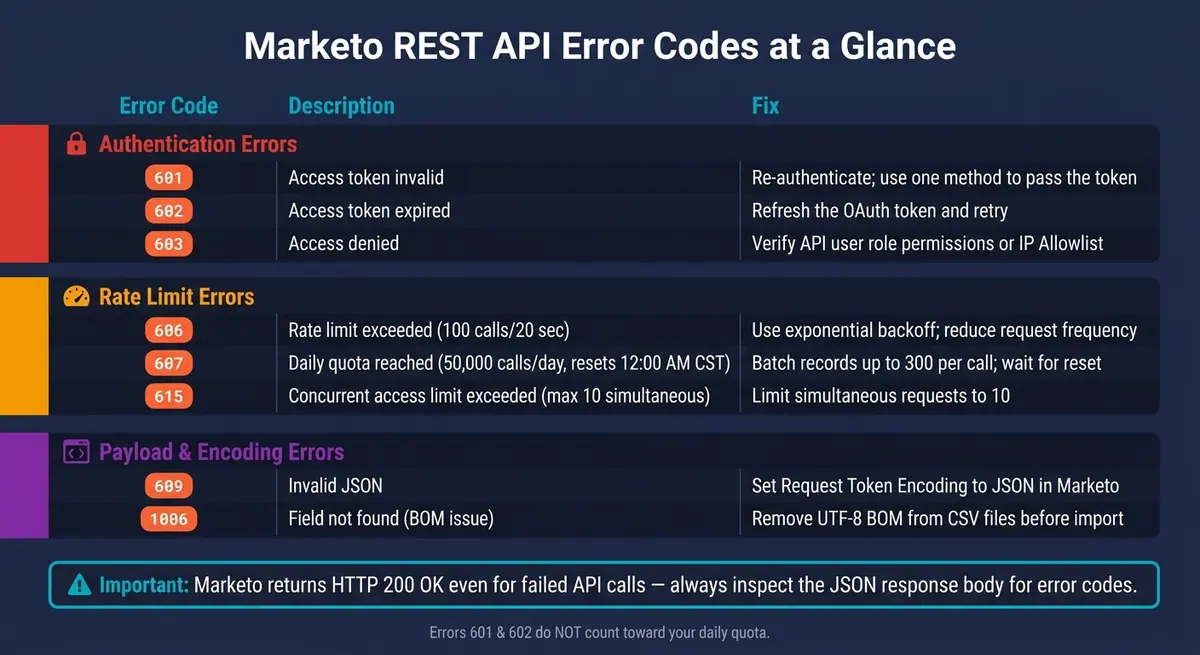
Marketo REST API Error Codes: Quick Reference Guide
Server-side errors in REST APIs can be tricky to spot since they often don’t immediately surface like client-side issues. For instance, Marketo's REST API might return an HTTP 200 OK status even when an error occurs. This means you need to dig into the JSON response body to identify the actual error code. As Nicholas Manojlovic explains:
"The status code only refers to the fact that the endpoint is valid, not whether a success has been reached. In other words, a failed API call still returns a 200 response."
Let’s explore some common errors - authentication, rate limits, and payload issues - and how to handle them effectively.
Authentication and Permission Issues
Authentication errors often stem from invalid tokens, expired tokens, or insufficient permissions. These errors are represented by specific codes:
- 601: Invalid token
- 602: Expired token
- 603: Insufficient permissions
To resolve token-related issues (601 and 602), re-authenticate or refresh the token before retrying. For Error 603, check the API user’s role under Marketo Admin > User Roles to confirm the "Access API" permission is granted. If you encounter Error 401 while working with the Identity endpoint, double-check your client_id and client_secret in the API configuration.
Addressing these problems quickly ensures your API integration runs smoothly, minimizing data submission errors and maintaining consistent access.
Rate Limits and Quota Exceedances
Marketo enforces strict limits on API usage, and exceeding these can disrupt your integration. Key limits include:
- 100 calls per 20-second window (Error 606)
- 50,000 daily calls reset at 12:00 AM CST (Error 607)
- 10 simultaneous requests (Error 615)
These limits apply across all integrations tied to your Marketo instance, so even one inefficient script can exhaust the shared quota. To avoid this, batch updates instead of sending one API call per record. For example, the Lead DB endpoint allows up to 300 records per call. For high-volume tasks, consider using Bulk Import/Export APIs.
When you hit Error 606 or 615, implement an exponential backoff strategy - retrying requests after progressively longer delays. This helps prevent cascading failures and ensures smoother API usage. Note that Errors 601 and 602 don’t count toward your daily quota.
By staying within these limits, you can maintain a stable API connection and avoid unnecessary interruptions.
Payload and Encoding Errors
Two common issues with payloads during bulk imports are related to encoding:
-
Byte Order Mark (BOM): If a CSV file is saved as UTF-8 with a BOM (
U+FEFF), Marketo might misinterpret the invisible character as part of the first column header. This results in Error 1006 (e.g., "Header field 'email' not found"). As Sanford Whiteman, a Marketo community moderator, notes:"If you see the BOM in the payload once, you're sure to see it again and again, so you need to fix your code to deal with it... you should not include the BOM in a UTF-8 payload."
- Invalid JSON: This error (Error 609) often occurs when webhook request bodies contain unescaped special characters. Instead of manually quoting tokens, set the "Request Token Encoding" to JSON in Marketo. This ensures proper encoding automatically based on the field type.
Fixing these encoding issues at the source prevents repeated import failures and ensures your lead data remains accurate.
| Error Code | Description | Fix |
|---|---|---|
| 601 | Access token invalid | Re-authenticate; use one method to pass the token |
| 602 | Access token expired | Refresh the OAuth token and retry |
| 603 | Access denied | Verify API user role permissions or IP Allowlist |
| 606 | Rate limit exceeded | Use exponential backoff; reduce request frequency |
| 607 | Daily quota reached | Batch records; wait for the 12:00 AM CST reset |
| 615 | Concurrent access limit exceeded | Limit simultaneous requests to 10 |
| 609 | Invalid JSON | Set Request Token Encoding to JSON in Marketo |
| 1006 | Field not found (BOM issue) | Remove the BOM from UTF-8 CSV files before import |
Integration Errors Between Marketo and CRMs
Even when REST API calls succeed, data may still fail to sync correctly. For instance, Marketo typically syncs leads at a rate of about 10,000 records per hour. A minor misconfiguration can quietly disrupt a significant amount of lead data. This gap between API success and CRM sync issues highlights the need for meticulous integration setup.
Field Mapping and Picklist Conflicts
Sync failures often stem from mismatched field definitions between Marketo and Salesforce. For example, a Salesforce field defined as a Float won't sync with a Marketo field defined as a Score.
"If the field in SFDC has the type of 'Float' and field in Marketo is 'Score', then they aren't compatible and won't sync."
- Mike Reynolds, Marketo Community
Picklist mismatches also cause FIELD_INTEGRITY_EXCEPTION errors. To avoid this, use multi-step forms with dropdown menus in Marketo to enforce values approved by the CRM. However, when Salesforce picklists are updated, Marketo forms using those fields revert to Draft status, requiring reapproval.
"When field picklist options are updated in Salesforce, the Marketo forms using this field are put in a Draft. This will allow the form draft to be reviewed to ensure the picklist values on the form match what's in Salesforce before being reapproved."
- Adobe Marketo Engage Knowledge Base
Renaming a field's API name in Salesforce creates a new field in Marketo. This change causes existing references to that field to break, leading to unnoticed update failures. Proper field mapping is critical to avoid these issues and maintain reliable lead data sync.
Conflicting Smart Campaigns and Workflow Rules
Integration challenges aren’t limited to field definitions - automation conflicts can also cause problems.
Operational Smart Campaigns in Marketo can overwrite valid form submissions.
"It could also be a case where fields populated with valid values through form fillout are overwritten by a flow in a Smart Campaign. Worth checking the Data Value Change history on a sample record."
- Darshil Shah, Community Advisor and Adobe Champion
CRM validation rules add another layer of complexity. For instance, if Salesforce requires a "Disqualified Reason" when a lead's status changes to "Disqualified", and Marketo only updates the status field, the sync will fail with a FIELD_CUSTOM_VALIDATION_EXCEPTION. To prevent this, configure Marketo campaigns to populate all dependent fields before initiating the sync.
When troubleshooting sync issues, start by reviewing the "Data Value Change" history for a sample record in Marketo. Next, check the Sync Errors tab under Admin > Salesforce, and export the log to a CSV file. Sorting errors by type and frequency can help identify and address the most pressing problems.
| Error | Common Cause | Fix |
|---|---|---|
| FIELD_INTEGRITY_EXCEPTION | State/Country value format mismatch (e.g., "California" vs. "CA") | Use dropdowns on forms to enforce accepted CRM values |
| INVALID_OR_NULL_FOR_RESTRICTED_PICKLIST | Marketo sent a value not in the Salesforce restricted picklist | Update and sync picklist values between Marketo and Salesforce |
| FIELD_CUSTOM_VALIDATION_EXCEPTION | CRM validation rule requires dependent fields not provided by Marketo | Stamp all dependent fields in Marketo before the sync step |
| REQUIRED_FIELD_MISSING | Mandatory Salesforce field is empty in the Marketo record | Make fields required on forms and use campaigns to fill defaults |
| UNABLE_TO_LOCK_ROW | Record is being edited by another CRM process simultaneously | Usually resolves on the next sync; avoid high-frequency triggers |
How to Troubleshoot Marketo Forms API Issues
Effectively diagnosing Marketo Forms API issues can save you a lot of time and effort. The goal is to identify where the problem lies and understand what the error signals mean. Here’s a systematic approach to tackle these issues.
Step-by-Step Error Diagnosis
Start by using your browser's developer tools. Open the Network and Console tabs, then reproduce the error. Make sure to enable "Preserve Log"; without it, the console will clear during page redirects, potentially erasing the error details you need.
"A clear symptom of broken custom JS is when you see form fields, in URL-encoded string, in the location bar after clicking Submit... an uncaught error has been thrown in a custom Forms API onSubmit function." - Sanford Whiteman, Marketo Expert
Once you’ve captured the error, classify it into one of these categories:
| Error Level | Where It Appears | Typical Codes | What It Means |
|---|---|---|---|
| HTTP-Level | HTTP status code | 413, 414 | Payload too large or URI too long |
| Response-Level | errors array in JSON |
601, 602, 606, 607 | Authentication failures, rate limits, quota exceeded |
| Record-Level | reasons array in JSON |
1003, 1004, 1005 | Issues with individual records, like duplicates or invalid data |
After identifying the error level, check the basics: confirm that the form ID and access token are valid. For example, if the loadForm callback returns null, it could indicate an invalid form ID or an internal error. Also, ensure your integration hasn’t exceeded Marketo’s limits, such as the rate cap of 100 calls per 20 seconds (Error 606) or the concurrent request limit of 10 ongoing calls (Error 615). Watch out for hidden fields with empty names, as these can cause a 400 checksum invalid error.
Use these diagnostics to zero in on the root cause of the issue.
Tools That Help Reduce Errors
Once you’ve diagnosed the issue, you can implement tools to monitor and prevent future problems.
Log events at every stage using the Forms 2.0 API hooks - onSubmit, onSuccess, and onValidate. To detect stalled connections, set a manual 5-second timeout on MktoForms2.loadForm. Since JSONP lacks a built-in timeout feature, this is the most reliable way to catch stalled loads:
"The fact that a request is still in progress after a certain amount of time is not an event in itself. So you have no choice but to set a separate timer and wait for it to expire." - Sanford Whiteman, Technical Architect
It’s also helpful to send captured errors to an external monitoring service. Tools like Google Tag Manager, TrackJS, or Heap can provide real-time alerts when error rates increase. If your team wants to simplify API usage, consider tools like Reform, which offer no-code form builders with built-in features like validation, email verification, and spam prevention. This reduces the number of raw API calls and minimizes the risk of client-side errors.
"When developing for Marketo, it is important that requests and responses get logged when an unexpected exception is encountered." - Adobe Experience League
Conclusion: Getting the Most Out of the Marketo Forms API
To make the most of the Marketo Forms API, focus on a few essential practices.
Consistency in domain usage, clean JavaScript implementation, proper authentication, and managing the single-page application (SPA) lifecycle effectively are all crucial. These factors decide whether your forms work seamlessly or lose potential leads.
Silent failures can be disastrous if left unchecked. Regular monitoring and careful configuration are your best defenses. Check the Web Services menu daily to keep an eye on API usage and address potential problems early. Streamlining your API calls is another way to improve performance and avoid issues.
If you're dealing with complex integrations or a large volume of forms, reduce the number of direct API calls. Using background form submissions can help scale your operations while maintaining security - and they won't count against your daily API quota. Tools like Reform can simplify things further by offering built-in validation, email verification, and spam prevention, which reduces the complexity on the client side.
The bottom line? Most issues with the Marketo Forms API can be avoided. Stick to standardized embed domains, validate hidden fields, log errors consistently, and keep an eye on rate limits. Nail these basics, and your API will deliver reliable lead capture every time.
FAQs
Why does my Marketo form load but not submit?
If your Marketo form isn't submitting, there are a few common culprits to investigate. Issues often stem from JavaScript API errors, server-side problems, or misconfigured CORS settings. Here's a closer look at what might be going wrong:
- Failed
save2Request: This happens when the form submission process encounters an error during thesave2API call. - Cross-Domain Embedding: If your form is embedded on a domain different from where Marketo is hosted, it can lead to submission failures.
- Network or Server Errors: Problems like a 400 status code can indicate server-side issues blocking the form submission.
How to Troubleshoot
- Check the JavaScript API: Look for any errors in your browser's developer console that might point to problems with the form's JavaScript.
- Ensure Same-Domain Loading: Verify that the form is loading from the same domain where it's embedded to avoid cross-domain restrictions.
- Review CORS Settings: If your form communicates across different domains, ensure that CORS (Cross-Origin Resource Sharing) is properly configured.
By addressing these areas, you can often resolve the submission issues and get your Marketo form working smoothly.
How can I tell if a Marketo REST API call 'worked' if it returns 200 OK?
Even when a Marketo REST API call returns a 200 OK status, it’s essential to examine the JSON response carefully. Look for the 'success' key set to true or check for any error codes in the response body. A 200 status doesn’t guarantee everything went smoothly - errors can still be flagged within the response itself.
What’s the fastest way to avoid Marketo API rate-limit errors?
To steer clear of Marketo API rate-limit errors, you need to manage your requests carefully. The key is to stay under the limit of 100 API calls every 20 seconds. Here's how you can do it:
- Implement request throttling: This helps control the flow of requests, ensuring you don't exceed the allowed threshold.
- Monitor API usage: Keep an eye on your API activity to identify any spikes or unnecessary calls.
- Optimize workflows: Streamline your processes to minimize redundant API calls, making your operations more efficient while staying within the limits of the Marketo REST API.
By taking these steps, you can maintain smooth operations and avoid disruptions caused by hitting API limits.
Related Blog Posts
Get new content delivered straight to your inbox

The Response
Updates on the Reform platform, insights on optimizing conversion rates, and tips to craft forms that convert.



Drive real results with form optimizations
Tested across hundreds of experiments, our strategies deliver a 215% lift in qualified leads for B2B and SaaS companies.
