
.webp)
5 Cookie Consent Checks for Lead Gen Forms



A cookie banner alone does not make a lead gen form safe to launch. If scripts run before a visitor chooses, if tags ignore “Reject,” or if the CRM cannot show what the person agreed to, the setup has a gap.
I’d boil this review down to 5 checks:
- Banner first: no nonrequired scripts should run before consent.
- Form scripts follow the choice: embeds, enrichment, chat, and validation tools must wait or stay blocked based on the user’s selection.
- Analytics and ad tags stay off until allowed: that includes page views, pixels, replay tools, and ad cookies.
- Disclosures match the page: the banner, notice, and vendor list should match what the browser shows.
- Proof links to the lead record: each submission should keep the timestamp, consent choices, versions shown, and a consent event ID.
Here’s the simple pass rule: if 1 script fires too early, 1 vendor is missing from disclosure, or 1 lead record lacks a consent trail, I would stop the launch.
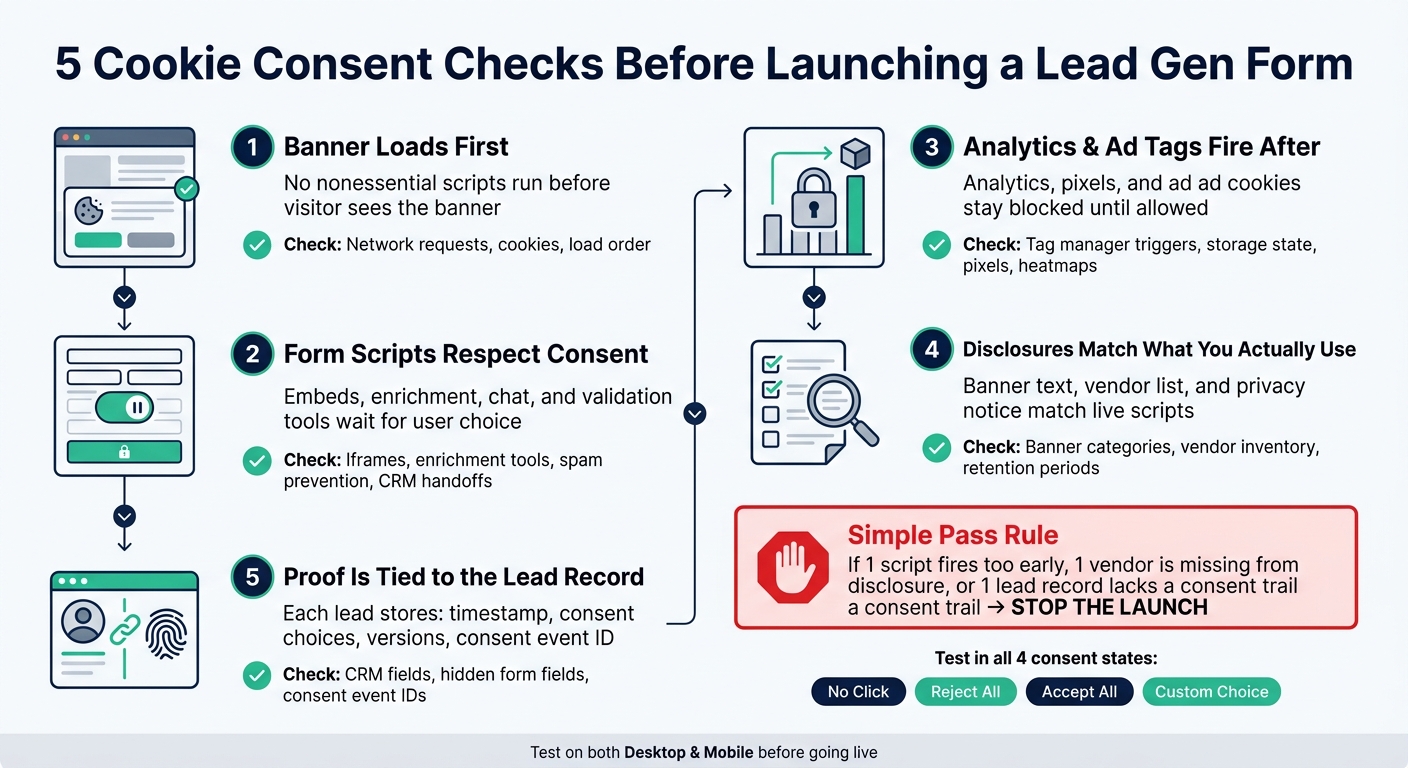
5 Cookie Consent Checks for Lead Gen Forms: Pre-Launch Checklist
CMPs, Cookies, and Compliance: What Legal and Technical Teams Need to Know about Consent Management
sbb-itb-5f36581
Quick comparison
| Check | Main question | What I’d look for |
|---|---|---|
| 1. Banner loads first | Does anything optional run before choice? | Network requests, cookies, load order |
| 2. Form scripts respect consent | Do form-related tools follow the user’s selection? | Embeds, iframes, enrichment, spam checks |
| 3. Analytics tags fire after permission | Are analytics and ads blocked until allowed? | Tag manager triggers, storage state, pixels |
| 4. Text and vendor lists match use | Do disclosures match live scripts and vendors? | Banner text, notice, vendor inventory |
| 5. Proof is tied to the lead | Can I rebuild the consent event from the CRM? | Timestamp, source URL, versions, consent ID |
One more thing: I’d test in 4 consent states - no click, reject all, accept all, and custom choice - and on both desktop and mobile before going live.
What This Pre-Launch Review Covers
This review looks at the full path from page load to lead record.
That includes your consent management platform (CMP) or banner, the multi-step form embed, analytics and ad tags, enrichment and spam-prevention scripts, vendor lists, notice text, and the CRM record created after submission. The five checks below follow that same path, from load order through recordkeeping.
Before you test anything, make a simple inventory. For every script or service on the page, write down:
- Name
- Vendor
- Purpose
- When it fires
- Where it sends data
Include the form builder embed and every script it loads. If you use Reform, don’t stop at the form you can see. Inventory its analytics, enrichment, spam-prevention, email validation, and CRM handoffs too. That list is the starting point for every check below.
This is a pre-launch implementation check, not legal advice. Consent rules and disclosure language can change based on state law, data type, processing purpose, and whether you act as controller or processor. Use these checks to spot setup gaps first. Then bring in legal or privacy counsel for the compliance calls.
For results you can trust, test in a clean browser session. Use a new private window, clear existing cookies and local storage, and remove any saved consent settings. Then run the page in at least four states:
- No banner interaction
- Reject all optional purposes
- Accept all
- A custom selection
Repeat the same tests on desktop and mobile. Some responsive pages load different scripts depending on screen size, and that can trip people up.
Document each test with a timestamp in full U.S. date and time format, including the time zone. Save banner screenshots, network logs, and CRM test-lead IDs.
Start with what loads first.
1. Banner Loads Before Nonessential Scripts
This is the first thing to check, and for good reason. If a nonessential script fires before someone sees the banner and makes a choice, the consent flow is already broken.
Pre-Consent Tracker Blocking
Open the page in a clean session and wait without clicking anything. At that point, only necessary tools should load: the CMP, security, session, and rendering assets. Marketing pixels, ad tags, analytics tools, session-recording software, and enrichment services should stay blocked. If any nonessential request or identifier shows up before the banner choice, this check fails.
Consent-State Propagation
Load order is only the first step. Next, make sure the consent state reaches the form stack. After a visitor makes a choice, that consent signal needs to reach every dependent component right away.
The consent platform should expose a machine-readable consent state. The parent page should then pass that state to your tag manager and headless or embedded form before any analytics, ad, enrichment, or retargeting script loads. Test every consent state you support. If one state gets skipped, that's where problems start.
Disclosure-to-Technology Alignment
Once load order and consent passing look right, compare the disclosures with what the page loads. The banner, cookie notice, and vendor list should match the scripts and services found on the page. If something appears in network tests but not in the vendor list, fix the disclosure before launch. Then run the same check again any time you add or remove an integration.
Lead-Record Auditability
After scripts follow consent rules, check that the CRM record keeps the same decision. For each test run, capture the timestamp, page URL, browser or device details, a screenshot or recording of the banner, and the network and console logs.
When a lead is created, link the consent ID, timestamp, CMP version, choice, and categories to the lead record or to a separate consent log. If a visitor submits the form without granting optional tracking consent, the lead should still be created if the form is otherwise valid. You can also use prefilled forms to reduce friction for known visitors while maintaining these consent standards. But optional analytics or advertising fields should stay absent or be marked as not authorized.
| Test Condition | What to Check | Pass Criteria |
|---|---|---|
| New visitor, no banner interaction | Network tab before any click | No nonessential requests |
| Visitor selects "Reject all" | Network tab after rejection | Optional scripts remain blocked |
| Visitor selects "Accept all" | Network tab after acceptance | Only disclosed categories load |
| Lead submitted with optional consent denied | CRM record | Lead created; optional fields absent or marked unauthorized |
2. Form Scripts Respect Consent State
After the banner appears, the next job is simple: make sure every script tied to the form waits for consent and follows the visitor’s choice.
Pre-Consent Tracker Blocking
If the banner loads first, the form stack should stay quiet until the visitor makes a choice. Test this in a fresh private browsing session with cookies and local storage cleared. Go to the form page and leave the consent banner untouched.
At that point, no form analytics, enrichment, replay, chat, or ad script should load, set an ID, or send data. If even one request shows up in the network log before any banner action, the form fails this check.
And there’s a catch: blocking scripts at first isn’t enough. The form scripts also need to get the new consent state before they start up.
Consent-State Propagation
Once the visitor makes a choice, check that the consent signal reaches each form script before it initializes, not just when the form is submitted.
Use the four consent states set earlier:
- reject all
- essential only
- analytics
- allow all
For each state, verify that the right form scripts get the right consent flag before they initialize. Then test refreshes, return visits, iframes, and mobile browsers. That’s where consent state often falls apart.
Google’s guidance, for example, tells teams to call a default consent state on every page before any measurement command runs, then update that state after the visitor makes a choice. The same standard applies to every integration connected to the form.
Once script behavior checks out, compare the notice with what the form stack is actually doing.
Disclosure-to-Technology Alignment
Make a full inventory of every tool the form touches, including anything loaded through a tag manager or form provider. For each one, map the vendor, purpose, data collected, and consent category.
Any vendor that gets form-page or submission data should be named clearly, not buried under a vague label like “marketing partners.”
Run this check again whenever you:
- add an integration
- update a tag manager template
- change form providers
If you use a no-code form builder like Reform, review each enabled feature - analytics, enrichment, spam prevention, email validation, and CRM connections - and make sure each one sits in the right consent category before publishing.
The last piece is recordkeeping. Later on, you should be able to trace the consent state tied to a given submission.
Lead-Record Auditability
Store the consent event separately from the form answers, then link it to the submission ID. Capture the consent categories active at submission, the notice version shown, the vendor-list version shown, and which integrations were allowed.
consent=true is not enough. It doesn’t show what the visitor agreed to or which vendor list was active at the time.
| Evidence to capture | Why it matters |
|---|---|
| Consent categories accepted | Confirms which vendor purposes were authorized |
| Banner or CMP version | Proves which disclosure the visitor actually saw |
| Vendor-list version | Confirms which vendors were disclosed at the time |
| Form submission ID | Links consent evidence to the specific lead record |
| Withdrawal or update event | Demonstrates that later consent changes were honored |
3. Analytics Tags Fire Only After Permission
This check narrows the review to analytics and ad tags. In many setups, those tags fire through the tag manager, not the form itself. The core question is simple: do these tags stay blocked until the visitor makes a consent choice?
Pre-Consent Tracker Blocking
Open the form page in a clean incognito window with site data cleared. Don't interact with the consent banner. Then open your browser's developer tools and watch the Network tab.
Before the visitor clicks anything on the banner, no analytics or ad request should appear. That includes page views, pixels, heatmaps, and session recording. If any of those show up in the network log before a banner click, this check fails.
Run the same test after clicking Reject All. Those tags should stay blocked for the rest of the session, including while the visitor fills out the form and after submission.
Consent-State Propagation
In Google Tag Manager, fire consent logic on the Consent Initialization trigger before any marketing trigger runs. Then verify that analytics_storage and ad_storage update before any tag fires.
Test this across:
- Page refreshes
- Return visits
- Embedded form iframes
- Mobile browsers
After tag behavior passes, compare those tags with what the banner and vendor list say is in use.
Disclosure-to-Technology Alignment
Export the tag inventory from your tag manager and compare it with the banner categories and vendor list. Match the tags you’ve deployed to the categories and vendors shown to visitors.
If a tag appears in the network log but not in the privacy documentation, it is a launch blocker.
Lead-Record Auditability
When a visitor submits the lead form, the consent state at that moment should travel with the lead record. Store consent status by purpose, timestamp, banner version, and form ID.
| Evidence to capture | Why it matters |
|---|---|
| Consent status by purpose (analytics, advertising) | Confirms which tag categories were authorized at submission |
| Timestamp of consent choice | Establishes when the decision was made |
| Banner or policy version | Proves which disclosure the visitor saw |
| Form ID and source URL | Links the consent record to the specific lead using a lead gen multi-step template |
4. Consent Text and Vendor Lists Match What You Actually Use
After you confirm what loads on the page and when it loads, make sure your disclosures describe that exact setup.
Disclosure-to-Technology Alignment
Compare your current page inventory with the consent banner and vendor list. The goal is simple: the tools on the page should match the tools in the disclosure.
Every script that shows up in the network log needs to appear in the disclosure. If a script is running but not listed, treat that as a launch blocker. No gray area there.
Also check retention periods. The time periods shown in your disclosure should match the settings inside your tools before launch. If the banner says one thing and the platform is set to another, that gap can come back to bite you.
Lead-Record Auditability
When the live page lines up with the disclosure, save that exact version with the lead record.
If you can't produce the banner version, policy text, action, and timestamp tied to a lead, then the consent record isn't complete. It's that plain.
You should also store the vendor-list version with each lead record. That way, if someone asks what a user saw at the moment of submission, you can show which disclosure was active at that time.
5. Proof of Consent Is Tied to the Lead Record
Once the page behavior checks out, make sure the lead record can prove that same consent state.
Consent only matters if you can show the exact choice tied to the submission. That means storing a consent event ID directly on the lead record. Not a vague opt-in tag. Not a blanket "yes." The lead record should point to a specific consent event.
Pre-Consent Tracker Blocking
Check that no optional tracker fired before the consent event you plan to store.
If the page blocked trackers the right way, the next step is simple: confirm the saved record matches the user’s choice.
Consent-State Propagation
Test a split choice. Accept analytics, reject advertising, then submit the form. After that, confirm the CRM record stores that split decision, not a single all-purpose yes.
Map each consent category to its own CRM field. If needed, use hidden fields to pass those values through the form.
The point is retrieval. You should be able to rebuild the consent event from the CRM record alone.
Lead-Record Auditability
The record must show who consented, when, how, and whether consent was later withdrawn.
Each lead record should capture:
- timestamp
- page and form
- source URL
- banner version
- privacy-policy version
- vendor-list version
- purpose choices
- consent-event ID or consent string
The table below shows the gap between weak proof and strong proof:
| Weak Evidence | Strong Evidence |
|---|---|
| A CRM field reading "opted in" | A timestamped consent event linked to the exact lead submission |
| One global consent Boolean | Separate choices for analytics, advertising, email, and enrichment |
| A current privacy-policy URL | The policy, banner, and vendor-list versions shown at submission |
| Consent stored separately from the lead | Consent snapshot linked by submission ID or CRM record ID |
| No withdrawal history | Original choice, later changes, withdrawal time, and affected systems |
Before launch, pull 10 recent leads and try to rebuild each consent event from the record alone. If you can’t recover the exact banner version, purpose choices, and timestamp, the audit trail fails.
Pre-Launch Verification Matrix
Use this matrix as your launch gate for the five checks above. It ties together browser load, consent choice, and the lead record in one place. If even one row fails, the form does not launch.
Set clear pass rules. That means zero nonessential analytics requests before consent, zero advertising cookies when that category is denied, 100% of declared vendors listed in your consent inventory, and 100% of test lead records with a timestamped consent snapshot.
| Check | What to Inspect | Before Consent | After Accept or Reject | Evidence to Store |
|---|---|---|---|---|
| 1. Banner loads first | Page source, tag-manager order, and the Network tab on a clean visit. | The CMP sets a denied/default state before any nonessential requests run. | Accept: approved scripts run. Reject: optional scripts stay blocked. | CMP configuration export, tag-debug timeline, HAR file, screenshots, console output, and the test URL. |
| 2. Form scripts respect consent | Embedded form code, form-builder scripts, and connected CRM, enrichment, validation, spam-prevention, chat, and scheduling tools. | Only scripts needed to display and submit the form should start. This is especially critical when using multi-step forms to ensure each stage remains compliant. Optional enrichment or profiling must not run. | Accept: allowed integrations may start. Reject: optional calls stay blocked, and form submission still works if those scripts are not required for the stated lead-capture purpose. | Form version, script inventory, browser-storage capture, network log, and test submission ID. |
| 3. Analytics tags fire after permission | Tag triggers, analytics and ads config calls, pixels, cookies, and endpoint requests. | Pass condition: zero nonessential analytics or advertising requests and zero related cookies. In a clean session, nothing should appear before a choice is made. | Accept: granting analytics updates analytics_storage, and the expected page-view or form-event request appears. Reject: the request stays absent; a form submission must not trigger an analytics event on its own. |
Tag-manager preview export, HAR file, screenshots, console log, and the consent-management platform's recorded state. |
| 4. Consent text and vendor lists match what you actually use | Banner categories, privacy notice, live vendor list, and the actual script, cookie, pixel, SDK, and server-side integration inventory. | No undisclosed optional vendor activity. Every active vendor has a matching disclosure and a clearly described purpose. Do not label optional tracking as necessary. | Categories and disclosed vendors match what is running. Check again after adding or removing any form integration. | Consent-text version, privacy-notice version, vendor export, data-flow diagram, and comparison date. |
| 5. Proof of consent is tied to the lead record | CRM fields, hidden form fields, consent event IDs, and submission metadata. | No consent should be inferred from form completion alone. A submission without optional consent should record Form submission: yes; Analytics consent: no; Advertising consent: no. |
Lead record captures the consent categories, banner version, privacy notice version, source URL, form ID, and a timestamped event - e.g., Analytics: accepted; Marketing: rejected; Consent recorded: 09/29/2026 2:30 PM ET; Banner version: 3.4; Privacy notice version: 2026-09-01; Consent event ID: CMP-84721. |
CRM record, consent receipt, and audit log linked by submission ID. |
Store the completed matrix in your launch or change-management repository and link each row to its versioned evidence. Also assign an owner and a review date to every row, so nothing slips through the cracks.
Run the matrix again any time you change the form builder, tag manager, CMP, privacy notice, or vendor list. Then use the completed matrix to catch and fix gaps before publishing.
Implementation Notes for Form Builders and Embedded Forms
Use the five checks as your page-level baseline, then review the form builder itself. For embedded forms, check two layers: the form builder and the page that hosts it. In practice, most issues start at the page level - scripts, tag manager rules, or connected integrations that fire too soon.
For Reform, run two audits: one for the embed and one for the page environment.
On the embed side, review:
- code
- analytics
- integrations
- enrichment
- spam prevention
- CSS
- JavaScript
On the page side, test in an incognito window and watch the network tab before any banner action. If any nonessential request, pixel, or cookie shows up before consent, fix the tag manager or CMP logic.
Use this component map to spot where each issue usually begins.
| Component | Main Check |
|---|---|
| Reform Embed | No trackers or nonessential cookies fire on initial script load. |
| Analytics Settings | Data is transmitted only after the user accepts. |
| CRM/Marketing Integrations | Consent flags are passed before any lead data is shared. |
| Enrichment Flows | Third-party data appending is blocked until opt-in is confirmed. |
| Spam Prevention | Bot-detection scripts do not set undisclosed cookies or use fingerprinting pre-consent. |
| Custom JavaScript | Tag manager triggers include consent logic; no CMP bypass. |
These checks turn the launch matrix into component-level tests. Run the same review again after any new integration, tag manager change, or notice update so you can catch untracked script changes before launch.
Conclusion
Showing a cookie banner is the starting point, not the finish line. A compliant launch means the page, disclosures, and lead record all reflect the same consent state.
Check those claims in every consent state before launch: accept, reject, granular choices, no interaction, withdrawal, and return visits. Do this across major browsers, on desktop and mobile, and for every lead generation form templates. If a nonessential script fires after a rejection, or your vendor list names tools you no longer use, your setup and your disclosure are already out of sync.
Then keep proof in the lead record. The burden of proof sits with the organization collecting consent: show who consented, when, what they saw, and how they chose. A lead record that stores only consent = true won’t hold up. Store the timestamp, consent purposes, notice version, and vendor-list version active at the time of submission.
If even one of these pieces drifts, stop the launch. Don’t go live until banner behavior, script behavior, disclosures, and lead-record evidence match. After any tag, vendor, form-field, or privacy notice change, run the review again.
FAQs
What counts as a nonessential script?
A nonessential script is any tracking or measurement code your site doesn’t need to work at a basic level. That includes analytics, advertising or retargeting tags, session recording tools, and other optional third-party scripts.
These scripts should stay blocked until the user gives explicit consent. They must not load or fire before that point. The only exception is strictly necessary scripts.
How do I test consent across all user choices?
Use an incognito browser session and clear storage before you start. Then run the form and make sure non-essential cookies and tags stay blocked until the user picks a consent option. Your form’s tracking gates should react to each choice the user makes.
Check DevTools in both Network and Storage. Make sure tracker requests do not fire too early, and confirm the consent signal is passed correctly. For each lead, keep proof with these fields:
- consent_status
- consent_timestamp
- policy_version
- selected preferences
What proof of consent should a lead record store?
A lead record should keep an audit trail that ties a specific person to their affirmative action.
Include:
- A unique identifier, such as a hashed IP, session ID, or email address
- The exact timestamp and consent method, such as a button click or checkbox
- The exact disclosure or privacy policy version shown, and the specific purposes agreed to
Related Blog Posts
Get new content delivered straight to your inbox

The Response
Updates on the Reform platform, insights on optimizing conversion rates, and tips to craft forms that convert.




Drive real results with form optimizations
Tested across hundreds of experiments, our strategies deliver a 215% lift in qualified leads for B2B and SaaS companies.
