
.webp)
7 Power Pages Multistep Form Errors



If your Power Pages multistep form breaks, lead flow breaks too. A form can show a 13.9% conversion rate versus 4.5% for a single-page form, but only if people can move through it and submit without errors.
If I had to sum up the whole article in one line, it’s this: most failures come from step setup, permissions, field metadata, session state, routing rules, deployment drift, or broken form records. Those seven areas explain why Next stops working, why saves fail, why fields go missing, and why Dataverse records never show up.
Here’s the short version of what you need to check:
- Navigation: wrong or missing Next Step, bad step order, broken final redirect
- Saves: field type/length mismatch, missing
Create,Append, orAppend To - Fields: hidden or read-only metadata, wrong column binding, bad write access
- Sessions: timeout, stale
adx_webformsession, lost state between steps - Routing: bad condition logic, wrong source step, missing false path
- Deployment: dev and prod metadata don’t match, missing columns, stale cache
- Records: orphaned steps, bad Start Step, broken parent-child links
Quick Comparison
| Error area | What users usually see | What it breaks |
|---|---|---|
| Step navigation | Next/Previous does nothing, loops, wrong step | Form completion |
| Save failures | Unknown error, no record saved | CRM handoff |
| Field issues | Missing, locked, or unsaved fields | Lead data quality |
| Session/load issues | Blank page, reset to Step 1, timeout | Progress retention |
| Conditional routing | Wrong branch or skipped step | Lead classification |
| Deployment drift | Works in dev, fails in prod | Post-release form flow |
| Broken records | Submit finishes but no Lead/Contact | Sales follow-up |
If you want to debug these forms fast, I’d go in this order: navigation, permissions, metadata, sessions, routing, deployment checks, then stored records.
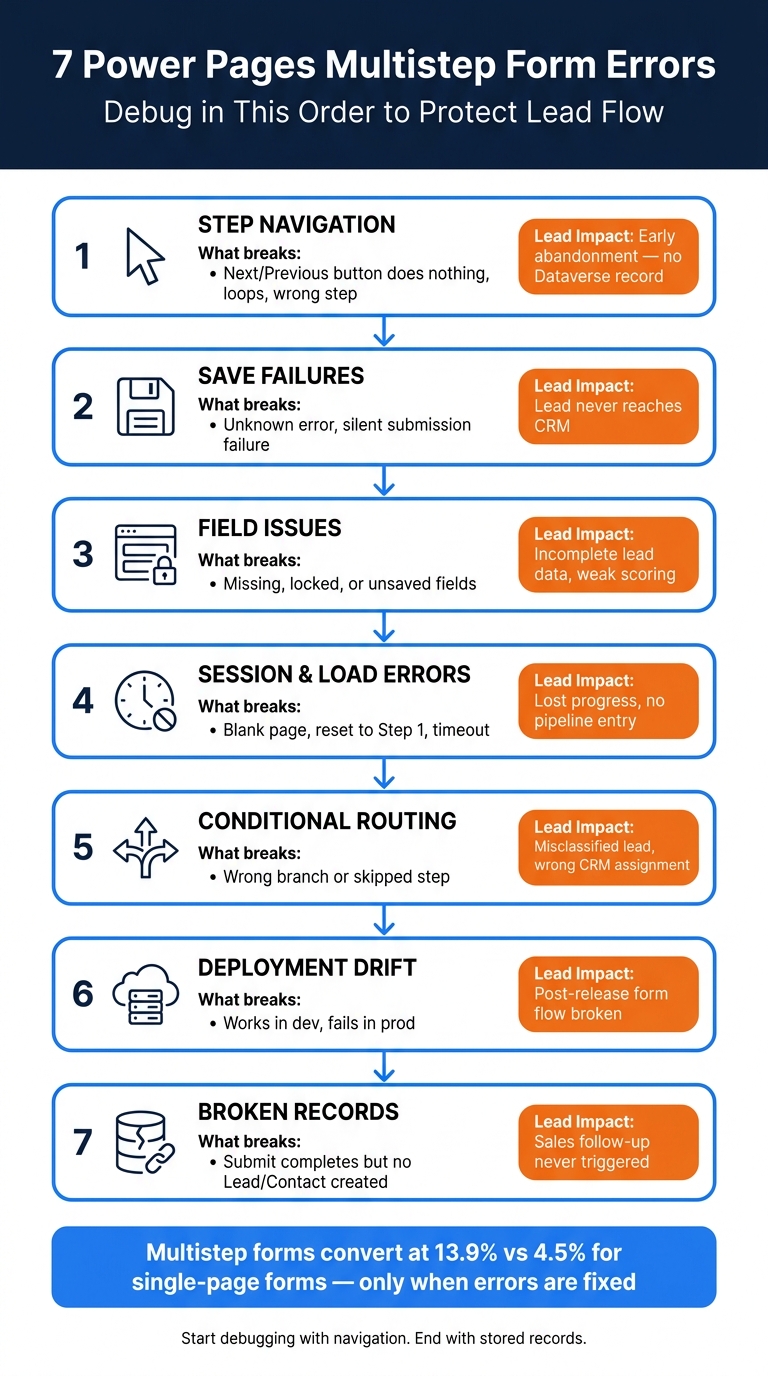
7 Power Pages Multistep Form Errors: Diagnostic Order & Lead Impact
How Multistep Form Errors Hurt Lead Generation
These errors don’t just mess up the form. They interrupt lead generation at the exact point where a prospect is supposed to move into Dataverse. When that breaks, the funnel breaks too. No Dataverse record means no CRM handoff and no sales follow-up.
A Step 1 failure ends the lead right away. Failures later in the flow are different. They waste more of the user’s time and can leave behind partial records. Those incomplete Dataverse records can also block downstream automation, including Power Automate flows.
Missing required fields create incomplete records. That weakens downstream scoring and automation.
Wrong routing creates a second kind of problem. It sends prospects through steps that don’t fit their situation and can classify the lead the wrong way in CRM. Once that happens, your CRM data stops lining up with your segmentation. The result is skewed scoring and slower follow-up.
These failures hit the funnel in different ways:
| Error Type | Lead Generation Impact | Downstream Consequence |
|---|---|---|
| Broken step navigation | User abandons before submitting | No record created in Dataverse |
| Save / unknown failure | Submission appears successful but fails silently | Lead never reaches CRM or sales queue |
| Missing or non-functional fields | Incomplete data captured | Broken workflow triggers, weak lead scoring |
| Session or page load failure | Form resets or freezes mid-completion | Lost progress, no pipeline entry |
| Conditional routing misconfiguration | Wrong step sequence shown | Misclassified lead, incorrect CRM assignment |
Broken step navigation is the first failure to check.
sbb-itb-5f36581
1. Broken Step Navigation Between Pages
The clearest sign is simple: the Next or Previous button does nothing. A user clicks, nothing moves, and there may not even be an error message. In other cases, the button vanishes, the form lands on the wrong step, or the user gets trapped bouncing between steps. On mobile, the button may be pushed off-screen or covered by another element.
In most cases, the button isn’t the problem. The issue usually starts with step metadata. Broken navigation often comes from Dataverse step setup. Every non-terminal step needs a Next Step lookup. Terminal steps should leave that field blank. If a non-terminal step is missing the lookup, Next can look dead. If Move Previous Permitted is turned off on a step that should allow backward navigation, Previous won’t show up. A stale adx_webformsession record can also load the wrong step or stop navigation; delete it and clear the portal cache.
If those step settings look fine, check session data and browser-side errors next. In the Portal Management App, confirm that each non-terminal step points to the right next step, that the steps are active, and that the order is correct. Then open the browser console and test the button click. If custom navigation code is in play, a JavaScript error may be blocking the action.
A failure on the first step stops capture right away. A failure later in the flow can leave behind partial records.
2. Save Failures and Unknown Failure Submission Errors
Save or submit failures in multi-step forms often show up as vague messages like Unknown error or Application uses a value of the wrong type for the current operation. That’s frustrating, because the message doesn’t tell you much.
If the error starts right after someone fills out a certain field, check field length and data type first. In many cases, that’s where things go off the rails.
The most common cause is a mismatch between the form input and the Dataverse schema. A value that’s too long, the wrong data type, or even extra whitespace can stop the write from going through. Another common cause is table permissions. If the user’s Web Role doesn’t have Create, Append, or Append To access on the target Dataverse table, the submission will fail.
To narrow it down fast, look here first:
| Where to Look | What to Check |
|---|---|
| Dataverse columns | Field lengths and data types |
| Portal permissions | Web Role table permissions - specifically Create, Append, and Append To |
| Error logs | Ray IDs or error codes - a 520 usually points to a CDN-origin break, not a form-level validation issue |
If the record saves but some key data is missing, the issue usually sits with that field itself.
3. Missing, Hidden, or Non-Functional Fields
If the save goes through but the record is still incomplete, the problem is often at the field level. You’ll usually spot it in partial lead records: a field looks fine in the designer, but on the live page it vanishes, stays read-only, or never writes anything to Dataverse.
Start with the step’s Related > Metadata settings. These field-level settings can hide a field, make it read-only, or mark it as required. And yes, they can override what the Dataverse form shows on that step.
That matters because hide and read-only settings change what appears on the page, but they do not control access. They don’t replace table permissions or web roles.
If a field is visible but the value still doesn’t save, check the basics:
- Is the field bound to the right Dataverse column?
- Is the step connected to the correct table?
- Does the user’s web role include the table permissions needed to write that value?
Once you make the fix, clear the site cache and test again in a private browser window. That extra check saves time because old cached page data can make it look like nothing changed, though prefilled forms can sometimes bypass these issues by pulling fresh data for known users.
Missing or unsaved fields can leave leads without email, budget, or consent, undermining the benefits of a multi-step form designed to gather high-quality data. That hurts qualification and can create compliance risk.
| Field Issue | Likely Cause | Where to Check |
|---|---|---|
| Field not visible on a step | Hidden metadata or a show/hide rule that never evaluates true | Multistep step Related > Metadata |
| Field visible but read-only | Metadata override or Dataverse form configuration | Form fields and step metadata |
| Value entered but not saved | Wrong column binding, table mapping, or missing table permissions | Dataverse column binding, step target table, table permissions |
If the fields are visible but the form still won’t load or submit, move on to session and page-load checks next.
4. Page Load and Session Errors
If field-level checks pass, the next place to look is session or page-load state. Sometimes the page doesn’t load at all. Other times, users get kicked back to Step 1 in the middle of the flow before Dataverse saves the record.
The usual signs are pretty clear: a blank step, a loop back to the start, or a timeout after a few minutes. In most cases, the problem comes down to one of two things: the session expired before the user finished, or the page lost the form state.
When a session times out mid-form, any data stored only in the browser - and not yet written to Dataverse - is lost. That’s why saving the record at Step 1 matters so much. Create the record at Step 1, then extend it across later steps. This gives you a record of partial data even if the user never clicks Submit.
To troubleshoot, review a few core areas:
- Check the web page settings for each form step
- Review authentication and session timeout settings
- Look through site logs for load failures that don’t appear as visible page errors
The real fix is durable record persistence, not browser-only state.
| Storage Method | Reliability | Recovery if Abandoned |
|---|---|---|
| Session/Cookie Storage | Moderate - lost on timeout or cookie clearing | Not possible |
| Database Persistence (Extend Record) | High - survives interruptions | Partial lead can be recovered |
5. Conditional Routing Misconfigurations
When a form loads but sends leads to the wrong place, you're usually looking at a conditional routing problem. One of the most common issues is simple but nasty: the rule compares a display label to a numeric Dataverse field. The result? Every lead can get sent down the wrong branch without any warning, which misclassifies prospects and kicks off the wrong follow-up right away, failing to enrich leads effectively.
The usual culprits are a bad step pointer, faulty logic, a data type mismatch, or the wrong source record. In Power Pages, you set up conditional steps in the Portal Management app under the multistep form's Form Steps and Condition tabs. If a condition step is missing either Next Step or Next Step If Condition Fails, the branch breaks. After that, check whether the step before it actually points to the condition step.
That part matters more than people expect. The prior step has to point to the condition step, or the rule never runs at all. Even if the logic is perfect, it still fails quietly when the earlier step routes somewhere else. The condition step's Form Definition also needs Source Type set to Results From Previous Step and the right Entity Source Step selected. If not, the condition runs against the wrong record - or no record at all.
This kind of setup issue doesn't just create a messy form flow. It hits sales and compliance too. If qualification steps get skipped, sales reps end up with leads missing budget, timeline, or company size details. If SMB leads get marked as Enterprise, or the other way around, outreach gets off track fast. And if routing skips a consent or opt-in step, U.S. companies handling personal data can run into compliance trouble.
Use the symptom table below to track down the issue faster.
| Symptom | Likely Cause | Where to Check |
|---|---|---|
| User jumps to wrong step or loops back | Incorrect Next Step or Next Step If Condition Fails pointer | Condition step → Next Step / Next Step If Condition Fails |
| Required step never appears | Prior step doesn't point to the condition step | Prior step's Next Step field |
| Next click does nothing | Target step record doesn't exist or is inactive | Next Step / Next Step If Condition Fails |
| Choice field routing fails | Logic checks the label instead of the underlying value | Condition tab expression |
6. Environment and Metadata Drift After Deployment
When a form works in test but breaks in production, deployment drift is often the reason.
This problem is easy to miss. At first glance, everything seems normal. The multistep form loads, the branding shows up, and Step 1 renders just fine. Then the user tries to move to Step 2 and gets a generic error. In other cases, the form appears to work but quietly fails to save. After deployment, completion rates often drop because Step 2 breaks or silent save failures start piling up.
One common cause is incomplete solution packaging. Say a required column was added in dev, but that schema update never made it to production. The form can break even though the UI still looks okay. Other causes include production hotfixes, mismatched permissions, and stale environment variables.
Review Web Forms, Web Form Steps, and form definitions in both environments. Then compare the Dataverse schema, lookup views, and option sets. A missing column or a changed required level can break the step.
Broken deployments interrupt high-intent visitors right in the middle of the flow. They also leave behind incomplete leads, which can throw off downstream scoring. Use managed solutions, and run a full smoke test after every deployment. That test should include conditional paths and a fresh browser session, not just the happy path.
If the setup matches across environments, the next place to look is corrupted or orphaned multistep form records.
| Where to Check | What to Look For |
|---|---|
| Portal Management App → Web Forms / Web Form Steps | Step-to-table mappings, Next Step pointers, form definitions |
| Dataverse table schema | Column names, data types, required levels across environments |
| Solution layers | Unmanaged components or missing columns in the target environment |
| Environment variables | Correct endpoints and keys updated for production |
| Security roles / table permissions | Consistent create, read, update, and delete access for site users |
7. Corrupted or Orphaned Multistep Form Records
If the form still breaks after you’ve checked steps, fields, and permissions, look at the stored form records. Corrupted or orphaned multistep form records can send users back to Step 1, load a blank or incorrect next step, or let the form submit without creating a Lead or Contact.
The usual causes are lookup and schema changes, orphaned child rows, failed plug-ins or flows, and stale sessions. When references break, the finished step can’t link back to the parent record. That’s why the form may look like it worked even though nothing actually lands in Dataverse.
Check the record chain in this order: start step, child steps, then session rows. In the Portal Management app, make sure the multistep form record’s Start Step lookup points to a valid, existing step. If it’s blank or holds a hidden lookup value, update it and save. Next, review the related form steps for orphaned or invalid references, then reattach or remove anything that no longer matches the current setup. After that, delete stale session records and clear the site cache.
This can hit lead flow hard. Sales teams may miss follow-ups because finished forms don’t always create or update a Lead or Contact record in Dataverse. Marketing attribution also breaks down when web analytics show completions that CRM reports don’t show. And downstream automations, like nurture sequences, lead scoring, and territory assignment, may never run because they rely on a valid parent record.
| Symptom | Where to Check | What to Fix |
|---|---|---|
| Form resets to Step 1 | Multistep form record → Start Step field | Point Start Step to a valid, existing step |
| Submit fails after a step change | Multistep form steps and form metadata | Remove or reattach steps with invalid references |
| No Lead or Contact created after submit | Dataverse child step records and parent lookup fields | Restore the parent-child relationship or recreate the missing parent record |
| Users stuck in old session state | Sessions tab | Delete stale session records and clear site cache |
Step Navigation Errors at a Glance
Use this table to spot the most common Power Pages navigation setup problems, what users usually see, and where to look first. If the form won’t move forward, start with navigation. If the click works but the form still doesn’t submit, switch your attention to save errors.
| Misconfiguration | User Symptom | Where to Check | Impact on Lead Flow |
|---|---|---|---|
| Missing Next Step lookup | Next button does nothing, reloads the same step, or shows a generic error | Power Pages Designer → Form Steps; Dataverse → Advanced Form Step table | Early abandonment; fewer completed forms |
| Incorrect step order or sequence | Steps appear out of order or repeat unexpectedly | Power Pages Designer → Form Steps list; verify Order/Sequence values and the associated Advanced Form Step records | Lower completion rates; weaker lead quality |
| Conditional first step without a default path | Users skip the intro or qualification step, or land on a blank page | First step configuration; review conditional rules and whether a default path is set when the condition fails | More unqualified leads; more manual follow-up |
| Shared step record across forms | Users are redirected to a step that belongs to a different form or context | Dataverse → Advanced Form Step table; confirm each multistep form uses its own steps | Unpredictable flow; lower trust |
| Broken final redirect | After submitting, users see a 404 or "Page not found" message | Last step configuration; check the Redirect URL or Web Page property and confirm the target page is published | Broken post-submit handoff . Using a dedicated tool can help you build optimized conversion paths that avoid these technical pitfalls |
| Role-based path mismatch | Some users loop back to a previous step or hit a dead end | Web Page Access Control Rules, security roles, and any conditional navigation JavaScript on the form page | Incomplete records; extra manual work |
The Navigation Steps indicator is read-only. It only shows the current step, so it won’t tell you why the form got stuck.
If a click triggers a field error or no record gets created, treat that as a save or validation problem instead.
If navigation looks right but the form still breaks later in the flow, the next place to check is save behavior.
Save Failure Symptoms by Environment
When save behavior changes across environments, start with permissions and metadata. In Power Pages multistep forms, save failures in Dev, UAT/Test, and Production often show up in different ways. A form can work fine in Dev, where admins usually have broader access, then fail in UAT or Production once tighter security or metadata differences come into play.
Sometimes a submission looks like it worked, but no record shows up in Dataverse. That’s a useful clue. It usually helps you separate permission problems from schema drift pretty fast. In most cases, the issue points to table permissions, entity or table binding, field mapping, or an environment variable or connection mismatch. When the save fails silently, the lead-gen multi-step form never reaches CRM.
Use the environment pattern first. It’s often the fastest way to narrow the problem before you start checking fields one by one.
| Symptom | Environment Where It Appears | Likely Cause | Where to Check |
|---|---|---|---|
| Works in Dev, fails in UAT | UAT/Test | Missing table permissions, web role mismatch, or metadata drift after solution import | Dataverse table permissions; web role assignments; solution import logs |
| Submission looks successful, no Dataverse record created | Any, most common in UAT/Prod | Incorrect entity/table binding, missing Create/Write privileges, or custom JavaScript canceling the save | Form entity settings; table permissions; browser console for script errors |
| Record partially saved; later steps fail | UAT/Prod | Field-level security, required column mismatches between environments, or ownership issues on update steps | Field-level security profiles; step metadata; Dataverse column requirements |
| Only admins can save; standard users fail | UAT/Prod | Web role or Dataverse security role not granting Create/Write to non-admin users | Table permissions; web role configuration |
| Intermittent failures during peak hours | Production | Throttling, resource limits, or cache lag | Environment capacity dashboards; portal error logs; service health |
| Generic "unknown failure" on save | Any | Metadata or schema mismatch, such as a form step referencing a field that was removed or changed type after migration | Advanced Form Step records; Dataverse column definitions; solution version |
One small but important detail: System Admin and System Customizer roles include table-level privileges by default, while Environment Maker does not include table access by default. That gap explains a lot. A developer testing with an admin account may see clean saves, while a UAT tester with a standard account runs straight into a blocker.
After deployment, clear the portal cache through /_services/about. The refresh can take up to 15 minutes.
Field-Level Troubleshooting Checklist
If the page loads but a field still fails, trace the issue at the field layer. In most cases, field problems land in one of four buckets: visibility, interactivity, persistence, or validation. The checklist below helps you match the symptom to the first setting worth checking.
Start with Related > Metadata on the step record. That’s the first place to review visibility, required state, and Set Value On Save. If one of those settings is off, a field can look fine on screen but still end up blank in Dataverse. That can cost you consent data, email addresses, or qualification answers.
If the issue shows up for only some users, compare their web roles and table permissions against an account that works.
Custom JavaScript is another common culprit. It can hide fields, disable them, or break validation when HTML IDs change after updates. And there’s a sneaky case here: if a hidden field still has a required validator attached, form submission can fail without a clear on-page error. If script hides a required field, clear the required validator or keep the required state in sync.
| Symptom | First Check | Second Check | Third Check |
|---|---|---|---|
| Field disappears or never renders | Form metadata (hidden flag, visibility rules) | Custom JavaScript (HTML ID selectors) | Portal user read permissions on the column |
| Field is unexpectedly read-only | Step metadata (edit vs. display-only mode) | Dataverse column type or server-side logic | Custom JavaScript disabling the control |
| Value never saves to Dataverse | Set Value On Save setting in step metadata | Record Source Type and Entity Source Step configuration | User write/append permissions on the table |
| Validation always fails | Custom JavaScript validators and locale-sensitive input formats (for example, MM/DD/YYYY and comma thousands separators) | Required/optional state versus field visibility mismatch | Server-side business rules, workflows, or plugins overwriting values after submit |
| Field works for admins, fails for standard users | Web roles and table permissions | User–record association | Anonymous vs. authenticated session context |
Source-backed fields need one more check. Verify Entity Source Step and Table Reference on Save. If that link is wrong, fields can stay blank or write to the wrong record.
Sessions, Permissions, and Load Failures
If navigation, save, and field checks all pass, the next thing to look at is usually the page load itself.
In Power Pages multistep forms, load failures rarely start with the form. Most of the time, they come from three places: stale or expired sessions, table permissions that aren't set right, or portal version or cache problems. On screen, these issues can look almost the same: a blank step, a redirect to the sign-in page, or a generic "Something went wrong" message.
There is one useful clue, though. Blank steps and sign-in redirects usually point to either permissions or session state.
By default, Dataverse blocks access unless table permissions allow it. Anonymous users need Global Read/Create permissions. Authenticated users need the right table permission tied to the correct web role.
You should also check Authentication/SessionTimeoutEnabled and Authentication/SessionTimeoutInMinutes, then compare those settings with how long users usually take to finish the form and how long the identity provider token stays active. If those time limits don't line up, users can get bounced out halfway through.
This table helps sort session problems from permission problems:
| Error Type | What to Check First | Typical Fix |
|---|---|---|
| Step loads blank, no error shown | Table permissions for the Dataverse table on that step | Create a Read permission for the table and link it to the correct web role |
| "Access Denied" or 403 response | Web role association on the table permission | Link the permission to the Anonymous Users or Authenticated Users web role |
| User redirected to sign-in mid-form | Session timeout site settings and identity provider token lifetime | Review Authentication/SessionTimeoutInMinutes and align it with token expiry |
| Form works for admins, blank for standard users | Permission scope and web role assignment | Switch scope to Global temporarily to confirm whether relationship-based access is the issue |
| Load failure only in production, not sandbox | Portal cache and web form metadata migration | Clear portal cache and verify step metadata migrated correctly after deployment |
| Stale session after long inactivity | adx_webformsession records and browser cookie state |
Delete stale session records for affected contacts; have users clear cookies and retry |
| Site Checker flags missing table permissions | Enable Table Permissions on multistep form steps | Enable the setting per step, then publish and clear cache |
After any deployment or permission update, run Power Pages Site Checker. It flags missing table permissions and page-access mismatches that often lead to blank loads.
Conditional Logic Audit Table
Wrong routing sends good leads down the wrong follow-up path, hurting your lead capture conversion rates. If the form moves forward but lands on the wrong step, start by checking the branch rule.
Use this table to review branch rules, source-step settings, and both true/false destinations. One small but easy-to-miss rule: a Condition step can't be first.
| Branch Condition | Intended Destination | Misconfiguration | Lead Impact |
|---|---|---|---|
new_estimatedbudget >= 10000 |
Step 3 – High-Intent Pricing Questions | Operator set to > instead of >=; field stored as text, breaking numeric comparison |
Leads at exactly $10,000 never see pricing questions |
new_jobrole = "TECH" |
Step 2 – Integration Requirements | Condition checks display label instead of schema value TECH |
Technical buyers are routed through generic messaging |
new_country = "US" |
Step 4 – U.S.-Specific Compliance & Consent | Condition uses "USA" instead of stored value "US"; false path is left empty |
U.S. leads skip consent fields; non-U.S. leads hit a dead end |
new_companysize = "ENT" |
Step 3 – Enterprise Qualification | Display name used instead of schema value ENT; Results From Previous Step is selected, but Entity Source Step is blank |
Enterprise leads fall into generic nurture |
new_numberofemployees > 250 |
Step 5 – Enterprise Sales Qualification | AND/OR grouping is misconfigured; overlapping SMB condition also matches | Leads are misclassified in CRM, and downstream automation targets the wrong segment |
As you review each row, make sure the expression uses the schema name, not the display label. Also check that both the true and false destinations are set on purpose. If a branch hides a required field, flag it right away. That kind of setup can block submission without any clear warning because the user never even sees the field.
If routing works in testing but fails after deployment, check metadata drift next.
Post-Deployment Drift Checklist
When a deployment breaks a form only in production, this checklist helps you track down the drift fast. Run through it after every deployment or solution import so you can catch metadata gaps, broken lookups, permission issues, and portal version mismatches before they disrupt lead flow.
| Drift Area | What to Check | How to Test | Status |
|---|---|---|---|
| Metadata completeness | Verify step order, Start Step, required fields, schema names, and save/validation settings match production. | Compare source and target form definitions, then step through the live form end to end. | Pass / Fail |
| Lookup consistency | Confirm all table, view, page, and lookup references point to existing production records. | Navigate each step in production and confirm buttons, redirects, and related records load as expected. | Pass / Fail |
| Web roles | Each web role exists in production and is linked to the correct portal website. | Log in as each role and test every step. | Pass / Fail |
| Table permissions | Create, Read, Write, and Append/Append To rights are assigned to the right web roles with the correct scope. | Submit Step 1 and confirm Step 2 loads without access errors. | Pass / Fail |
| Cache clearing | Portal cache is cleared after deploying web pages, forms, site settings, roles, or permissions. | Open the form in a private window and confirm the updated step sequence. | Pass / Fail |
| Portal version alignment | Portal runtime version matches across environments and custom scripts work against the target version. | Check the version in each environment and retest navigation and saves if they differ. | Pass / Fail |
| Start Step validation | The Start Step points to a valid step record and its associated web page is published and reachable by the intended audience. | Test the direct URL from a fresh session and confirm the form starts on the expected step. | Pass / Fail |
A couple of cleanup steps matter here too. After step changes, delete stale multistep form sessions before retesting. Then clear the portal cache using the /_services/about endpoint or the portal admin interface. If the issue still sticks around, check that the Website Record points to the correct site.
If every item passes, you can stop treating this like deployment drift.
Where Reform Fits for More Reliable Multistep Lead Flows
If you want fewer moving parts in future lead forms, Reform keeps multistep logic in one place. It’s a no-code form builder where multistep flows, conditional routing, and save behavior are set up in one visual interface.
That matters more than it sounds. When logic lives in one place, teams are less likely to run into routing mistakes or deployment drift. Say a marketer wants to send a respondent with an annual budget of at least $50,000 to a high-priority qualification step and apply a High Value tag right in the builder. Reform lets them do that without stitching together extra tools.
Reform also shows step-level drop-off, completion rates, and field performance in real time. So when a form has friction, teams can spot it fast and fix it before it turns into lost pipeline.
On the data quality side, Reform’s built-in spam prevention and email validation help cut invalid submissions before they hit downstream systems. On Pro, save drafts and incomplete response tracking let respondents come back later. That helps keep partial leads in play when someone leaves and returns.
Reform works best as a specialized front end for high-intent lead capture. Leads collected in Reform can sync to Dataverse or other CRM tools through integrations, which helps keep downstream workflows intact. If a multistep form drives a main part of your pipeline or needs frequent updates from non-developers, Reform is a strong match for high-intent forms that change often.
Use it for:
- Demo requests
- Pricing forms
- Other high-intent lead capture flows
For high-intent lead forms, fewer moving parts usually mean fewer places for things to break.
Conclusion
Across these seven errors, the same pattern shows up again and again. Most Power Pages multistep form issues come back to step flow, permissions, metadata, sessions, routing, deployment drift, or broken records. If you start with that pattern, you can narrow the cause much faster.
Work through the list in this order: navigation, permissions, metadata, sessions, routing, deployment drift, and then records. That matches the diagnostic flow used throughout this article, so you’re not jumping around or chasing the wrong thing first.
Completion rate is the clearest signal. If it drops after a change or deployment, that’s a direct hit to pipeline. Multistep forms aren’t just a UI layer. They affect revenue.
Fix the problem, then put guardrails in place so it doesn’t keep coming back. Use version control, run post-deployment checks, and audit sessions and routing on a regular basis. That’s how you keep lead flow steady by prioritizing lead quality over volume.
FAQs
How do I isolate the failing step fast?
Check browser storage in DevTools first. Confirm that the saved step index matches the position the user says they reached.
Then review server logs for partial saves. You want to see whether the app stored the latest data before the session stopped.
Next, test validation failures. Make sure error messages show up, but the user’s data stays in place instead of disappearing or getting reset.
After that, confirm step index restoration. If someone comes back to the flow, the app should return them to the correct step rather than dropping them somewhere else.
Last, compare abandonment against validation issues or autosave failures. If people leave right after an error or a failed save, that’s a strong clue about what’s going wrong.
Why does the form work for admins but fail for users?
This usually comes down to differences in permissions, validation, or environment. Admins may skip or cache certain checks, while users run into rules that stop them from moving forward.
Look for hidden required fields, make sure conditional logic only runs validation for the user’s current path, and verify authentication, integration, or CRM permissions for public users.
What should I verify after deployment?
After deployment, test the form in the live environment, not just preview mode. Check every navigation path to make sure the step order and progress indicators stay in sync.
Also make sure validation errors show up on the right fields without clearing what the user already entered. Review the browser console and network tab for 4xx/5xx responses or JavaScript errors. Confirm that data persists, saved progress works, and CRM mapping does not create duplicate records.
Related Blog Posts
Get new content delivered straight to your inbox

The Response
Updates on the Reform platform, insights on optimizing conversion rates, and tips to craft forms that convert.




Drive real results with form optimizations
Tested across hundreds of experiments, our strategies deliver a 215% lift in qualified leads for B2B and SaaS companies.
